From your App Store link to a page Apple reviews.
Paste your App Store link and Pagefully plans three custom product pages for your app and designs one from your real screens, before you sign up. Connect App Store Connect, approve the page, and Pagefully sends it. When your app changes, the page is drawn again.
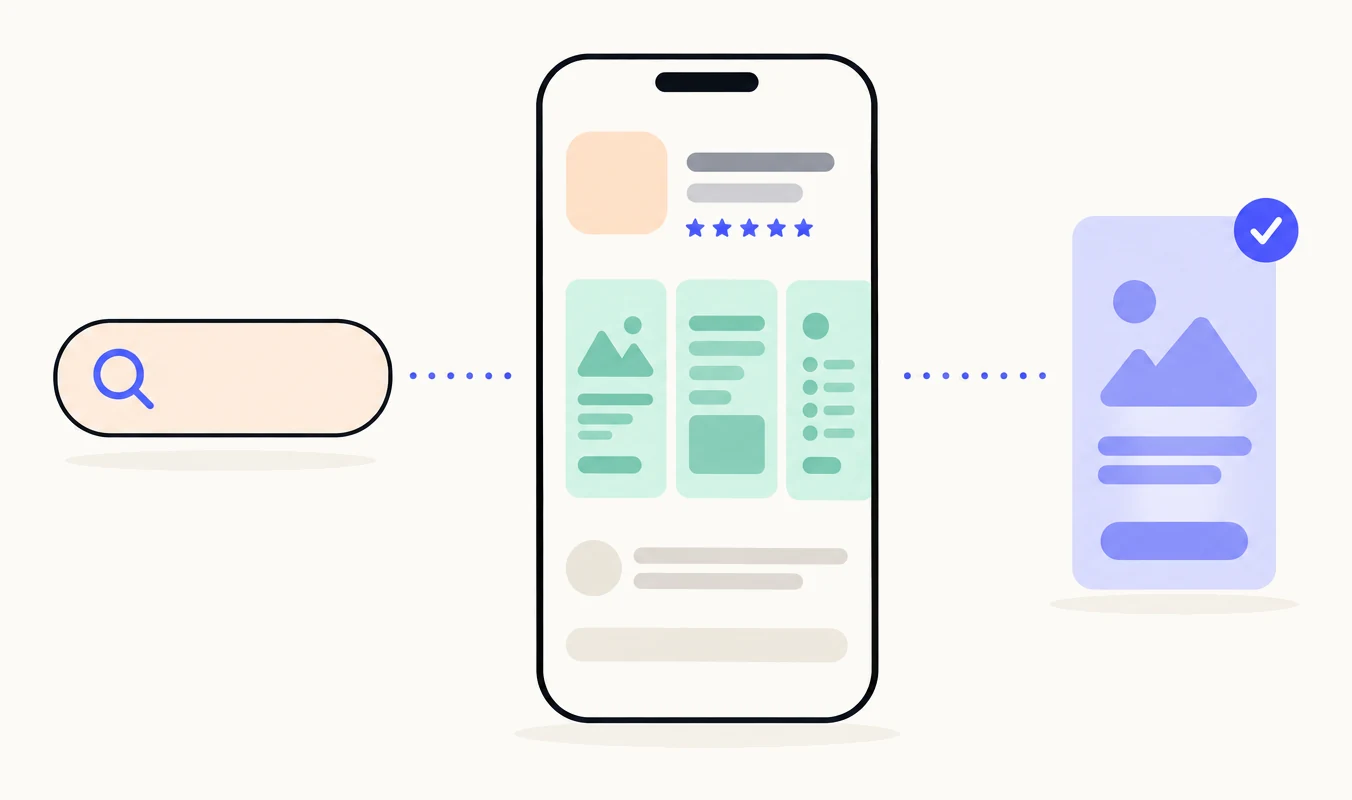
What do you start with?
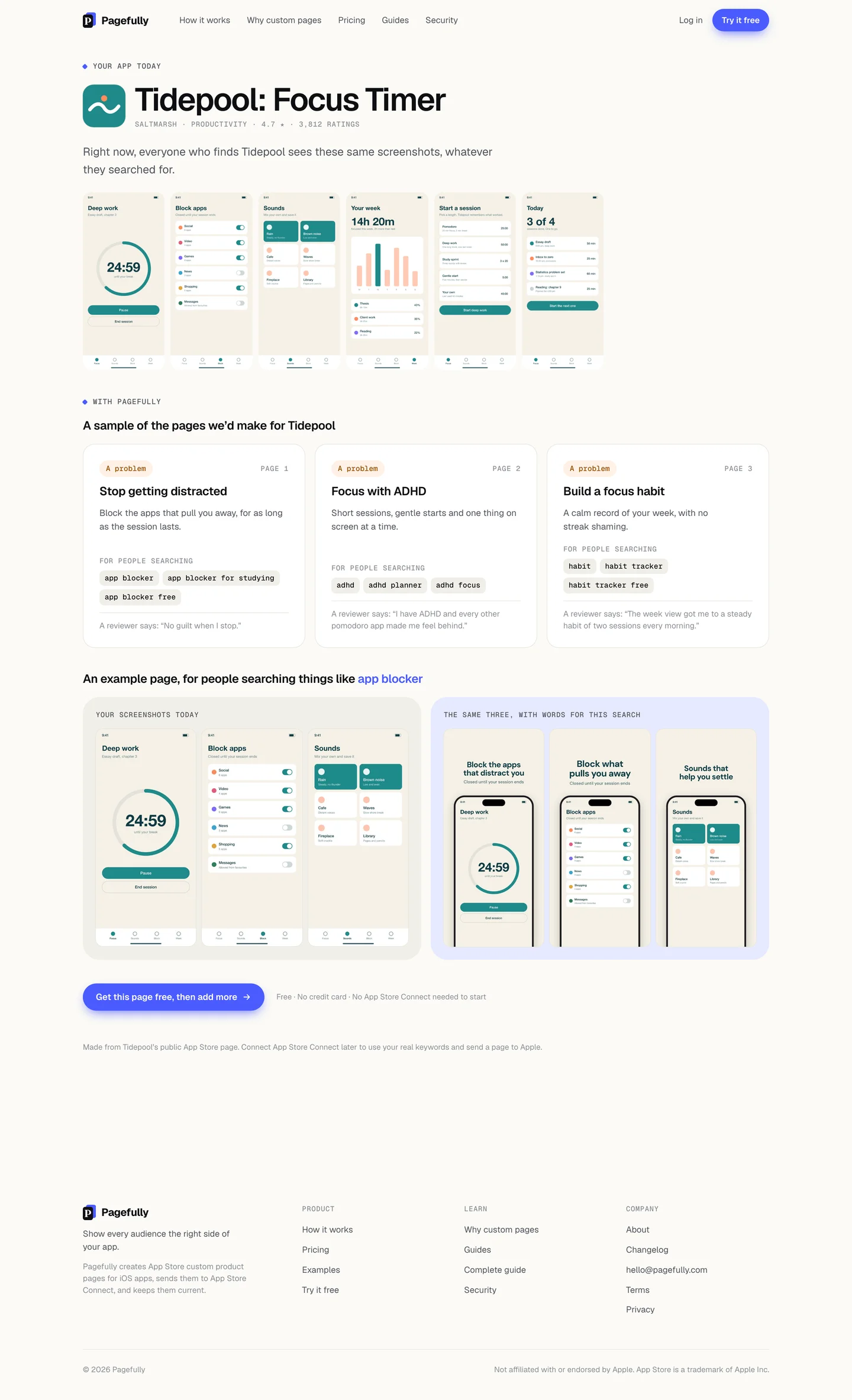
Your App Store link. Nothing else: no signup, no key, no form to fill in. Pagefully reads your public listing and in about a minute shows you three pages planned for your app, each with the reason it is worth making, and one of the three designed on your own screenshots.
If you have not read what a custom product page is, start with the complete guide. In one line: it is another version of your app’s App Store page, under your app with your name and reviews, with its own screenshots, promotional text and link. Your default page stays as it is.
How are the pages planned?
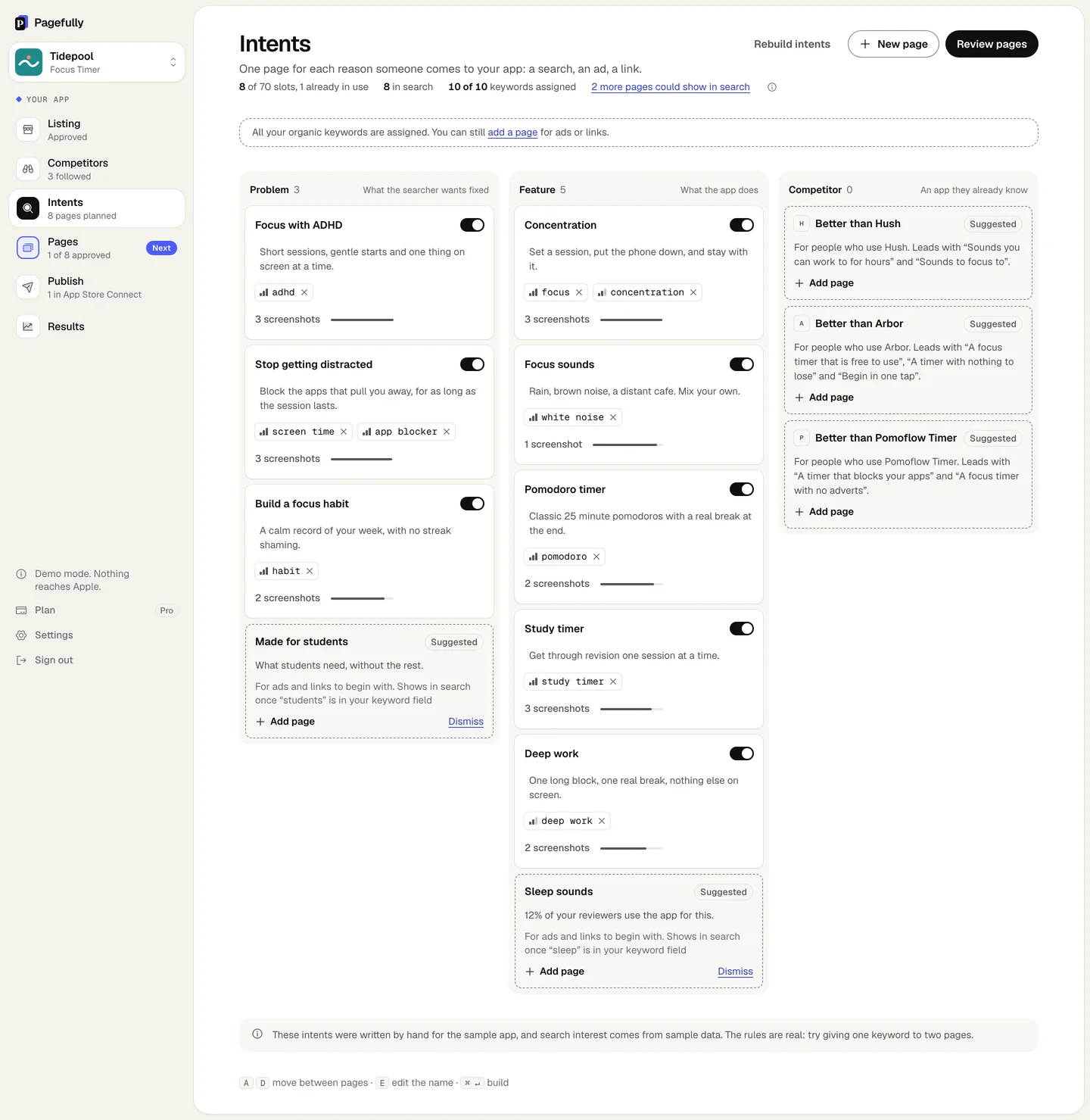
From what your listing already says. Pagefully reads your name, subtitle, description, keywords and screenshots, your public reviews, and the apps that rank beside you for the same searches. From that it picks one page per audience or search: the people who come to your app for one reason that your default page does not lead with.
Each page carries its reason, in plain words. “People searching white noise for babies see a catalogue page; this page shows the baby sounds first.” If the reason does not hold for your app, you drop the page. How many pages your app needs explains why three is the right number to start with and when to add more.
How are the screenshots designed?
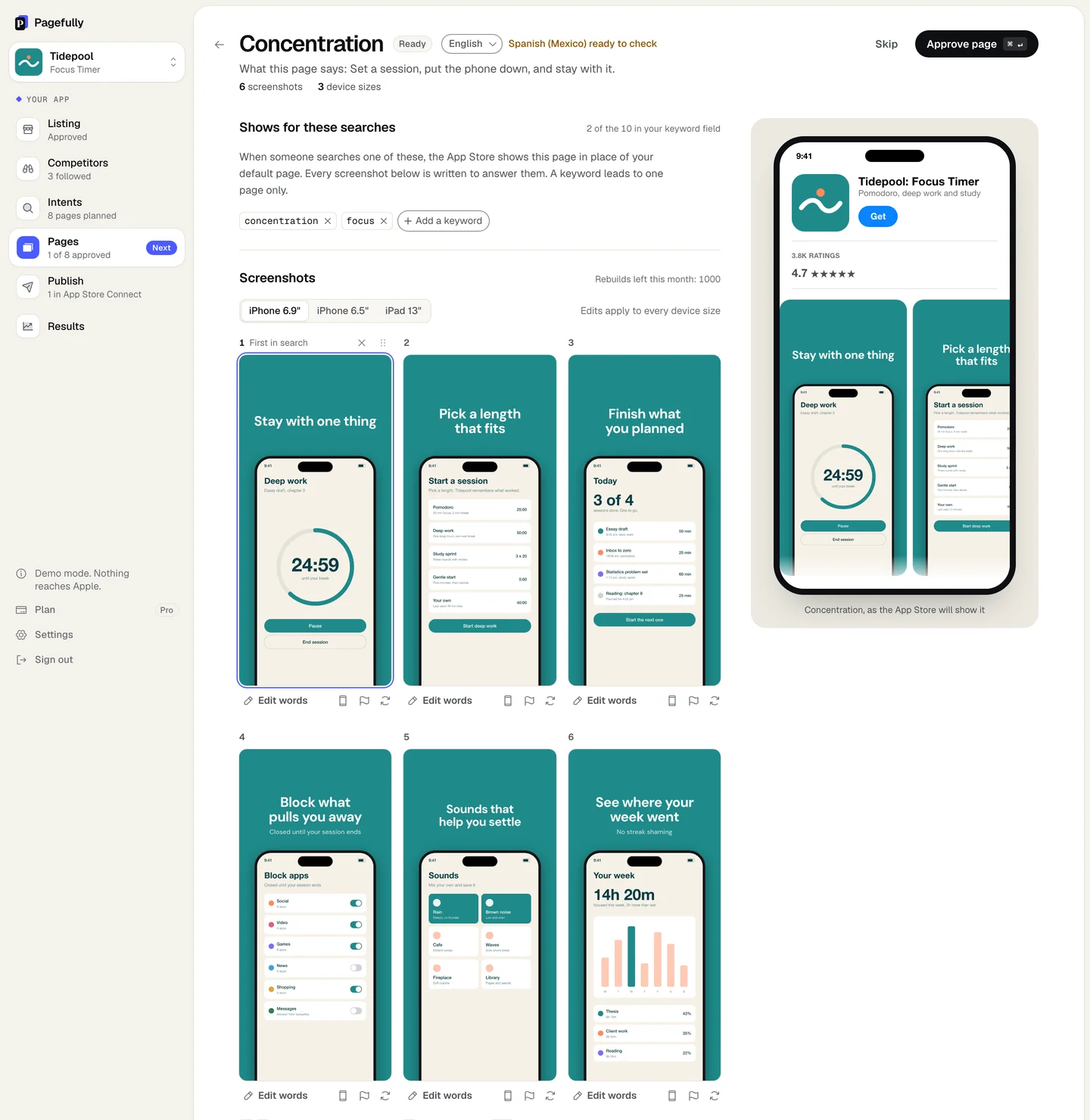
From the screenshots already on your App Store page. Nothing invents a feature or a screen your app does not have. For each page, the headlines are rewritten for that audience, in your typeface, your colours and your layout, and the screens are reordered so the one that answers the search comes first.
Every size Apple needs is produced at once: each iPhone and iPad size that your listing requires. Before you see a page it is checked for claims App Review commonly rejects and for every required size.
Then it is yours. Change a word, swap a screen, move one up. Or change nothing. The free page includes one revision; see pricing for the rest.
How does a page get to Apple?
In six steps, and you click the ones that matter.
- Sign up.An email address is enough. The page you previewed is waiting in your account, yours to edit.
- Connect App Store Connect with an App Manager key.A guided setup of about two minutes. The key reads your listing and creates custom product pages, and nothing more. What it can and cannot do is on the security page.
- Approve the page.Read every screenshot in every size. Change a word or swap a screen if you want to. Nothing is sent until you click approve.
- Pagefully sends it to App Store Connect.The page is created under your app with its screenshots, promotional text and keywords. Your default page is not touched.
- Submit it to Apple for review.One button, which says exactly what it will do. Apple reviews every custom product page before it goes live.
- If Apple asks for a change, you see why.Apple’s note is shown as Apple wrote it. Fix the page and send it again.
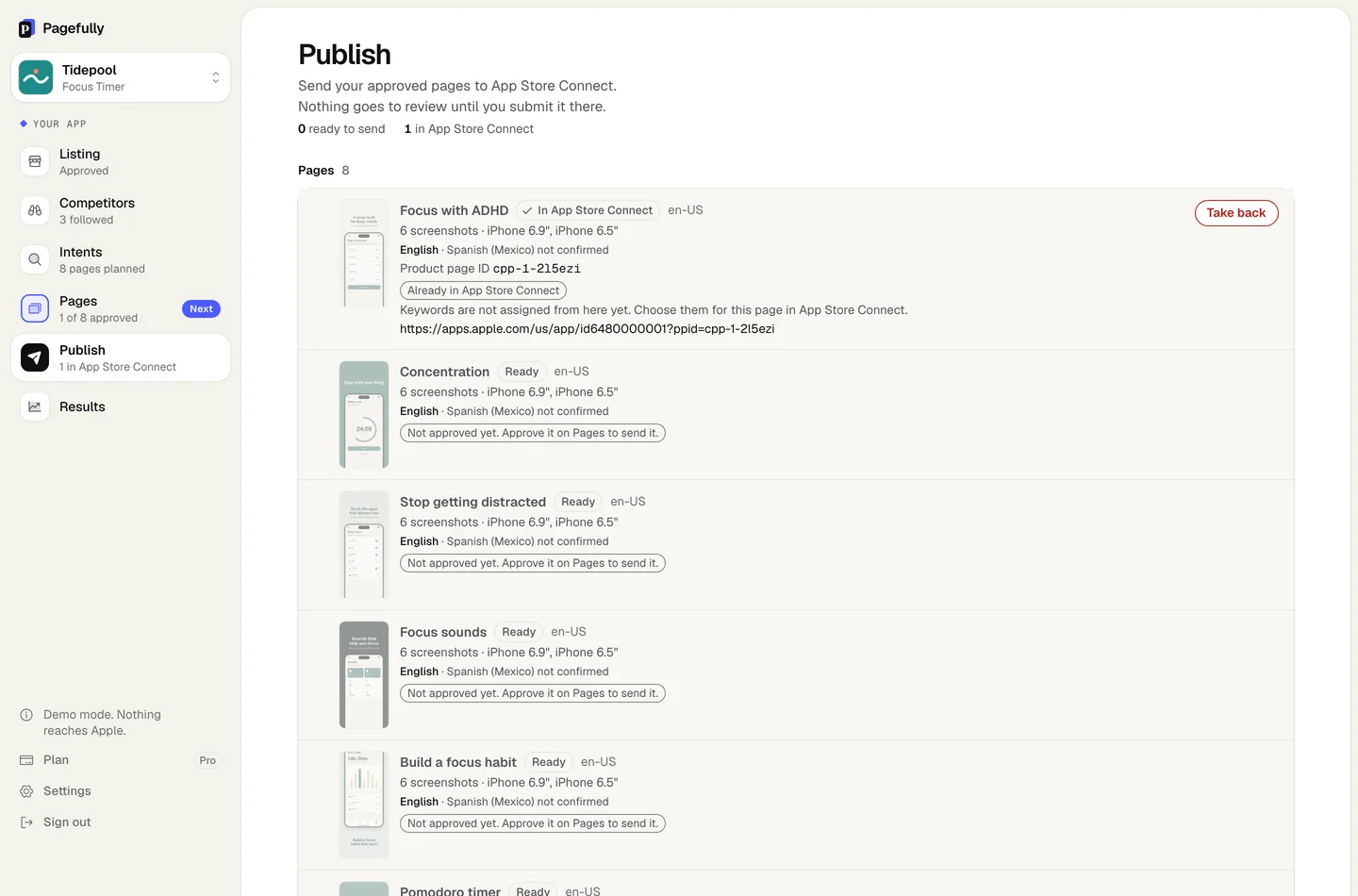
Nothing goes to Apple without your click, and every step that changes something at Apple shows exactly what will change first. What the key can do lists what Pagefully reads, what it writes only when you say so, and what it never touches.
What continues after that?
Your app keeps changing, and a page that shows last year’s screens works against you. With Pro, Pagefully keeps your pages current and tells you what to make next.
- Pages that keep up with your app. After an update, Pagefully reads your listing again and your pages are drawn again from the new screens. Unlimited on Pro; on the Pack, you buy a refresh when you need one.
- The next page worth making. Your keywords, reviews and competitors are read again for an audience worth its own page. Pro.
- Revisions worth making. A page worth revising gets a suggested new lead screen or headline. Pro.
- Seasonal and launch variants. A version of a page for a season or a new feature, swapped in and back out.
- A weekly note. One email each week: what changed, and the pages worth adding next.
- Competitors. The Pack includes one snapshot of the apps beside you when your pages are made. Pro watches up to five and tells you when their pages change.
On Pack and Pro, Pagefully reads each page’s results from Apple: views, downloads and conversion, against your default page, read every morning. It needs an Admin key, since Apple lets only an Admin key request analytics reports; everything else works with App Manager.
What do you supply, and what do we never touch?
You supply your App Store link to preview. To send a page, an App Store Connect key with the App Manager role, through a guided two-minute setup.
You approve every page before it is sent. Pagefully prepares and recommends; you decide.
We never touch your default page, your app build, your prices or your in-app purchases. The key is encrypted before it is stored, never shown again, and you can revoke it in App Store Connect at any time. Your pages stay live if you do.
What does it cost?
The first page is free, with no card: planned, designed, sent to App Store Connect when you approve it, with one revision. It stays live whatever you do next. After that, pay $49 once for the Pack of 10 pages, or keep every page current with Pro from $29 a month billed yearly. Pricing is per app. See pricing, or look up your app and see its first page.
See your first page.
Look up your app. In about a minute you see three pages planned for it and one designed on your own screenshots, before you sign up.