App Store in-app events: how they work and when to use one
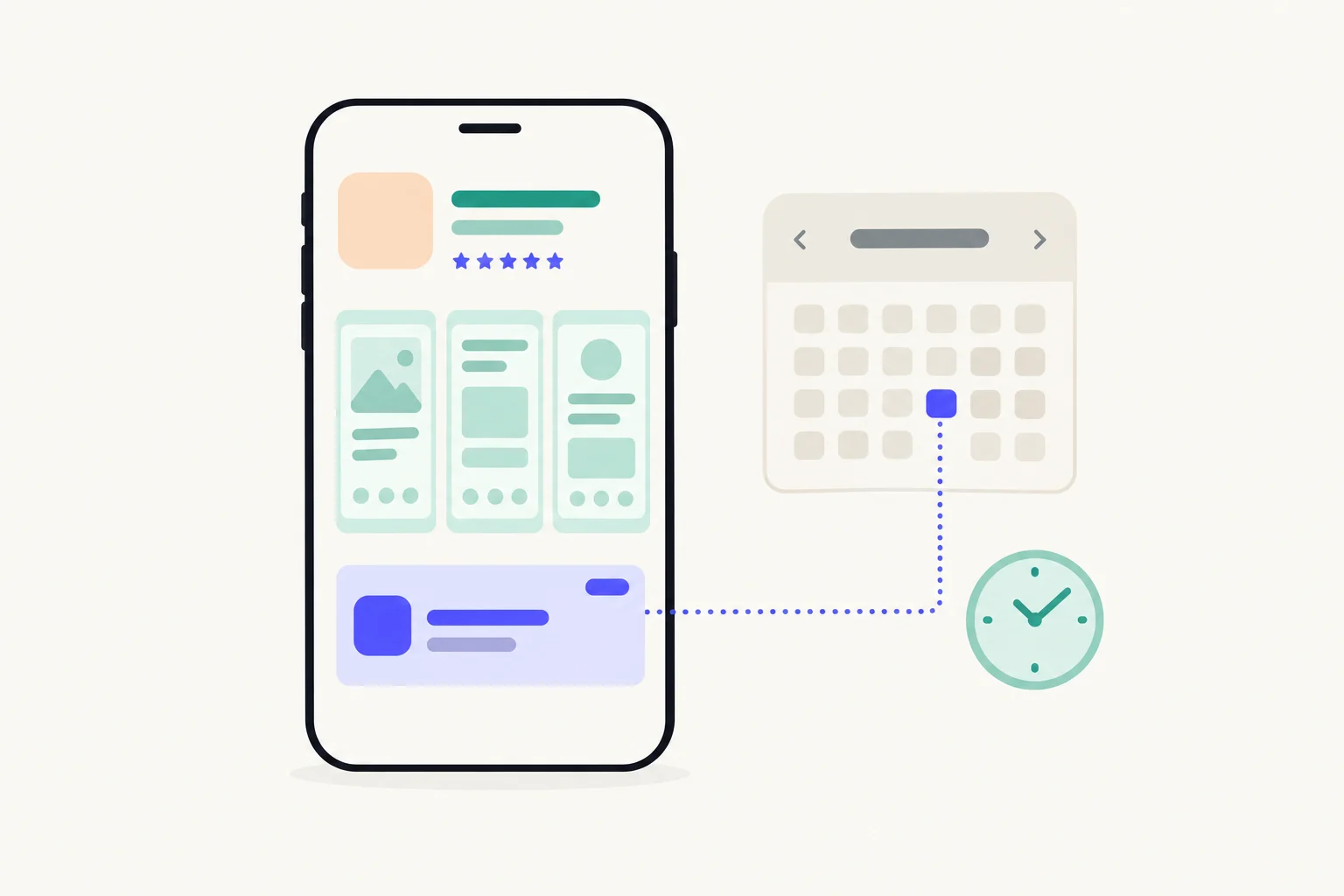
An in-app event is a card on the App Store for something timely happening inside your app: a challenge, a competition, a live event, a premiere, a new season, a major update or a special event. It appears on your product page, in search and in Apple’s editorial and personalised picks, lasts up to 31 days, can be promoted 14 days ahead, and is reviewed on its own without a new app version. Up to 10 can be published at once.
| Published at once | Up to 10 per app |
|---|---|
| Approved in App Store Connect | Up to 15 at a time |
| Length | Up to 31 days |
| Promotion before start | Up to 14 days |
| Review | Submitted independently of a new app version |
| Badges | Seven: Challenge, Competition, Live Event, Major Update, New Season, Premiere, Special Event |
Where do in-app events appear?
In three places, by Apple’s account.1
- Your product page, which shows all your currently published events. They are ordered by start time, soonest first, with any you mark as high priority ahead of the rest.
- Search results. When people search for an app, the event card appears beside it for people who have downloaded the app; people who have not see screenshots. People can also search for events directly, and the card then appears with your app.
- The Today, Games and Apps tabs, in editorially curated selections and personalised recommendations.
That search rule is the one to plan around. For people who already have your app, an event can take the place your screenshots hold for everyone else. For people who do not, search still shows your screenshots. Apple also says that whatever purpose you choose for an event (new users, active users or lapsed users), a published event can be found by every customer.1
What are the limits?
Ten live, fifteen approved, thirty-one days each. An app can have up to 10 events published on the App Store at a time and up to 15 approved in App Store Connect; an event can last up to 31 days and be promoted up to 14 days before it starts.1 Events are submitted for review on their own, so you do not need a new app version for each one.1
Which event badges are there?
Seven, and your event must fit one of them: guideline 2.3.13 says an event must fall within an event type provided in App Store Connect to be featured.2 Apple describes each.1
| Badge | For | Apple’s example |
|---|---|---|
| Challenge | Reaching a goal before the event ends | A fitness challenge, or beating a number of levels |
| Competition | Competing for the highest ranking or rewards | A tournament to win the most matches |
| Live Event | Something everyone experiences at the same time, with new content | A sports match or a livestreamed concert |
| Major Update | Significant new features, content or experiences | New game modes or levels, not bug fixes or UI changes |
| New Season | New content building on what exists | A battle pass, themed content, a special episode |
| Premiere | New content or media for the first time | A movie debut or newly released audio |
| Special Event | Limited-time events no other badge covers | An event featuring a collaboration |
What does an event need?
Words with tight limits, media in two shapes, and a deep link. These are Apple’s specifications.1
| Part | Limit | Where it shows |
|---|---|---|
| Event name | Up to 30 characters, title case | Card and details page |
| Short description | Up to 50 characters, sentence case | Event card |
| Long description | Up to 120 characters, sentence case | Event details page |
| Card image or video | 16:9, from 1920×1080 to 3840×2160 px | Event card |
| Details page image or video | 9:16, from 1080×1920 to 2160×3840 px | Event details page |
| Deep link | A universal link (recommended) or custom URL | Where Open takes people in your app |
Images are JPEG or PNG; videos are MOV, M4V or MP4 at 30 or 60 frames a second, and they autoplay and loop, so Apple suggests a seamless loop. Do not add borders or gradients: the App Store crops and applies gradients itself.1 If taking part needs a specific in-app purchase, you say so and it is shown on the details page; for a subscription app, only when the event costs extra.1
- Choose the badge that fits what really happens.If none fits, it may not be an event Apple will feature.
- Write the name, short and long description to their limits.About the event, not the app in general: Apple’s rule, below.
- Make the card media at 16:9 and the details media at 9:16.No borders or gradients; loop any video.
- Set the deep link to the event inside your app, and test it.Apple asks you to avoid URL shorteners and extra redirects.
- Set start, end and promotion dates, and the purpose.Up to 31 days long, promoted up to 14 days ahead.
- Submit it for review.On its own, without a new app version.
What does App Review check?
That the event is real and the metadata is about it. Guideline 2.3.13: the event must fall within an event type in App Store Connect; all event metadata must be accurate and about the event itself rather than the app in general; events must happen at the times and dates you select, across storefronts; you may charge for an event if you follow the business rules in section 3; and the deep link must take people to the right place in your app.2
In practice that rules out the common shortcut: an “event” that is really an advertisement for the app. A Premiere, Apple says, should focus on the new content rather than general awareness of your app; a New Season on the unique content rather than the season as a whole.1
In-app event or custom product page?
They answer different questions. An event says “something is happening in the app now”. A custom product page says “here is the app, shown for what you came for”. Side by side:
| In-app event | Custom product page | |
|---|---|---|
| What it is | A card and details page for a timely event in the app | An alternate version of your product page |
| How many | Up to 10 published, 15 approved | Up to 70 published |
| How long | Up to 31 days, promoted up to 14 days ahead | As long as you keep it |
| How people reach it | Your product page, search, Today, Games and Apps tabs | Its own link, Apple Ads, or keywords you assign |
| What it changes | Adds a card; has its own name, descriptions and media | Screenshots, app previews, promotional text |
| Deep link | Required, to the event | Optional, iOS 18 and iPadOS 18 or later |
| Review | Independent of an app version | Independent of an app update |
Facts in the custom product page column are from Apple’s page on those.3 The two work together well when something real is happening: the event tells existing users and browsers, and a page made for the same moment gives the people you send by link, ad or keyword screenshots that match it. When the reason to download lasts beyond a month, it is a page, not an event. When nothing new is happening inside the app, it is not an event at all. Planning a page for a season is in seasonal custom product pages, and sending people to a screen in your app is in deep links on custom product pages.
How do you measure an event?
In App Analytics. Apple lists four readings: downloads filtered by a specific event, to see which events acquire users; the acquisition sources where people found your events; engagement such as event impressions, details page views and app opens; and how many people chose to be notified when the event starts.1 How custom product pages are measured is in how to measure a custom product page, and the full background is the complete guide.
Sources
Questions people ask
How many in-app events can an app have?
How long can an in-app event run?
Do in-app events need a new app version?
Who sees an in-app event in search?
Is an in-app event the same as a custom product page?
See your first page.
Look up your app. In about a minute you see three pages planned for it and one designed on your own screenshots, before you sign up.