Custom product pages for QR codes and offline promotion
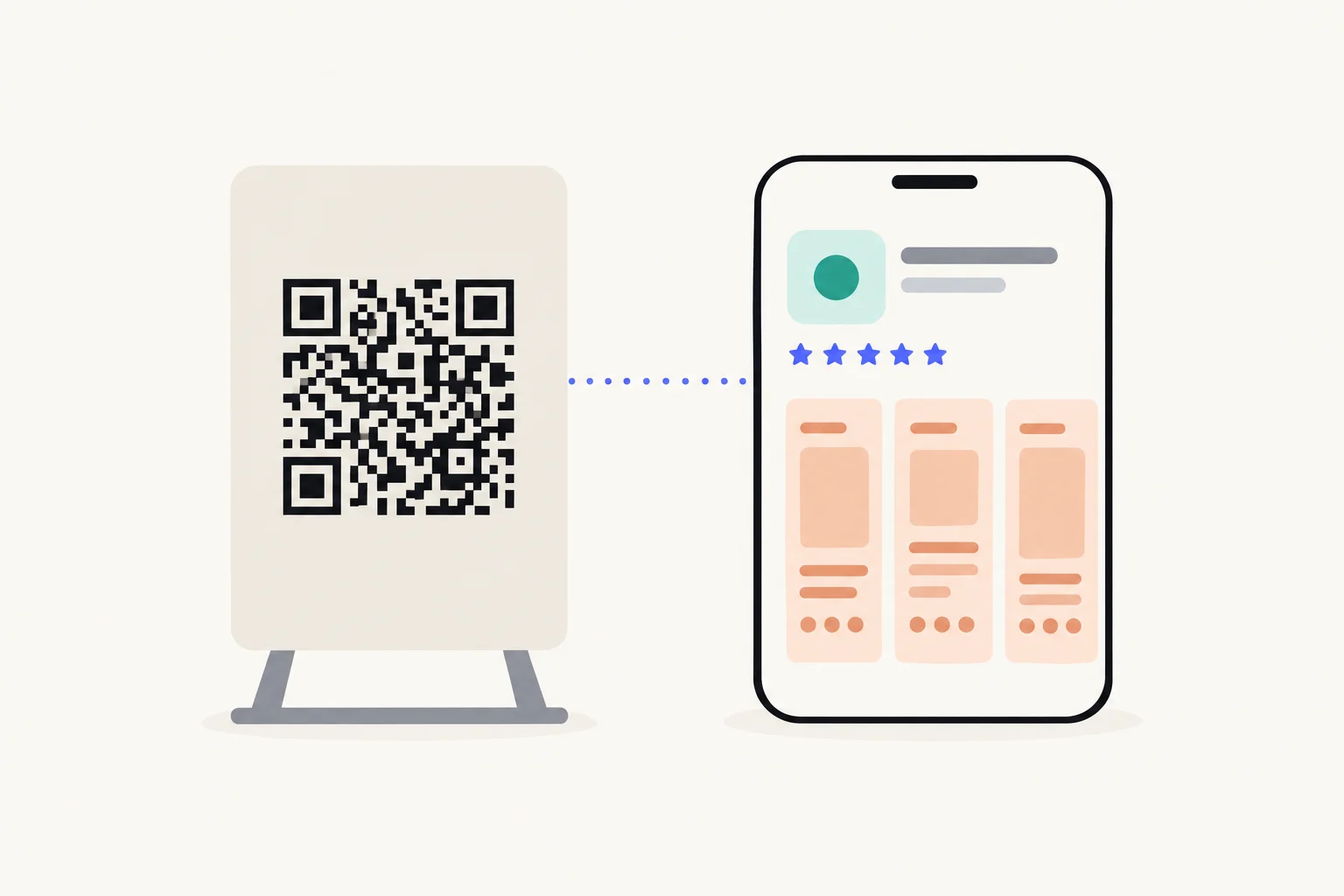
Make a custom product page for each place the code will be seen, encode that page’s URL in the QR code, and test the printed code on an iPhone before the run. The page leads with what the poster, package or stand promised, and App Analytics counts each page’s views and downloads. Because a printed code can never change, rely on the fact that Apple keeps a page’s URL the same when you edit the page.
Why put a custom product page behind a QR code?
Because the person scanning has already decided what they want, and the place told them. Someone who scans a code on a box of earplugs wants the sleep part of your app. Someone who scans at a conference stand wants what the stand was showing. A custom product page lets the App Store open on that, with its own screenshots, app previews and promotional text, while everyone else still sees your default page.12
It also makes print countable. A poster has no click data. A page used only behind one poster’s code is a count of what that poster brought: App Analytics reports each page’s product page views, downloads and conversion rate on its own row.3 The general method is in how to track app installs by channel.
Which places should get a page?
Each place with its own audience or its own promise. Here is Lull, a made-up sleep sounds app, in print:
| Place | What the person just saw | Page’s first screenshot | Reference name |
|---|---|---|---|
| Card inside a pack of earplugs | “Pair these with sound” | Sleep player: “Fall asleep faster” | QR · Earplug pack |
| Poster in a maternity ward café | A baby asleep, “Sounds your baby knows” | Baby sounds list, same headline | QR · Maternity poster |
| Stand at a co-working event | Brown noise playing on headphones | Focus player: “Sound to focus by” | QR · Co-working event |
| Flyer in a hotel room | A quiet room, “Sleep anywhere” | Sleep timer: “Stay asleep all night” | QR · Hotel flyer |
The reference name is how App Analytics labels a page, so put the place in it.2 Pages are limited to 70 per app, so a run of similar flyers can share one page; split them only where you want the counts apart.1
How do you make the QR code?
From the page’s URL, once the page is approved. A QR code is just a link in a picture, so any QR code generator that takes a URL will do. The URL is your App Store URL with a product page ID parameter added, and App Store Connect shows it on the page.12
- Create the page in App Store Connect, named after the place.You need the Account Holder, Admin, App Manager or Marketing role.
- Lead with what the print says, and leave the keywords off.A page with assigned keywords also appears in search, which would mix search visitors into the poster’s count.
- Submit the page and wait for approval.People can open the page’s URL only after it is approved. Do not print before then.
- Copy the URL exactly as App Store Connect shows it.Including the product page ID. Without it, the code opens your default page.
- Generate the code from that URL.Export it as a vector or a large image, and keep a quiet margin around it so cameras can find it.
- Add a line of text next to it.Say what the scan opens, such as “Scan for the baby sounds”. People scan what they understand.
Steps 1, 3 and 4 are Apple’s.25 If the page has a screen in your app that matches the print, add a deep link: on iOS 18 or later, tapping Open on the page takes the person there. See deep links on custom product pages.
How do you test it before printing?
Scan a printed proof with an iPhone, at the size and distance it will really be seen. Open the Camera app, hold the iPhone so the code is in view, and tap the link that appears; or use the Scan Code control in Control Center.4 Then check:
- The App Store opens on your app, not a browser error.
- The first screenshot is the page’s, not your default page’s. If you see the default, check that the URL in the code includes the product page ID.
- It scans at real size. A code on a poster across a room is not the code on your screen.
- Open goes where you meant, on a device that has the app, if the page has a deep link.
- Older devices are out. Custom product pages are available on iOS 15 and iPadOS 15 or later, so test on a current device.2
How do you keep a printed code working?
Keep the page, and edit it rather than replacing it. A link in an email can be changed next week; ten thousand printed boxes cannot. Apple gives you what you need for that:
| You edit an approved page | The URL stays the same. Create New Version, submit, and the edit replaces the live page once approved |
|---|---|
| You disable the page’s link | Anyone who opens the URL is redirected to your default product page. Enable Link turns it back on |
| You delete the page | The URL redirects to your default product page. Deleting is permanent |
| You change the screenshots for a new app version | Make a new version of the same page; the URL does not change |
So never delete a page whose code is still in print, and never make a new page to “update” one; make a new version of it.2 If you stop selling the product, disabling is the safe end: old codes still lead to your app, on the default page.2
A short address on your own domain that redirects to the page is the other way to keep control, since you can change where it points. It adds a step that depends on your website staying up, and Apple’s URL already survives edits, so most apps are better served by encoding the page’s URL directly. What a page must follow before review is in custom product page requirements.
Sources
Questions people ask
Can a QR code open a custom product page?
What if I change the page after the code is printed?
What happens if I disable or delete the page?
Should the code point at the App Store URL or at my own short link?
Can I tell two posters apart?
See your first page.
Look up your app. In about a minute you see three pages planned for it and one designed on your own screenshots, before you sign up.