Making custom product pages from Figma or Canva templates
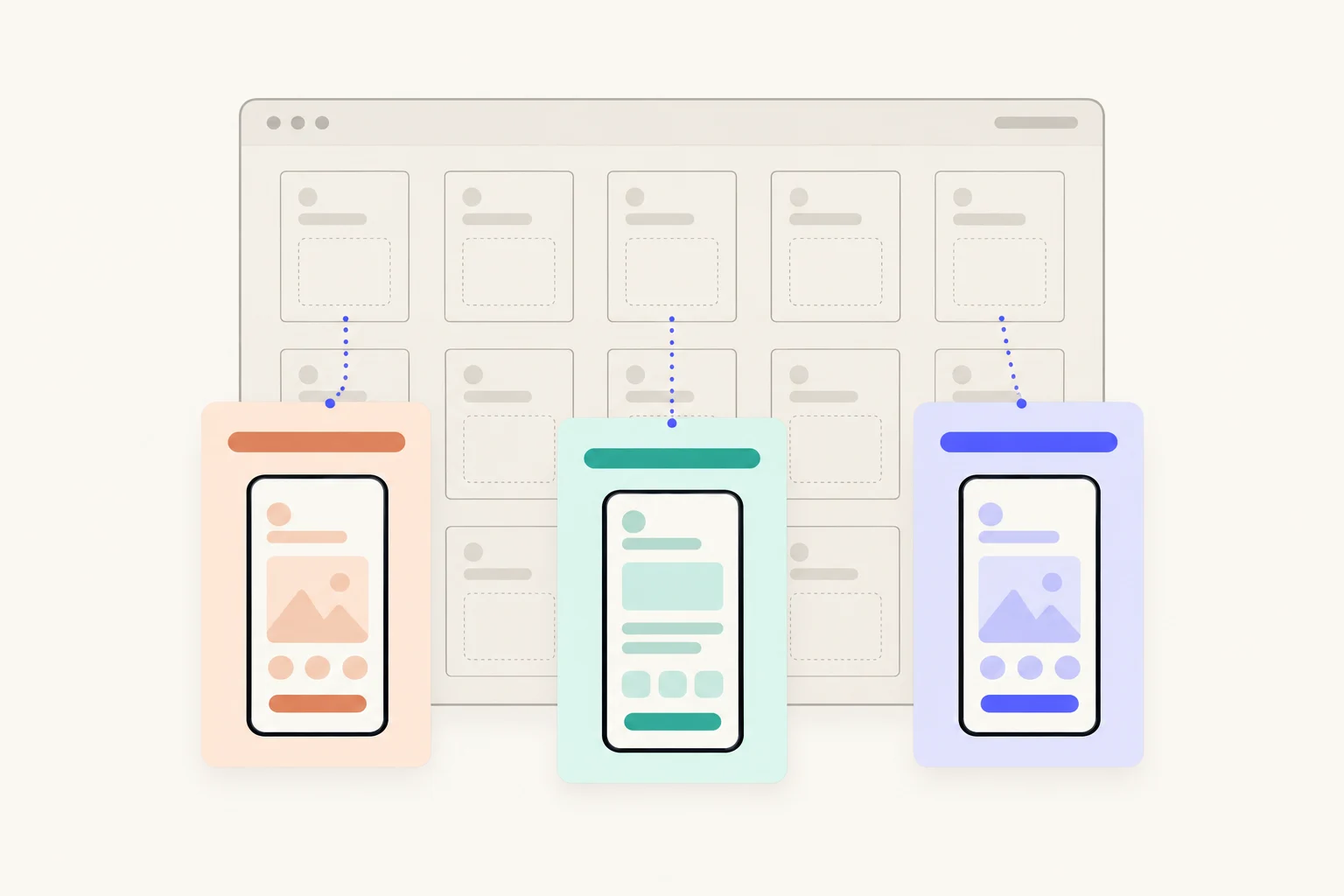
Duplicate your Figma or Canva screenshot template once per page, rewrite the headlines for that page’s search, move the screen that answers it to the front, export every size Apple needs, then create the page in App Store Connect, upload, assign keywords and submit it for review. Each page is a full design, export and upload. That is quick for a handful of pages and slow when you have many, when every update changes your screens, or when you add languages.
What does Apple need from each page?
A set of screenshots for each device size and each language the page has, plus any app previews and promotional text you want. Apple takes 1 to 10 screenshots per device size, as .jpeg, .jpg or .png.2 A page can be localized, and you pick its keywords from your latest approved version, a unique set for each page.1
| Screenshots per device size | 1 to 102 |
|---|---|
| File types | .jpeg, .jpg or .png2 |
| Smaller sizes | If your app looks the same across sizes, provide the highest required resolution and App Store Connect scales it down2 |
| What a page can change | Screenshots, app previews and promotional text5 |
| Keywords | From your latest approved version; a unique set per page1 |
| Pages per app | Up to 701 |
The exact pixel sizes per device are in the requirements and screenshot sizes guide. Set your template’s frames to them once, so every page you duplicate is already the right size.
How do you make a page from a template?
Seven steps, from the template to a page in review. The first time takes longest, because you set up the template and the export.
- Duplicate the template for the page.One copy per page, named for the search it serves, for example “Sleep sounds”. Keep the original untouched so every page starts from the same layout.
- Rewrite the headlines for that page’s search.The first headline should say the thing the person searched for in your own words. Keep each headline short enough to read at a glance.
- Reorder which screen leads.Move the screen that answers the search to the first position. The rest can stay in your usual order.
- Export every size you need.Each device size your app supports, for each language the page has. Check each file’s pixel size before you upload.
- Create the page in App Store Connect and upload.Under your app, open Custom Product Pages, create a page, start blank or copy an existing one, then add the screenshots, app previews and promotional text.
- Assign keywords.Pick the keywords from your latest approved version that match this page, a set no other page uses.
- Submit for review.Add the page for review and submit. Once your app is approved, a page can go without a new app version.
Apple documents the create, copy and keyword steps1 and the submission.3 While a page is in review you cannot change its screenshots, previews, promotional text or keywords; withdraw it first.3
What should change on each page?
The words and the order, not the design. A page works because the first thing a person sees matches what they searched for, so the headline and the leading screen do most of the work. Keep fonts, colours and device frames the same across pages, so they all look like your app.
| Keep the same | Change per page |
|---|---|
| Layout, fonts and colours | Headline on each screenshot |
| Device frames and backgrounds | Which screen comes first |
| Your app’s real screens | Which screens are included, up to 10 |
| Your brand and icon style | Promotional text |
Apple asks that screenshots show the app in use, not only title art, a login page or a splash screen.4 Do not put another app’s name in a headline to catch its search: the guidelines say not to pack metadata with popular app names or trademarked terms.4 Write for the need instead. The headline guide has examples.
What does each page take?
The same steps every time. After the first page, the template saves you the layout, but not the rest.
- Words. New headlines for each screenshot on the page, and new promotional text.
- Order. Moving the right screen to the front, and sometimes swapping in a screen you do not usually show.
- Exports. One set for every device size and every language the page has. This is the part that multiplies.
- Upload and setup. Creating the page in App Store Connect, uploading each set, choosing keywords.
- Review. Submitting, and fixing anything Apple sends back.
A useful way to estimate your own cost: time one page from duplicate to submit, then multiply by the number of pages, the number of languages, and the number of updates a year that change a screen.
When does a template stop being the quick way?
When the multiplications add up. Three things do it.
- Many pages. Apple allows up to 70 per app.1 Each one is its own copy of the template, its own export and its own upload.
- Updates that change your screens. If a release changes a screen, every page that shows it needs a new screenshot, a new export and a new review.
- Localization. Each language a page has is another set of exports. Copying a page in App Store Connect brings over the primary localization only.1
A template is the right choice when you have a few pages, someone who enjoys the design work, and screens that rarely change. Past that, it helps to look at the other ways to make pages.
Sources
Questions people ask
Can I use one Figma or Canva template for every custom product page?
Which sizes do I need to export for each page?
Can I put a competitor’s name in my screenshots to target their search?
Do I have to export every page in every language?
Can App Store Connect copy one page to start the next?
See your first page.
Look up your app. In about a minute you see three pages planned for it and one designed on your own screenshots, before you sign up.