Each link signs you in once and expires an hour after it is sent, so ask for a new one each time.
Steps
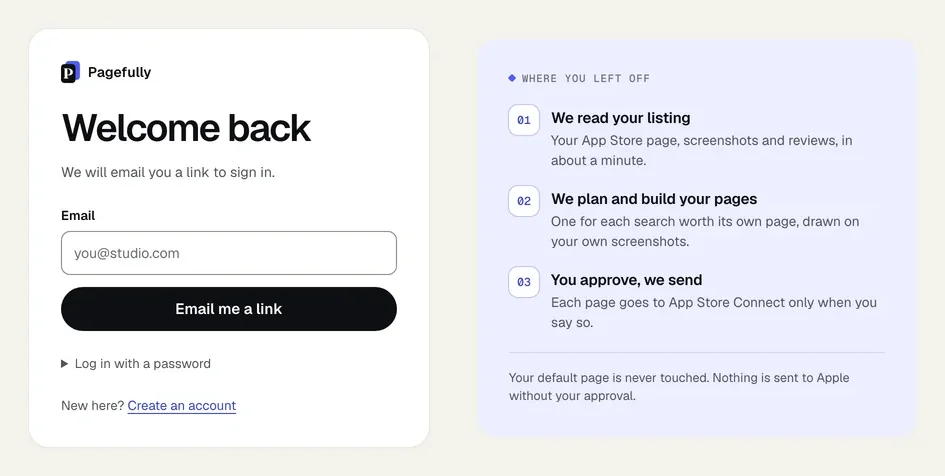
- Open the Log in page.It is at pagefully.com/login. The Log in link at the top of the site goes there. The page is titled Welcome back.
- Under Email, type the address on your account.The address you signed up with. Your Settings screen shows it under Account, beside Signed in.
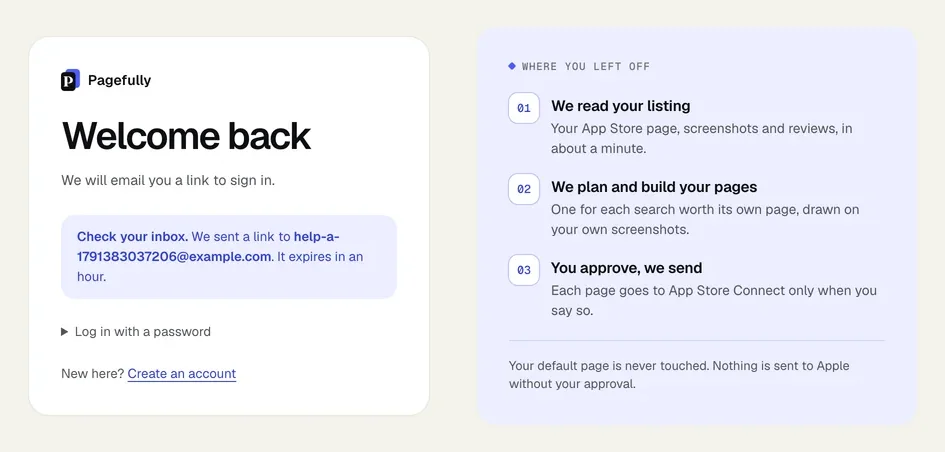
- Click Email me a link.The button reads Sending for a moment. Then the notice Check your inbox. appears, with the address we sent to.
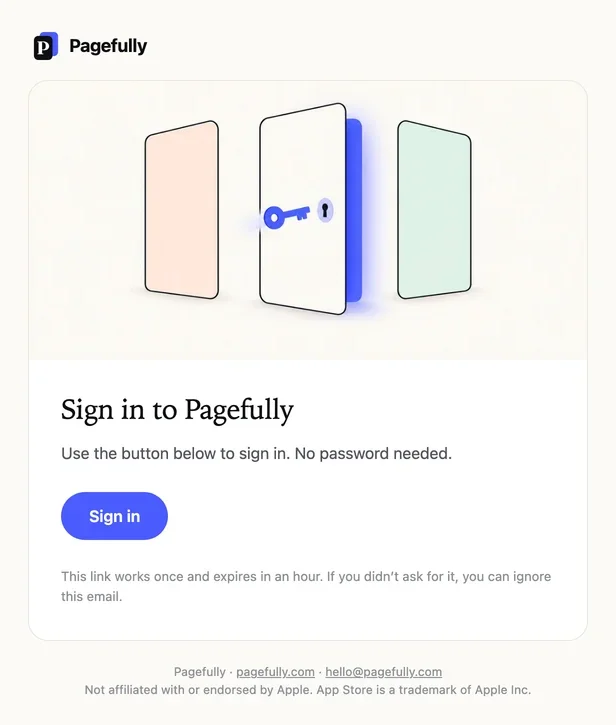
- In your inbox, open the email Your Pagefully sign-in link and click Sign in.The email comes from pagefully.com. Its button signs you in on the browser that opens it.
You land on your first app’s Listing screen, or on Add your app if you have no app yet. The browser keeps you signed in until you sign out.
To sign out, click Sign out at the foot of the sidebar. The same button is on Settings, under Account. There is no password on a Pagefully account, so there is nothing to set, remember or reset. If you ever need to sign in with a different address, see Change your email address.
If something goes wrong
- The link does not arrive. Check your spam folder and the address you typed. The screen says Check your inbox. even when the address has no account. The sign-in link does not arrive has the full checklist.
- “That link did not work. Request a new one.” The link was opened before, or it is more than an hour old. Mail programs sometimes open links ahead of you. On Log in, enter your address and click Email me a link again, then open the newest email.
- “Could not send the link. Try again in a minute.” Wait a minute and click Email me a link again. If it keeps happening, write to hello@pagefully.com.
- You see “Log in with a password”. That fold is for our own test accounts. A customer account has no password and no way to set one. Use the link.