A page shows in App Store search only for the keywords assigned to it in App Store Connect, and for now you assign them there yourself.
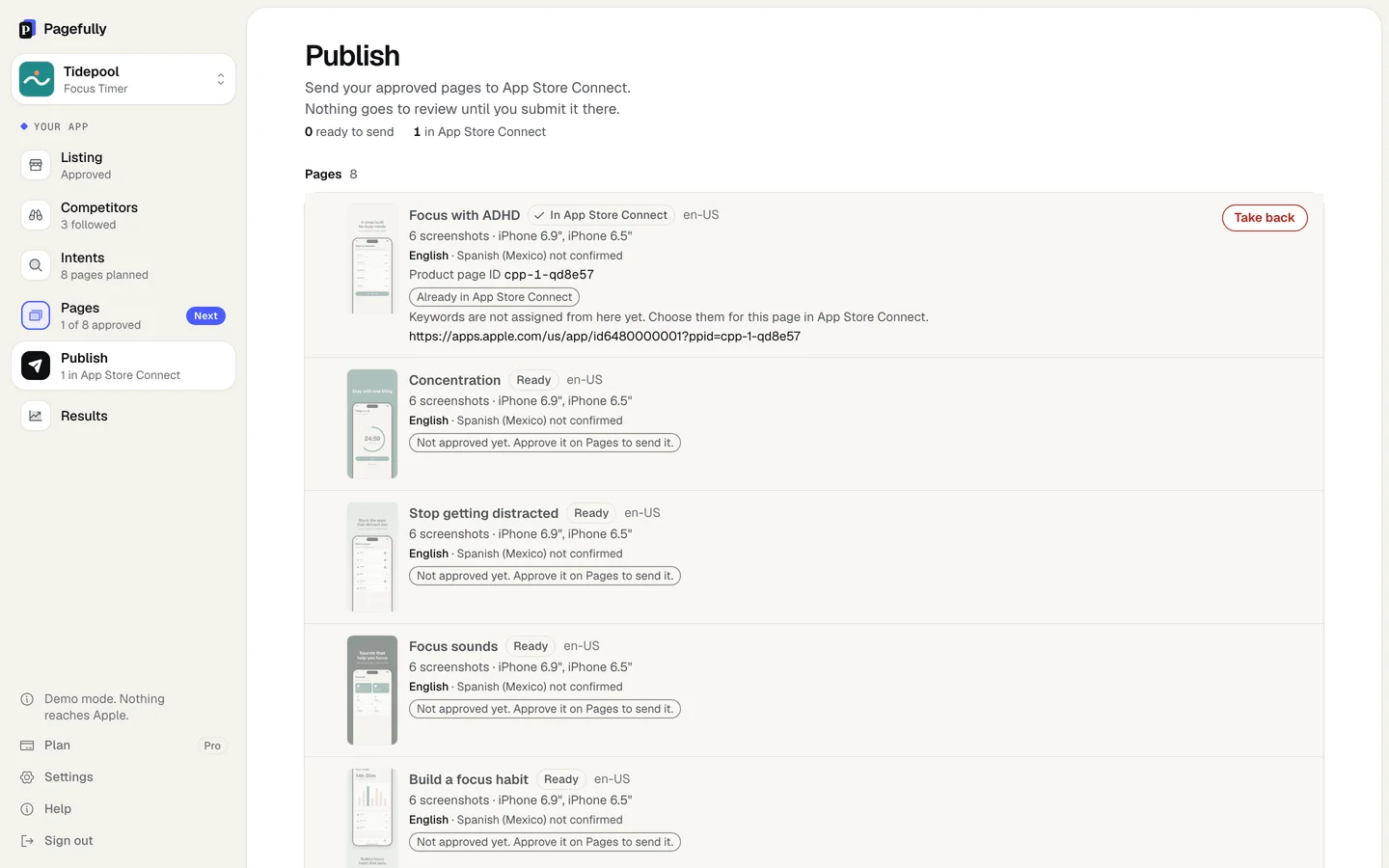
Pagefully gives each page its keywords on Intents, and the editor lists them under Shows for these searches; a keyword leads to one page only. After a send, the row on Publish says Keywords are not assigned from here yet. Choose them for this page in App Store Connect. Before your app’s first approved version it says instead No keywords yet: Apple offers a page only the keywords of an approved version of your app. They are added once it is approved. A page with no keyword is for Apple Ads and links; see custom product pages in App Store search for how Apple’s side works.
Before you start
- The page is in App Store Connect. See Approve a page and send it.
- Your app has an approved version. Apple offers a page only the keywords in the keyword field of the latest approved version.
- An App Store Connect account with the Account Holder, Admin, App Manager or Marketing role.
Steps
- In Pagefully, open the page and note the keywords under Shows for these searches.They are the ones the page’s screenshots were written to answer. Each is on this page only, so the same list is on Intents.
- In App Store Connect, open Apps and select your app.The link on the page’s row on Publish takes you straight there.
- In the left sidebar, click Custom Product Pages.
- Click the page.It has the same name as on Pages, and the Product page ID shown on Publish.
- In the Keywords section, select the keywords for this page.The choices are the keywords of your latest approved version. Pick the ones from step 1. Repeat this for each localization of the page. Give each keyword to one page: Apple asks for a unique set of keywords per page so the most relevant page appears.
- Click Publish.You can assign keywords at any time, but the page is searchable only once it is approved and set to visible.
Once the page is approved and visible, a search for one of those keywords shows this page in place of your default page. You can disable a keyword on the page individually later. Pagefully does not read which keywords are assigned at Apple, so keep its list and App Store Connect’s the same by hand.
If something goes wrong
- The Keywords section offers nothing, or not the keyword you want. Only the keyword field of the latest approved version counts. If you changed the field in a version not yet approved, wait for that version. If the keyword is missing from the field itself, Keyword advice on the Listing says how to add it.
- A keyword is already on another page. Each keyword belongs on one page. Disable it on the other page in App Store Connect, then select it here. In Pagefully, Add a keyword in the editor moves it the same way.
- The page does not show in search. The page has to be approved by App Review and set to visible in App Store Connect. Check its status; Submit a page for review lists the statuses.