Building draws every screenshot of every page you planned; reviewing is where you say each one is right.
Before you start
- Your pages are planned on Intents. See Plan your pages on the Intents screen.
- Your plan has room. Free builds one page, the Pack ten, Pro up to 70. See Plan limits.
Steps
- On Intents, click Build and the number of pages.For eight pages the button reads Build 8 pages; Cmd+Enter does the same. It builds every switched-on page that fits your plan. When every page fits, Pages starts building by itself as soon as you open it.
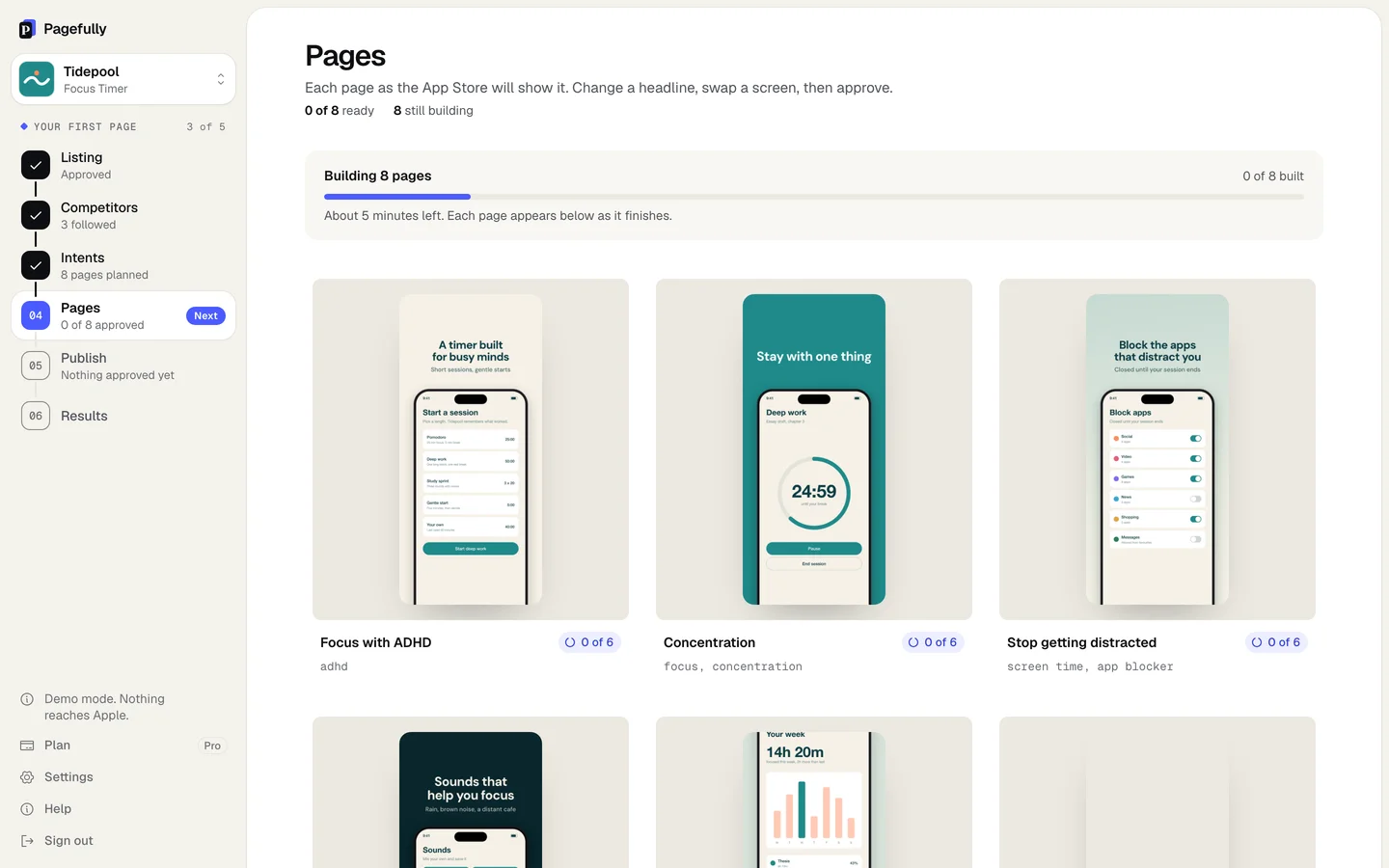
- On Pages, wait for each card to say Ready.The notice reads Building 8 pages, 0 of 8 built, the minutes left, and Each page appears below as it finishes. About a minute each. Each page is matched to its search, written, drawn, then read against App Review’s rules. You can leave the screen.
- Click a card to open the page.Enter opens the selected card; A and D move between cards.
- Look over the searches, the screenshots on each device size, the promotional text and the checks.Shows for these searches, then Screenshots with the tabs iPhone 6.9", iPhone 6.5" and iPad 13", then Promotional text and Checks. The mockup on the right is the page as the App Store will show it. To change anything, see Edit a page.
- Click Approve page, or Skip to the next one.Cmd+Enter approves. The editor moves on to the next unapproved page by itself.
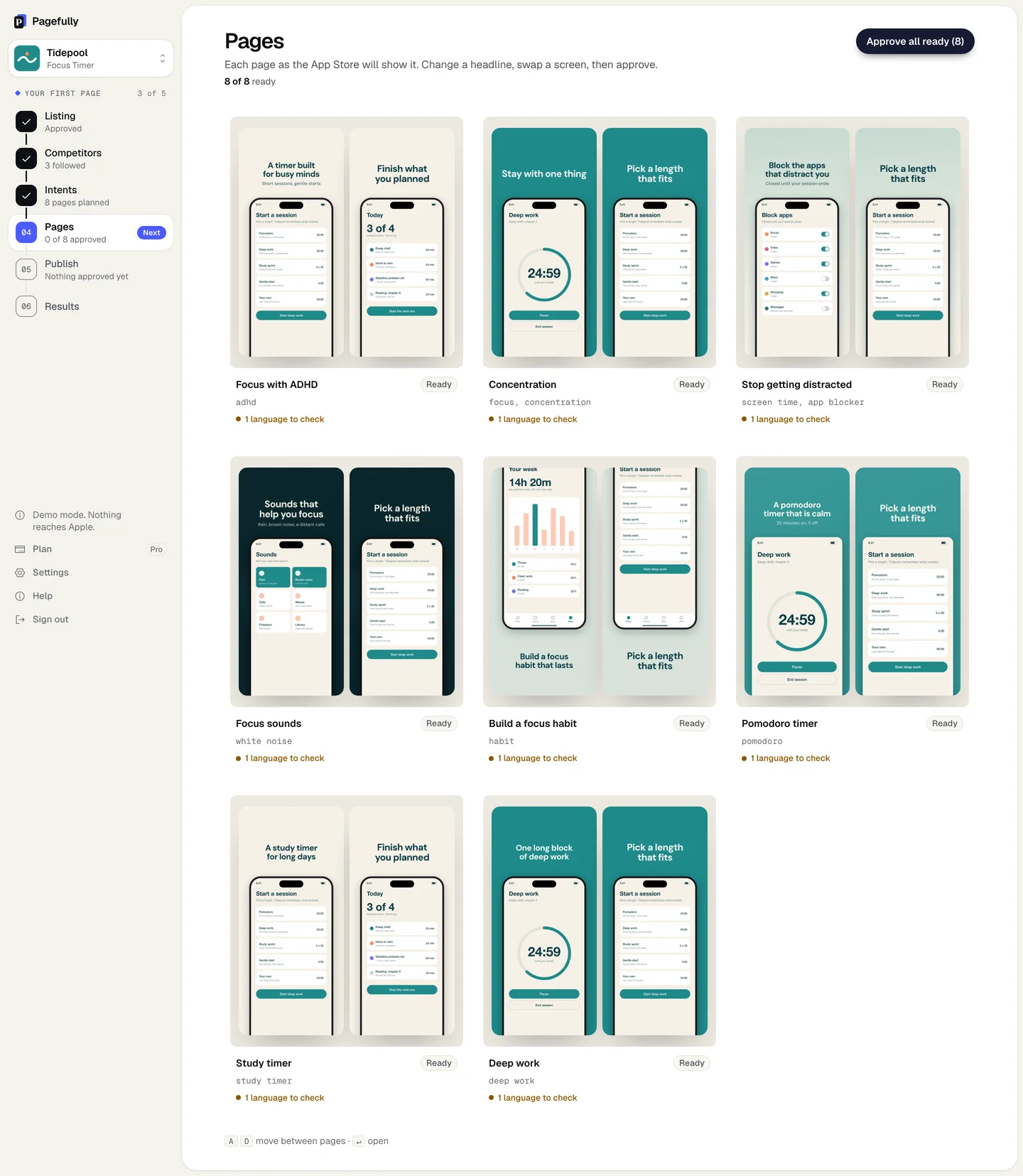
- To approve every ready page at once, go back to Pages and click Approve all ready.The button carries the count, such as Approve all ready (8). A page with a failing check is held back; the message says how many, and to see Checks.
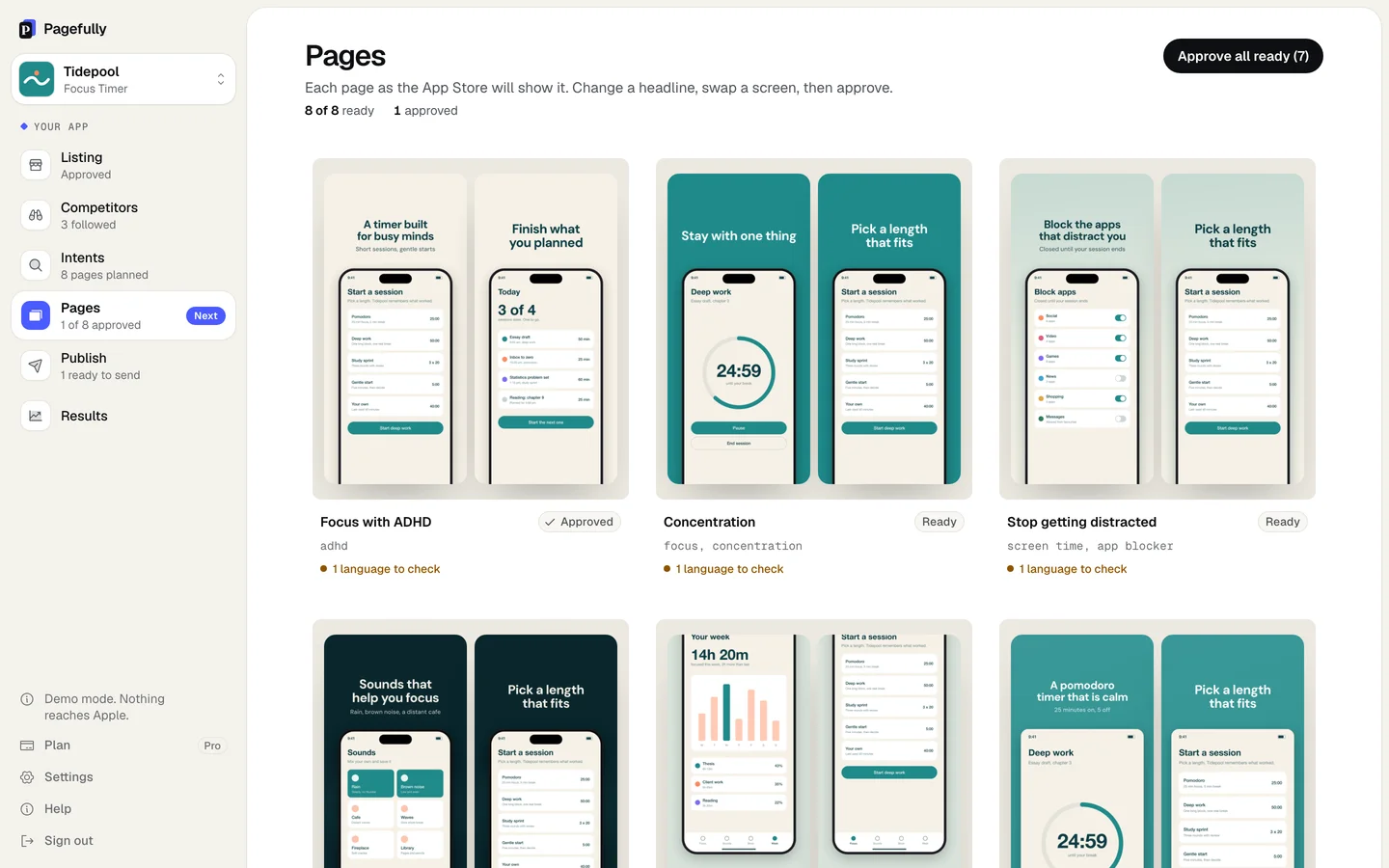
An approved page carries the pill Approved, the header counts it (8 of 8 ready · 1 approved), and the sidebar’s Publish step reads 1 ready to send. In the editor, the notice reads Approved. with Choose Edit to change it, then approve again. and Go to Publish. Next: Approve a page and send it to App Store Connect.
What a page card shows
Its first two screenshots, its name, a status pill, its keywords (or the Ads and links pill with what it is written for), and on Pro 1 language to check when another language is ready.
| Building | Being drawn; the counter says how many screenshots are done, such as 0 of 6. |
|---|---|
| Ready | Built and waiting for you to approve it. |
| Needs attention | A check fails. Open the page and see Checks. |
| Approved | You have said it is right. It can be sent from Publish. |
| In App Store Connect | Sent, not yet submitted for review. It is locked until you take it back. |
| Could not build | Something stopped. The reason is on the card, with Retry. |
What approval means
Approving says this page may go to App Store Connect when you send it. Nothing goes to Apple on approval. Any edit withdraws it: click Edit on an approved page, change it, and approve again. A page whose screenshots still show your own words asks once, with Approve anyway or Keep editing.
If something goes wrong
- That is your free page. Get 10 for $49, or keep every page current with Pro. Free builds one page. On the Pack: You have made your 10 Pack pages. Pro takes you to 70, Apple’s limit. On Pro monthly: You have made this month’s 15 new pages. with the date you get more. When your plan has room for fewer pages than you planned, Pages says so and offers Build with the number that fits; switch pages off on Intents to choose which. See Upgrade or change your plan.
- This page could not be built. Nothing was changed at Apple. Try again. Click Retry on the card. If one screenshot says This one could not be drawn, click Try again under it.
- A screenshot looks nothing like your app, or the words sit in the wrong place. Every screenshot is drawn from a screen your app already shows; nothing is invented. Click the flag Something looks wrong on it, or see A screenshot looks wrong.
- Something on this page would likely be rejected by App Review. See Checks, fix what is marked, and approve again. Under Checks, each failing line says what to change. A judgement you know is accurate can be overruled with This is accurate; a rule cannot.