A page shows in App Store search only for keywords assigned to it, and each keyword from your field goes to one page. The advice on the Listing says which keywords to take out and put in so that more of your pages can show in search. It is copy-and-paste advice: nothing is written to Apple.
Your keyword field
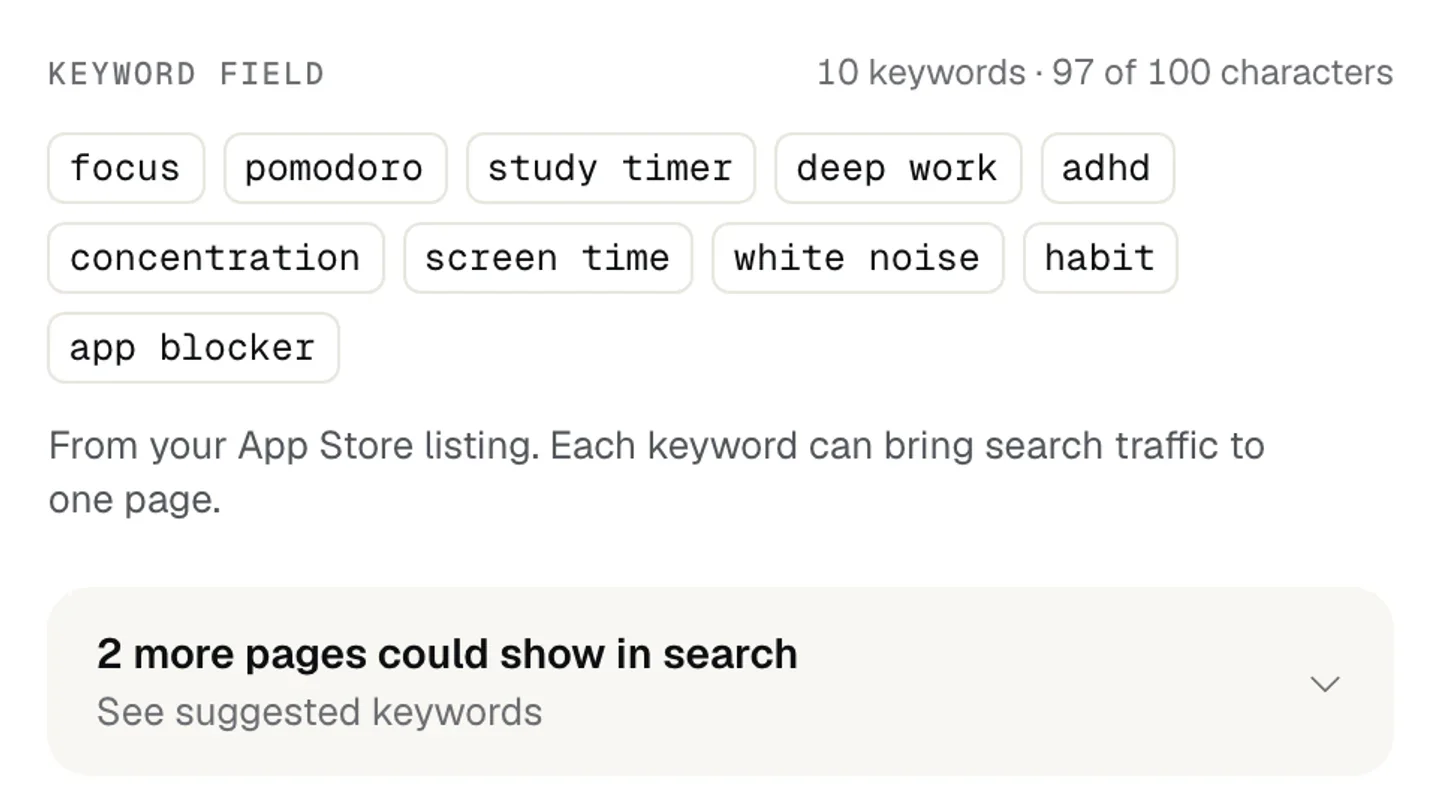
On Listing, the right-hand panel shows Keyword field with every keyword as a chip and the count, for example “10 keywords · 97 of 100 characters”. Under it: From your App Store listing. Each keyword can bring search traffic to one page. The field is read with a key only. An app added by name sees Your keyword field is not public, so keywords are given to these pages when you connect App Store Connect.
What the advice says
The fold reads 2 more pages could show in search (the number is your app’s) with See suggested keywords, or No keyword change to suggest with See what we checked. Open, it lists what to take out and what to put in, says which pages need a keyword your field does not have, and offers Copy new keyword field with its count out of 100 characters. Then: Keywords change with an app version. Paste this into App Store Connect with your next one. When nothing is worth changing: Your keywords are doing more than these would. Nothing is worth giving up for them.
A keyword leads to one page only
On Intents, each page gets its keywords from your field, and a keyword belongs to one page. Moving a chip moves it. The info tip there says it whole: A page shows in search for keywords from your App Store listing, and each keyword goes to one page. Your listing has 10, so up to 10 pages can show in search. Apple allows 70 pages in all: the rest are for Apple Ads and links you share, and need no keyword. In the page editor, Shows for these searches says the same: When someone searches one of these, the App Store shows this page in place of your default page. A keyword leads to one page only. A page with no keyword from the field is marked Ads and links. A keyword you plan to add is marked as planned: A planned keyword is not in your field yet. Add it in App Store Connect with your next app version, and pages show for it from then. See Plan your pages on the Intents screen.
Before an approved version
Apple offers a page only the keywords of an approved version of your app. An app with no approved version has an empty field, and the Listing says This language has no keywords. A page cannot appear in search until the keyword field has some. After a send, Publish notes No keywords yet: Apple offers a page only the keywords of an approved version of your app. They are added once it is approved.
Assigning keywords at Apple
Pagefully chooses each page’s keywords but does not assign them in App Store Connect yet. After a send, the page says Keywords are not assigned from here yet. Choose them for this page in App Store Connect. The steps are in Assign keywords to a page in App Store Connect; Apple’s feature is explained in Custom product pages in App Store search.
What this means for you
- The number of keywords in your field is the number of pages that can show in search. The rest are for ads and links.
- Copy the suggested field and paste it into App Store Connect with your next app version. Nothing changes until you do.
- Give each page the keywords its searcher types, on Intents. A keyword on two pages is a keyword moved, not shared.
- After sending a page, assign its keywords in App Store Connect so it shows in search.