Intents is where you decide which pages exist and which searches each one answers, before anything is drawn.
Before you start
- Your listing is approved. Pages are planned from it. See The Listing screen.
The board
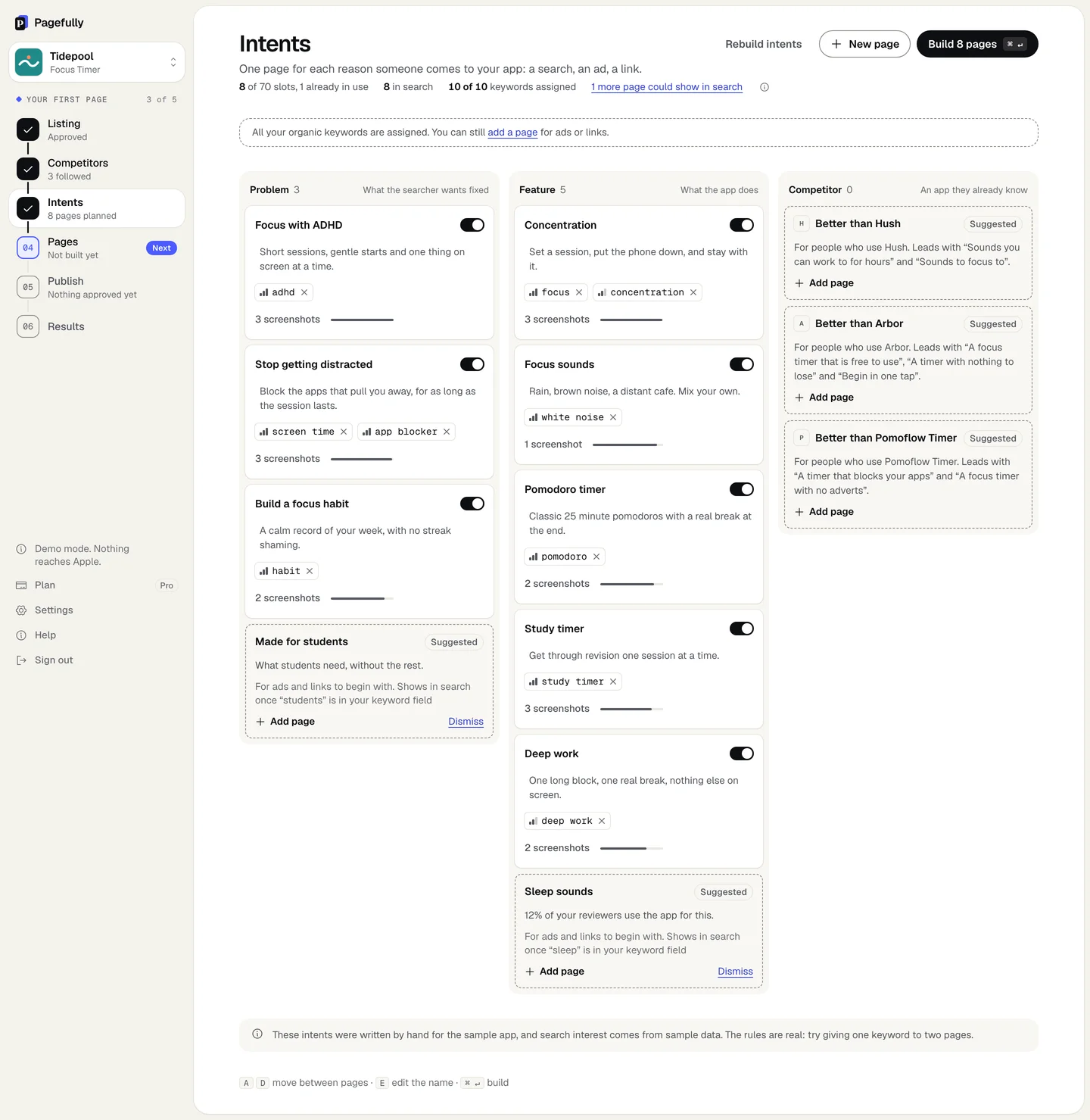
Three columns: Problem (What the searcher wants fixed), Feature (What the app does) and Competitor (An app they already know). Above them, Unassigned keywords holds keywords from your field with no page yet. The header counts 8 of 70 slots, 1 already in use, 8 in search and 10 of 10 keywords assigned, with your own numbers; a pointer such as 1 more page could show in search leads to the keyword advice.
| Name and message | The name is how the page is listed here and in App Store Connect; only you see it. The message is one line: what the page says to that searcher. |
|---|---|
| Reason | On a Suggested card: why it is offered, such as 12% of your reviewers use the app for this. |
| Keywords | Chips from your field. A page with none is marked Ads and links: it is reached from an Apple Ads ad group or a link, not from search. |
| Screenshots | How many of your screens suit this page, such as 3 screenshots. |
| The switch | On or off. An off page is kept but not built. |
Steps
- In the sidebar, open Intents.The first time, your pages are found by themselves: Finding your search intents, about a minute.
- Read each card and switch off any page you do not want.Click a name or message to change it. The switch is labelled Switch and the page’s name, then off.
- Give a page a keyword: drag a chip from Unassigned keywords onto it, or tap the chip and choose the page.A keyword belongs to one page. Dragging one from another page moves it, and the toast offers Undo.
- On a Suggested card, click Add page or Dismiss.Suggestions come from your reviews and the competitors you follow. A dismissed one asks you to confirm.
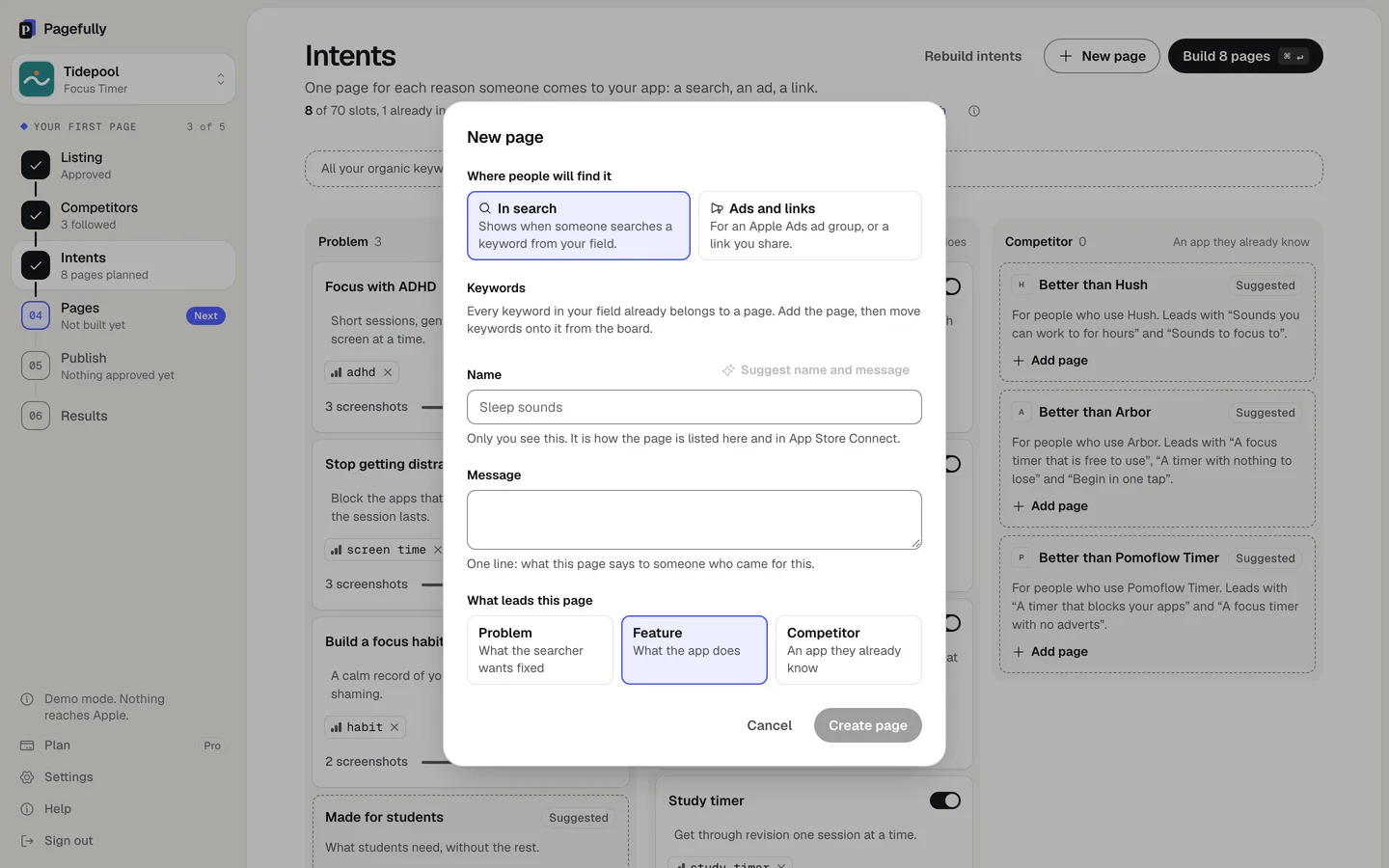
- To add your own page, click New page, fill in the dialog, and click Create page.Choose In search or Ads and links under Where people will find it, pick its Keywords (or type What it is for), fill in Name and Message or click Suggest name and message, and choose What leads this page.
- Click Build and the number of pages.The button reads Build 8 pages for eight; Cmd+Enter does the same. Once everything is built it reads Review pages.
Pages opens and your pages are being built, Building 8 pages for eight, about a minute each. The sidebar reads Intents with the number of pages planned. Next: Build and review pages.
Rebuild intents
Rebuild intents works your pages out again from the listing as it is now. The sheet Replace your intents with a new set? warns that it replaces every page you have, including ones you added; the set you have now is kept and Restore previous intents brings it back. It is refused once pages are built: change the pages by hand or delete those pages first. Nothing is changed at Apple.
If something goes wrong
- A keyword you want is already on another page. Drag it anyway. It moves, the toast says Moved with both page names, and Undo puts it back. A keyword is never on two pages.
- Every page says Ads and links, and there are no chips to assign. Your keyword field is empty. Apple offers a page only the keywords of an approved version of your app, so an app with no approved version has none yet. Add keywords in App Store Connect with your first version, then click Refresh listing. An app added by name reads keywords assigned when you connect: connect App Store Connect.
- “focus timer” is not in your keyword field, so a page cannot claim it. Add it under Unassigned as one you plan to add. Type it under Unassigned keywords as a planned keyword. It shows for that search once you add it in App Store Connect with your next app version.
- Your listing has changed. Click Rebuild intents to take it in, or leave the pages as they are. Your current set is kept and can be restored.