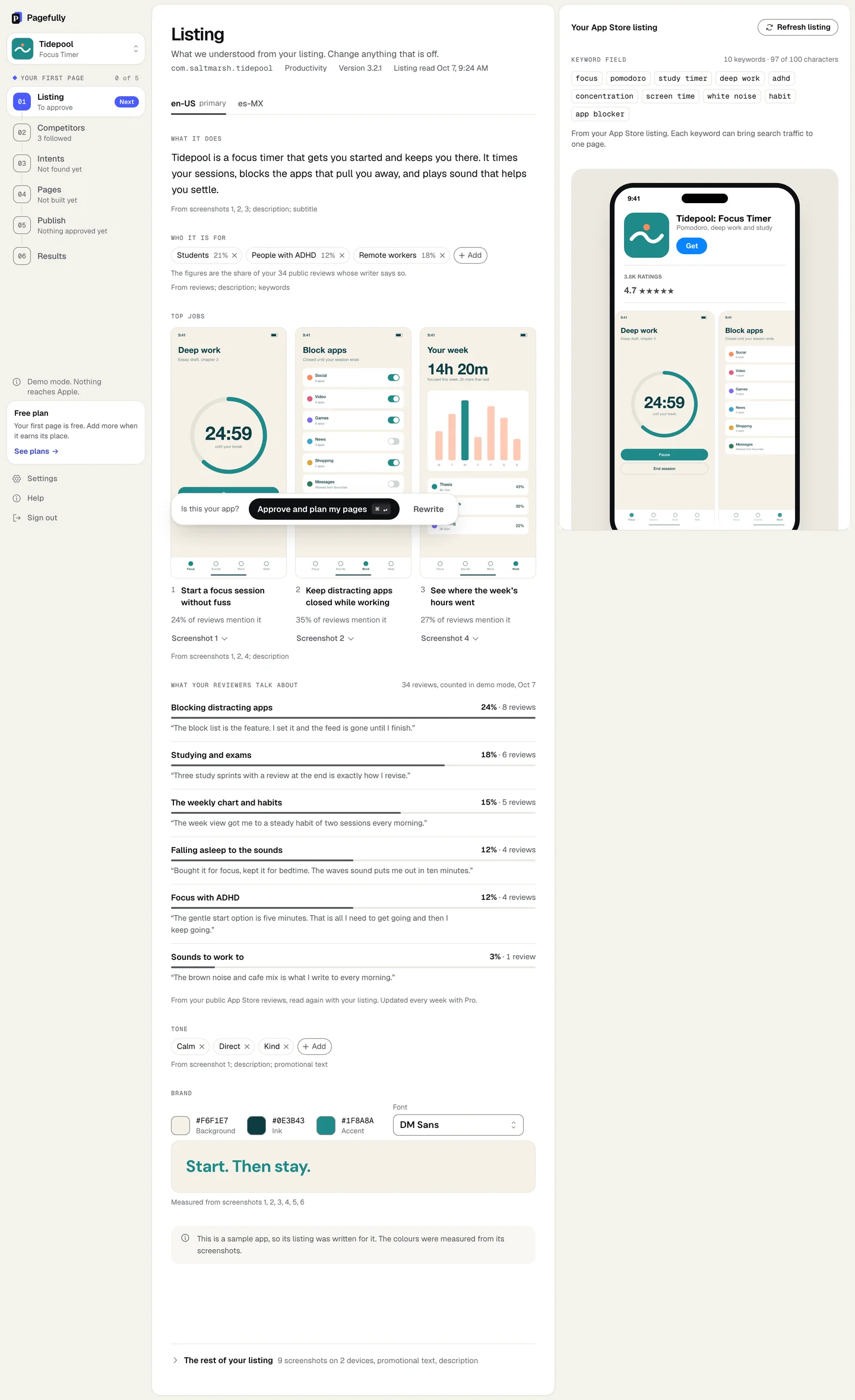
The Listing screen is what Pagefully understood from your App Store listing: what the app does, who it is for, and what it looks like. You correct anything that is off, then approve it. Every page is planned and written from it, so it is worth a minute.
What Pagefully reads
With a key, the read goes through App Store Connect: Reading your listing, Copying your screenshots, Checking for existing custom product pages, Saving what we found, Collecting your public reviews. Usually under a minute, and nothing is changed at Apple. The header shows the bundle id, the category, Version and Listing read with the date.
The brief then writes itself (Reading your screenshots, Measuring your colours, Working out what the app does and who it is for, Noting what each screenshot shows, Reading what your reviewers say, Saving what we understood). When the listing has more than one language, each has a tab; the primary one writes itself and another waits for the button Read the listing in followed by its code.
What it shows you
Each block says where it came from (“From screenshots 1, 3; description”). Edits save as you leave a field.
| What it does | Two sentences, 400 characters at most. Say what the app does. |
|---|---|
| Who it is for | Up to five audiences as chips. Click Add to add one. |
| Top jobs | Up to five things people do with the app, each with the screenshot that proves it. Pages about a job lead with that screenshot. |
| What your reviewers talk about | Counted from your public reviews once there are 20. Fewer, and it shows what was said, not how often. |
| Tone | Chips for how the app speaks. |
| Brand | The colours measured from your screenshots, a Font picker (Google fonts, or your own file up to 3 MB) and a sample headline in them. |
The right-hand panel
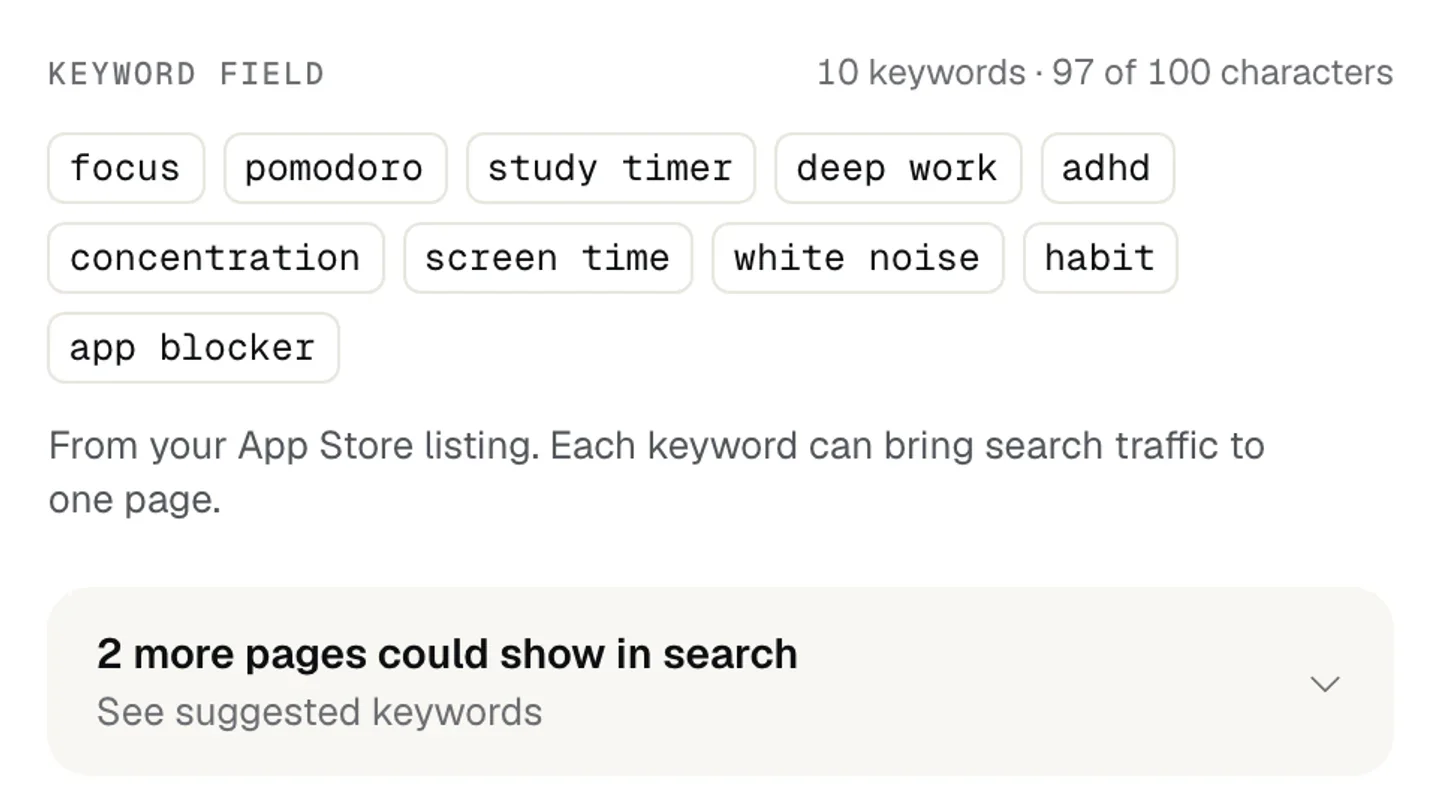
Your App Store listing is the listing as Apple has it. Keyword field shows each keyword and the count (“10 keywords · 97 of 100 characters”), with the fold See suggested keywords; Keyword advice on the Listing explains it. Then the store mockup, captioned What we read: your listing as it is today. Custom product pages counts the slots (“0 of 70 slots” on a new app) and lists pages the app already has: Pagefully never edits or removes a page it did not create. The rest of your listing folds out your screenshots, promotional text and description.
Approve the listing
Approved means you have read the brief and it is right. Pages are planned from it only after that.
- Read each block and change anything that is off.To start again from the listing, click Rewrite; the sheet Rewrite what we understood? says it replaces your edits and changes nothing at Apple.
- In the bar Is this your app?, click Approve and plan my pages.Cmd+Enter does the same. Once intents exist the button reads Approve, go to Intents.
Intents opens and your pages are being planned (Finding your search intents, about a minute). In the sidebar, Listing reads Approved. Next: Plan your pages on the Intents screen.
Refresh listing
Refresh listing, at the top of the Listing screen and beside each app under Apps in Settings, reads the listing and the reviews again. When the listing has changed, Intents says Your listing has changed. with Rebuild intents to take it in. Your current set is kept and can be restored. If a refresh fails you see The last refresh did not finish. and the listing as of the last good read. On Pro, reviews are read again every week by themselves; see Refresh your pages after an app update.
Without a key
An app added by name is read from its public App Store page (Reading your App Store page, Copying your screenshots, Collecting your public reviews), and the panel is titled Your public App Store page. Its Connecting adds section lists what cannot be known: Your keyword field, Your subtitle and promotional text, Custom product pages you already have, Your listing in other languages, Results for each page. Connecting keeps your pages, their words and this listing as they are. See Add an app.
What this means for you
- Fix the brief before approving. A wrong audience or job becomes a wrong page.
- Pick the screenshot that proves each top job; pages about that job lead with it.
- Fewer than three screenshots on the listing, and pages will repeat themselves. Add some in App Store Connect and refresh.
- Your own font makes every headline an exact match; upload it under Brand.