Pagefully never submits a page to App Review: sending creates the page in App Store Connect, unsubmitted, and the rest happens there.
Before you start
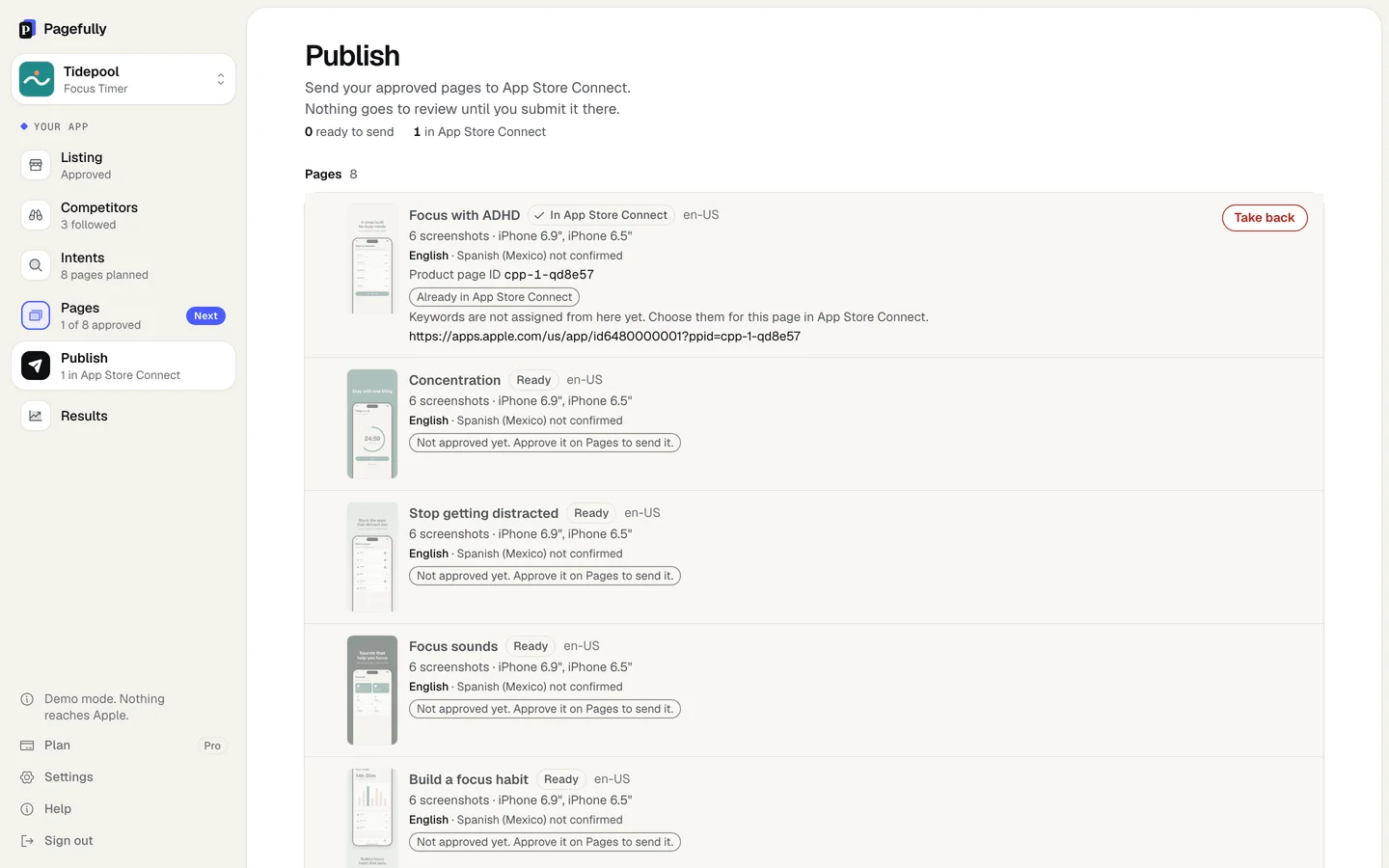
- The page shows In App Store Connect on Publish, with its Product page ID. See Approve a page and send it.
- An App Store Connect account with the Account Holder, Admin, App Manager or Marketing role. Apple notes that the Marketing role cannot add app versions to a submission.
Steps
- In App Store Connect, open Apps and select your app.The link on the page’s row on Publish takes you straight there.
- In the left sidebar, click Custom Product Pages.
- Click the page Pagefully created.It has the same name as on Pages, and the Product page ID shown on Publish.
- Check the screenshots and the promotional text.They are what you approved, in each device size and each confirmed language. If something is wrong, do not submit: take the page back and fix it in Pagefully.
- On the top right, click Add for Review.Add the page to an existing draft submission or create a new one. Its status becomes Ready for Review. If your app has no approved version yet, include the page in the same submission as your first iOS app version. If your app is already approved, you can submit the page with or without an app version.
- Click Submit for Review.The status becomes Waiting for Review, then In Review when App Review starts. While it is under review you cannot change its screenshots, promotional text or keywords in App Store Connect; withdrawing the submission makes it editable again.
In App Store Connect the page says Waiting for Review. In Pagefully it stays In App Store Connect and is locked: the editor says This page is with Apple and cannot be changed until it comes back from review. Pagefully does not read the review status yet, so follow it in App Store Connect. To change the page, take it back first.
What the statuses mean
Apple’s words for an item in a submission, as App Store Connect shows them.
| Ready for Review | The page is in a submission that has not been sent to App Review yet. |
|---|---|
| Waiting for Review | Apple has the submission and has not started reviewing it. |
| In Review | App Review is reviewing it. You can cancel the submission to take it out of review. |
| Accepted | The page passed, but another item in the same submission was rejected. Everything in a submission must be accepted before any of it is published. |
| Rejected | App Review did not accept the page. You can edit it and resubmit, or remove it from the submission. |
Once the whole submission is approved, the page is live: its link works, and it shows for the keywords you assign to it. How Apple reviews a custom product page says what is checked.
If something goes wrong
- The page is not under Custom Product Pages in App Store Connect. Refresh the page in App Store Connect; a page just sent can take a moment to appear. Then check that the key on Settings belongs to the team that holds this app, and that the row on Publish says In App Store Connect rather than showing an error.
- App Review rejected the page. Your app is not affected. Read Apple rejected my page for what to do.
- Add for Review is greyed out, or you cannot add an app version. Your App Store Connect role may not allow it. Ask an Admin or App Manager on your team to submit, or to change your role.