The same form creates your account the first time and signs you in every time after.
Before you start
- An email address you work from. Throwaway inboxes are refused.
- Nothing else. No card, and no App Store Connect key to start.
Steps
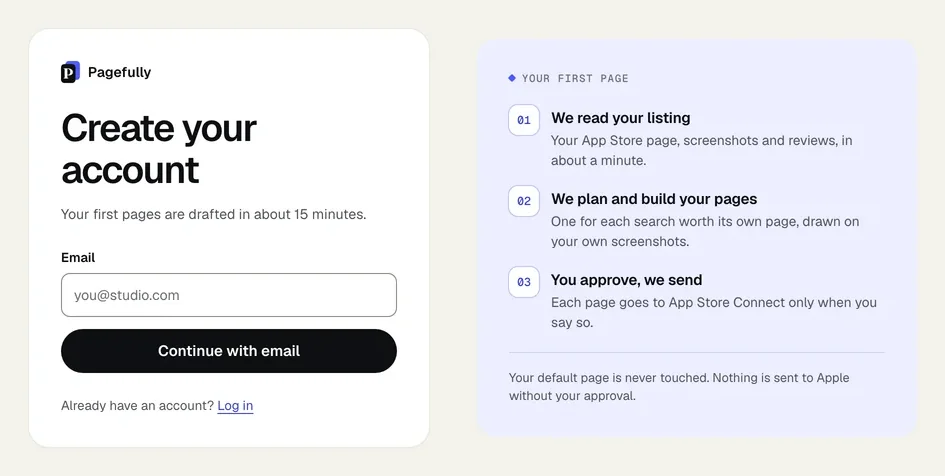
- On pagefully.com, click Try it free, or go to pagefully.com/signup.From a preview, click Get this page free, then add more instead: your app and the page designed for it come with you.
- In Email, type the address you work from.
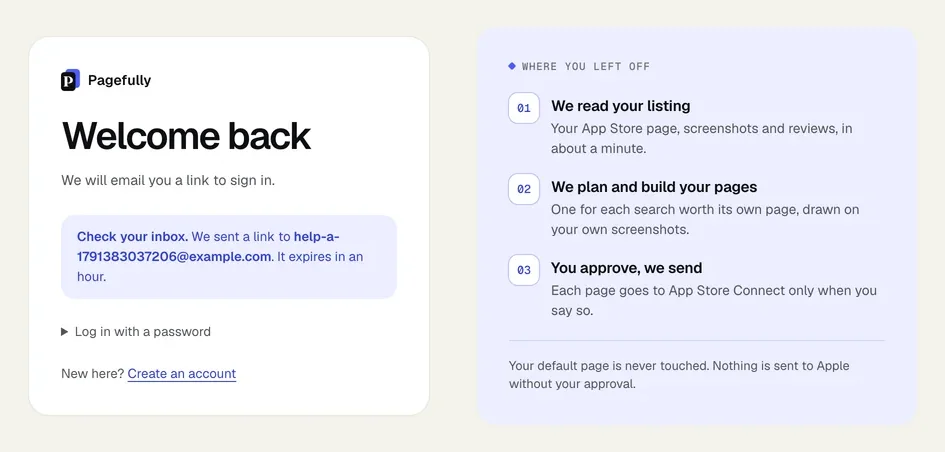
- Click Continue with email.The form changes to Check your inbox. with the address you typed.
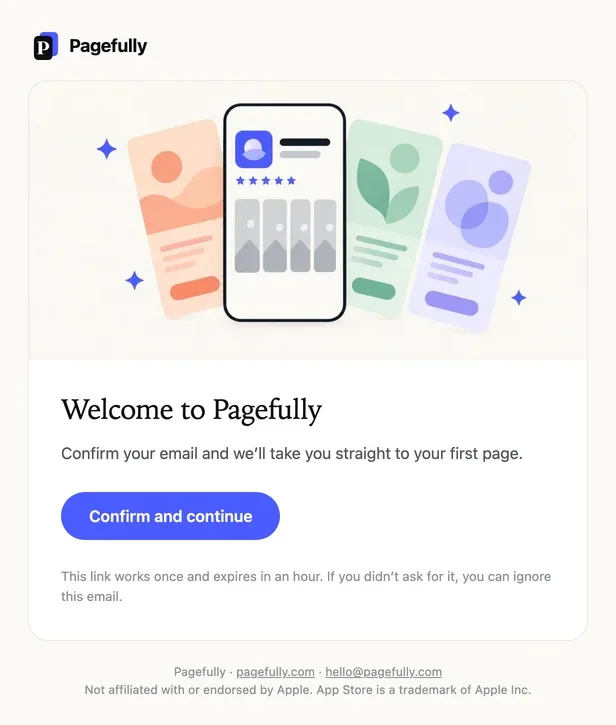
- Open the email “Confirm your email to start with Pagefully” and click Confirm and continue.The link works once and expires in an hour.
You are signed in and on Add your app, where you search the App Store for your app by name. If you came from a preview, your app is already added and you land on its Listing.
There is no password. Each time you sign in, you enter your email on Welcome back, click Email me a link, and open the link in the email Sign in to Pagefully; see Sign in with a link. One account holds one workspace, and each app in it has its own plan. Limits on sign-up: throwaway inboxes are refused, and a few new accounts a day can be made from one place.
If something goes wrong
- The email did not arrive. Check spam and the address you typed, then ask for a new link. The sign-in link does not arrive has the rest.
- The address was refused: “That address is from a throwaway inbox, which we cannot make an account for.” Use the email you work from. Addresses from disposable inbox services cannot open an account.
- The link did not work: “That link did not work. Request a new one.” A link works once and expires in an hour. Enter your email again and open the newest link.
- “A few accounts have been made from here today, which is as many as we allow in a day.” Try again tomorrow, or write to hello@pagefully.com.