On Pro, a page is written and drawn in every other language your listing has, by itself, once the page in its own language is ready; you read each language and confirm it before it goes anywhere.
Before you start
- The app is on Pro. See Plans explained.
- Your App Store listing has more than one language. An app in one language shows nothing about languages.
- The page itself is built. Its languages are written after it, about a minute each.
Steps
- On Pages, open a page whose card says 1 language to check.The card counts the languages waiting for you. Beside the page name in the editor, the same words appear once a language is ready.
- Beside the page’s name, open the language menu and choose the language.The menu lists English · Your page, the page as you made it, then each other language with its state: Waiting, Building, Ready to check, Approved or Problem.
- Read every headline and the promotional text in that language.The sections become Screenshots in Spanish (Mexico) and Promotional text in Spanish (Mexico). A doubt about a line is shown under it: too long for the space, or one we could not check against the original. Click Edit words to change a headline on the picture. Write it again writes the whole language again from your own page; it asks first, since anything you typed in that language is replaced.
- Click Approve.Or press Cmd+Enter. This confirms the language. It does not change the page in its own language.
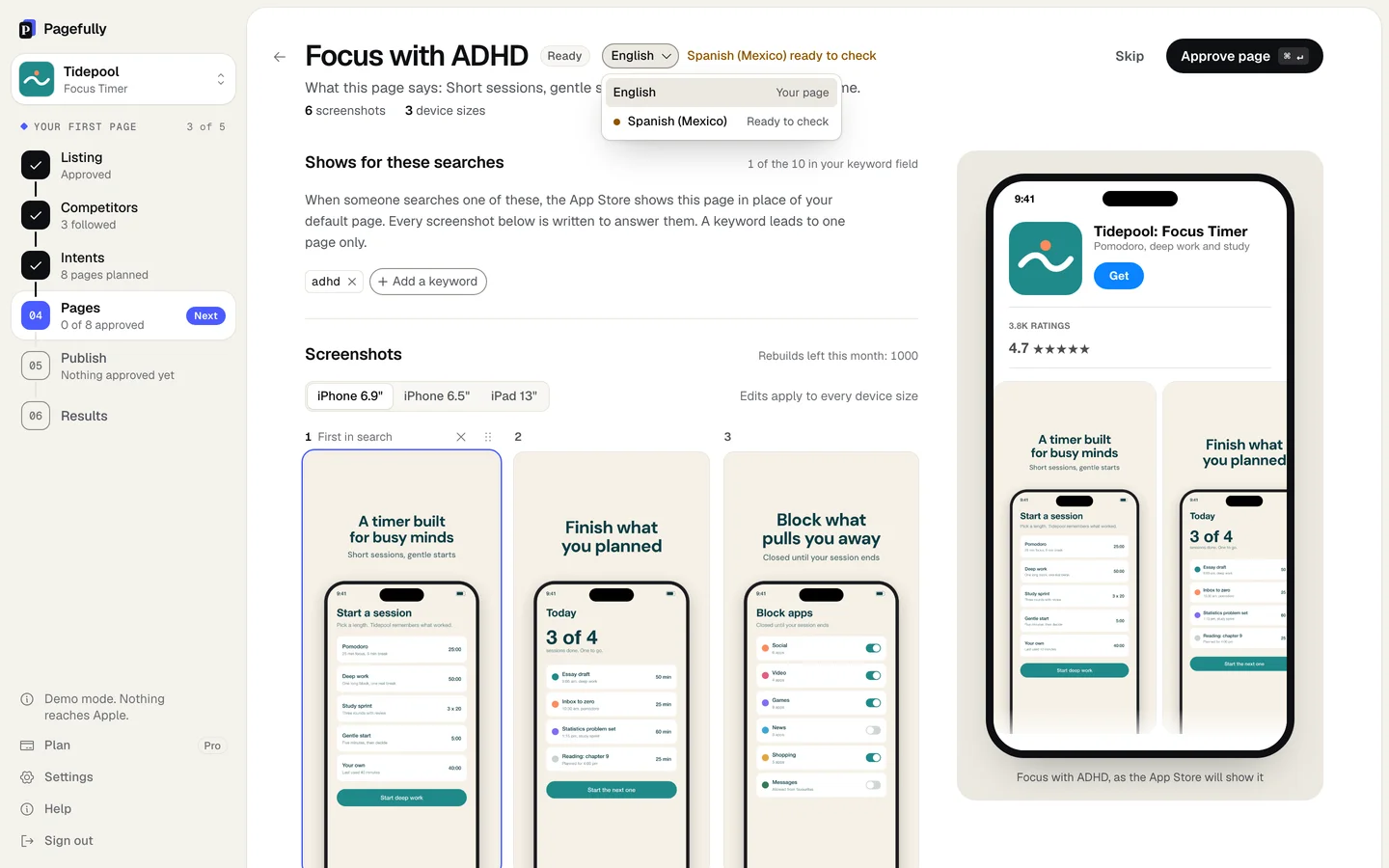
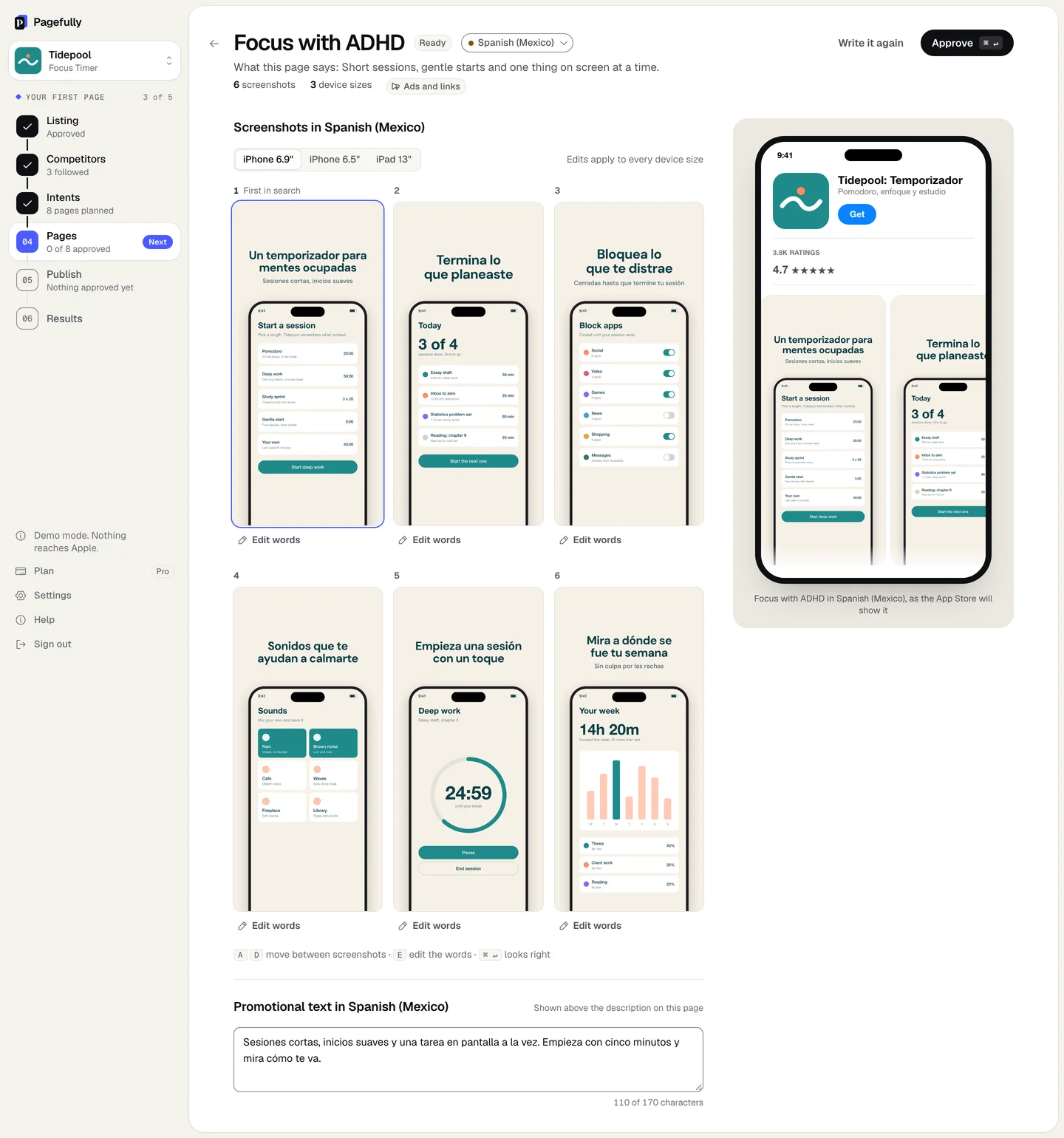
The language shows Approved. On Publish, the page’s row lists it, and it goes with the page the next time you send. A language you have not confirmed is held back and the row says Spanish (Mexico) not confirmed.
What is made for each language
| Written | Every headline, the line under it, and the promotional text, in each language of your listing. Each line is checked against the original and against App Review’s rules. |
|---|---|
| Drawn | Languages in the Latin, Cyrillic and Greek scripts get the new words set on the screenshots, in the typeface of your page. |
| Kept as your own screenshots | Japanese, Chinese, Korean, Thai, Arabic, Hebrew and the Indic scripts are written and checked, but the screenshots stay the ones from your listing in that language. The card says Still shows your own words, with why. |
| Sent | A language reaches App Store Connect only after you confirm it with Approve. Confirmed later, it is added the next time you send the page, and that is not a revision. |
| Changed at Apple | A language already in App Store Connect changes only after you take the page back. The editor says so if you try. |
| Never touched | Your default product page, in any language. |
Keywords are chosen per localization in App Store Connect, not here; see Assign keywords to a page. For Apple’s side of localized pages, read the guide to localizing custom product pages.
If something goes wrong
- Publish says “Spanish (Mexico) not confirmed”. Open the page, choose the language from the menu, read it and click Approve. If the page is already in App Store Connect, send it again and the language is added to it.
- The language shows Problem, or “Spanish (Mexico) could not be finished”. Click Write it again. If the notice says Today’s limit on new pictures was reached before Spanish (Mexico) was drawn. Nothing was lost. Write it again tomorrow., do that tomorrow.
- “Spanish (Mexico) is in App Store Connect. Take the page back on Publish to change it.” The language has been sent, so it is locked. Take the page back, change the language, then send the page again.
- A screenshot says “Still shows your own words”. In a script we do not set on screenshots, that is expected: the words are written, the picture is yours. If the note says the typeface could not be fetched, click Write it again. See Edit a page for the rest of the tools.