Approving says a page is right; sending puts it in App Store Connect as a custom product page, unsubmitted, where you submit it for review yourself.
Before you start
- An App Store Connect key is connected. Without one, Publish says Sending a page to Apple needs App Store Connect. Everything you have made here comes with you. See Connect App Store Connect.
- The page is built and its checks pass. Under Checks, nothing says it has to be fixed.
Steps
- On Pages, click Approve all ready, or open a page and click Approve page.Approve all ready approves every page that is ready in one go; a page whose checks fail is held back. In the editor, Approve page (or Cmd+Enter) approves the one page and moves you to the next unapproved one. If some screenshots still show your own words, a sheet asks once: Approve anyway or Keep editing.
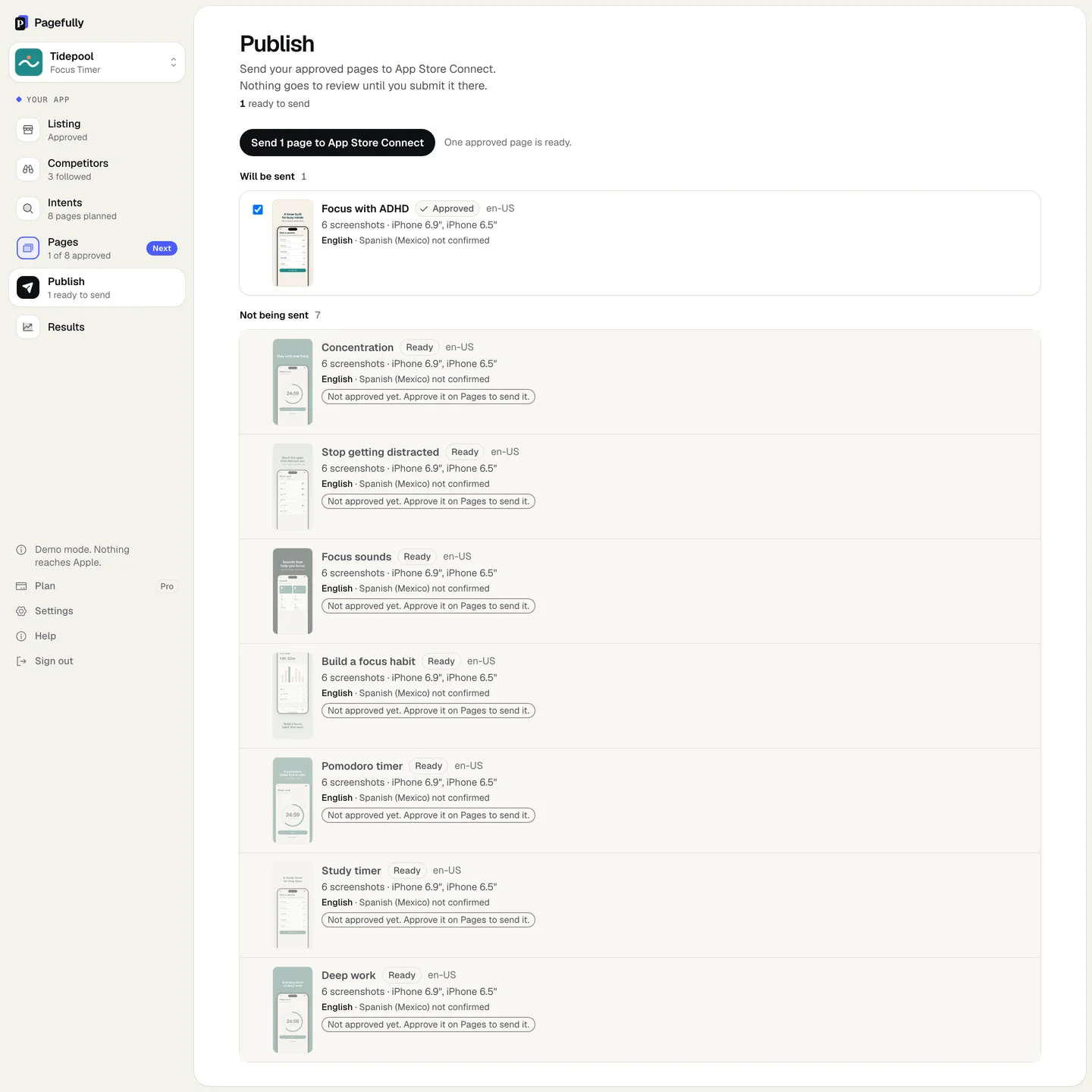
- In the sidebar, click Publish.The screen says Send your approved pages to App Store Connect. Nothing goes to review until you submit it there. and counts 1 ready to send and 0 in App Store Connect. Approved pages are already ticked under Will be sent; Not being sent lists the rest, each with why.
- Click Send 1 page to App Store Connect.The number is how many pages are ticked. Untick a page to leave it for later.
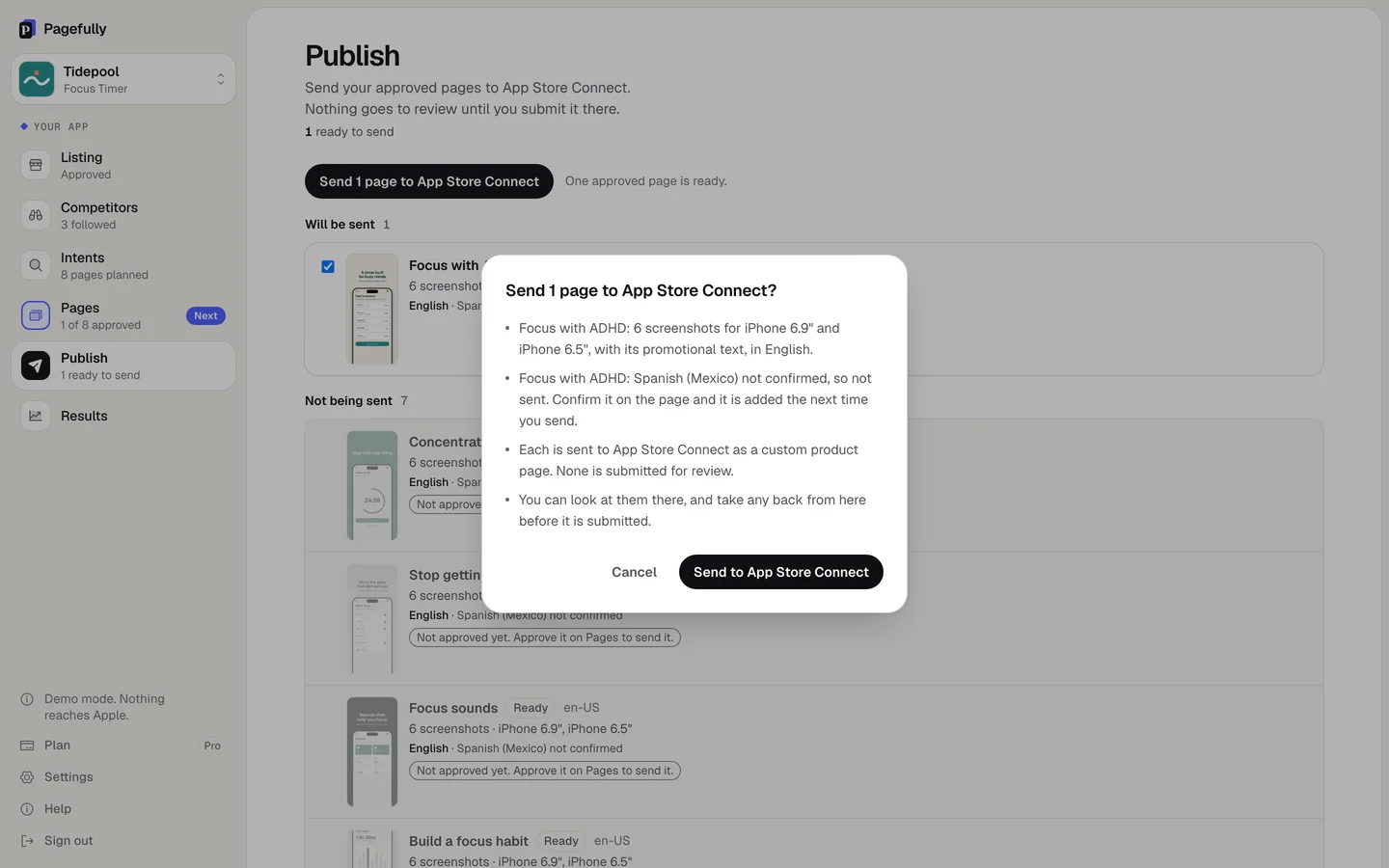
- Read the sheet and click Send to App Store Connect.The sheet is titled Send 1 page to App Store Connect? and lists, for each page, its name, how many screenshots for which devices, that its promotional text goes too, and in which languages. A language you have not confirmed is named as not confirmed, so not sent. A page Apple has held before is named as a revision, with how many you have left. Then, always: Each is sent to App Store Connect as a custom product page. None is submitted for review. and You can look at them there, and take any back from here before it is submitted.
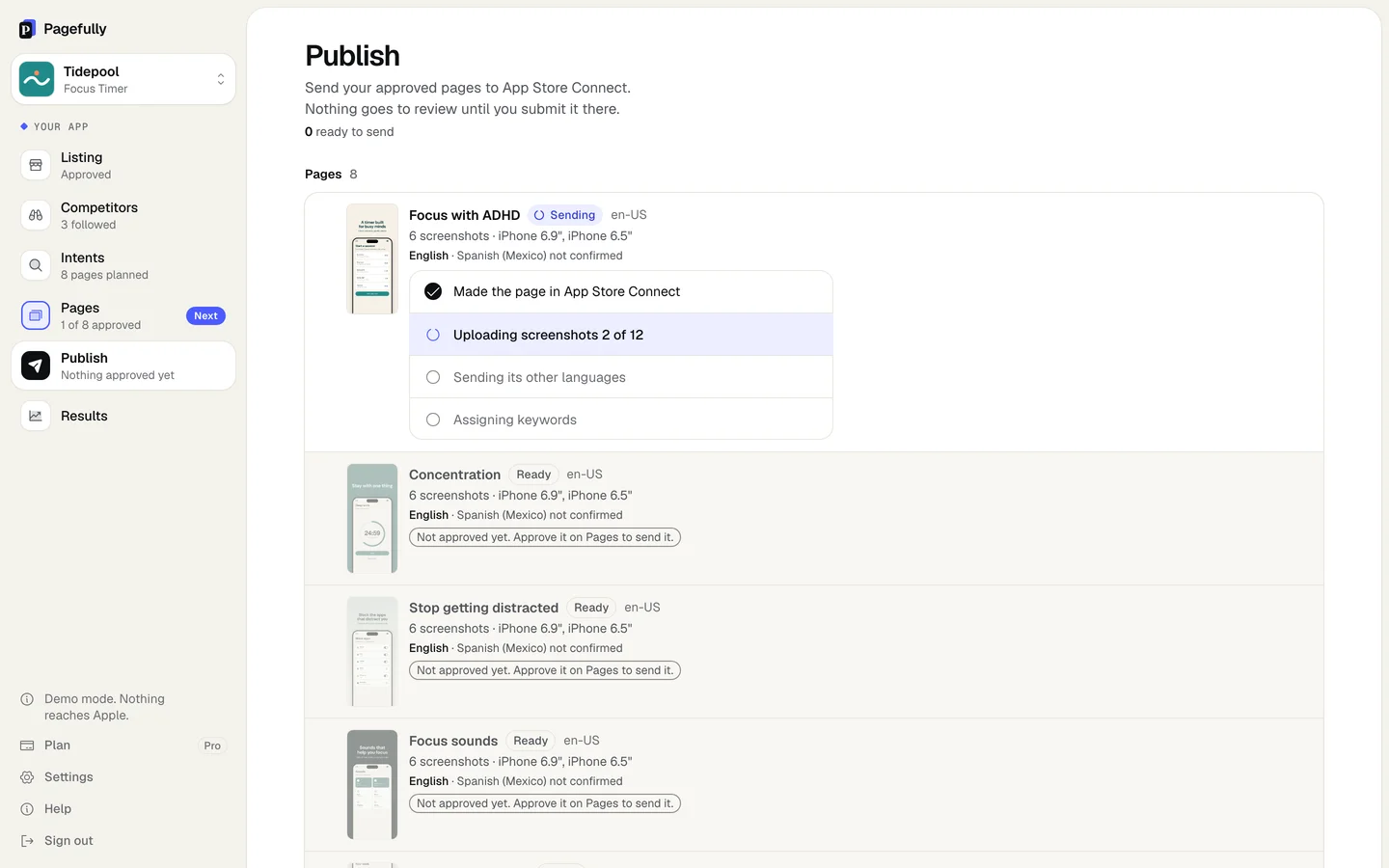
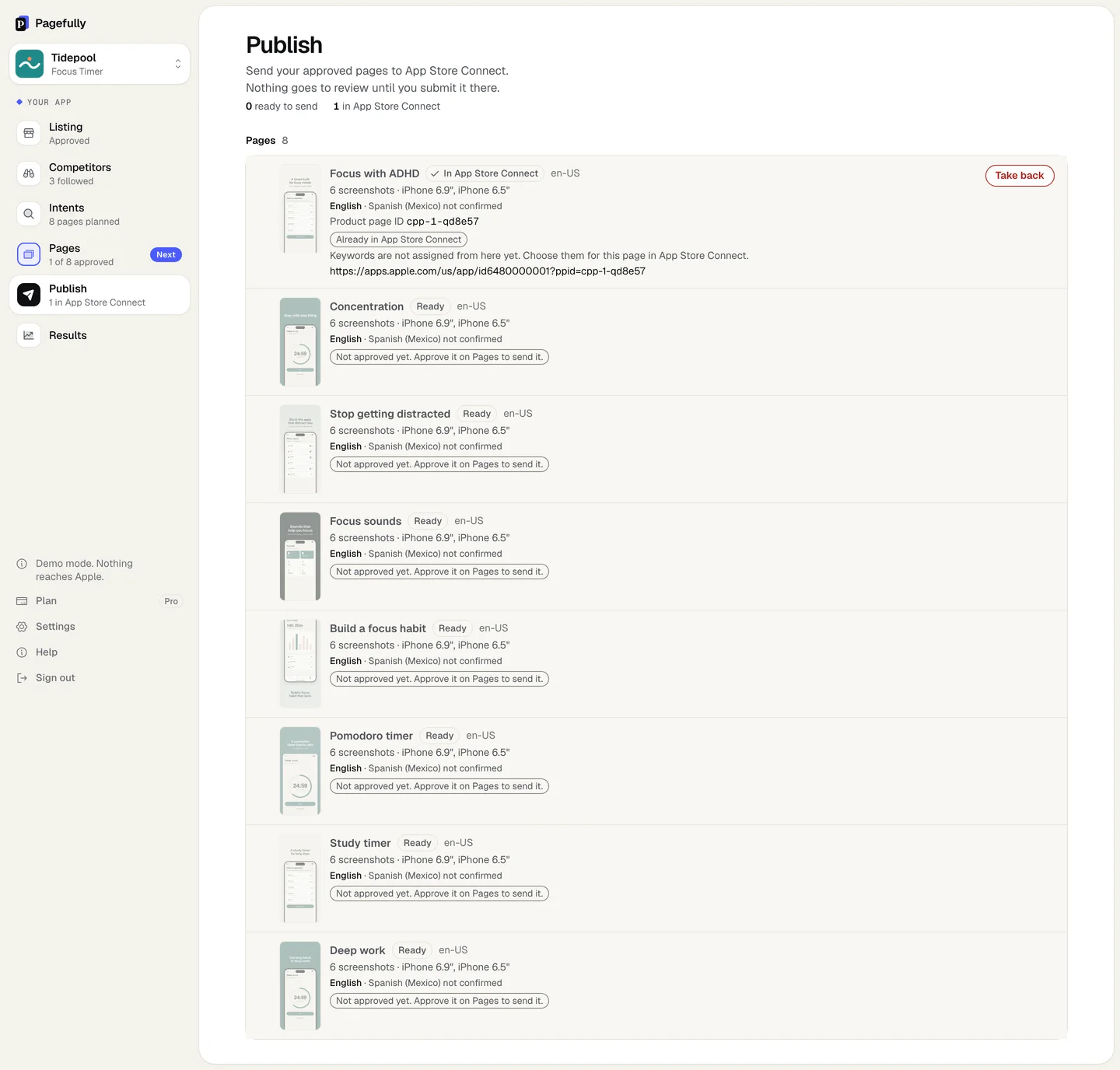
The row shows Sending and its steps: Making the page in App Store Connect, Uploading screenshots with a count, Sending its other languages and Assigning keywords. Then it shows In App Store Connect with its Product page ID, a link to the page in App Store Connect, and the note Keywords are not assigned from here yet. Choose them for this page in App Store Connect. The page is not submitted for review. Submit it in App Store Connect, and assign its keywords there.
If something goes wrong
- “It could not be sent to App Store Connect. Apple said: …” The page goes back to Ready, approved and sendable. Apple’s words say what it refused. Sending a page failed walks through the usual causes.
- “Approve the page before sending it to App Store Connect.” or “Not approved yet. Approve it on Pages to send it.” An edit withdrew approval. On Pages, open the page and click Approve page, then send again.
- “This page has no complete set of iPhone screenshots to send. Rebuild it, then send it.” or “Screenshot 1 could not be found. Rebuild the page, then send it.” Open the page. A screenshot that says This one could not be drawn has Try again; otherwise use the rebuild menu’s All. Approve the page again and send it.
- “Spanish (Mexico) has no complete set of iPhone screenshots to send. Write it again on the page, then send it.” Open the page, choose that language from the menu and click Write it again, then confirm it. See Pages in other languages.
- “Apple could not take one of the screenshots. What was sent is kept. Try again, and the rest is sent.” or “Apple is taking longer than usual to process the screenshots. What was sent is kept. Try again in a few minutes.” Nothing is lost. Send the page again and it carries on from where it stopped.
- “Apple refused the change. Nothing was altered.” App Store Connect said no to the whole send. Check the key still works on Settings, then see Sending a page failed.
- “Choose at least one page to send.” or “None of these pages is approved and ready to send.” Tick a page under Will be sent. A page that is not approved, or is already in App Store Connect, cannot be ticked.
- The row says “No revisions left on your plan”. Sending a page Apple has held before is a revision: Free gives each page 1, the Pack 2, Pro as many as you like. The notice reads You have used this page’s revision. The Pack gives each page 2, and with Pro you revise as often as you like. or You have used this page’s 2 revisions. With Pro you revise as often as you like. See Plan limits and change your plan.
- A notice says your app “has no approved version yet.” You can still send. The notice goes on: Add these pages to your first version’s submission in App Store Connect. Their keywords attach once Apple approves it. See Submit a page for review.