Most often, the words on your original screenshot could not be told apart from your app’s own screen, so Pagefully kept your screen and set the new headline above it in a frame. Every case has a fix in the page editor, and Something looks wrong sends one to us when none works.
What you’re seeing
- A headline that sits lower or higher than on your original screenshot, or in a band of its own.
- Your screenshot shown as your app’s screen inside a frame, with the new headline above it, while other screenshots keep your design. Sometimes a whole page is framed, and the pages built after it.
- Words from inside your app, such as a screen title or an award badge, taken for the headline and replaced.
- The note “Still shows your own words” under a screenshot, with the link Use our design instead.
- “This one could not be drawn” with Try again.
Why it happens
Pagefully reads each of your current screenshots to find the headline you set, so it can put new words in its place, in your typeface and colours. When the only words it finds belong to the app’s own screen, there is no headline to replace, so that screenshot is framed: your screen, cut out, with the new words above it. When a new drawing does not come out to standard, for instance with the words away from where yours were, it is not kept. A page with one screenshot left undone is then drawn whole in the framed design, so it reads as one set, and so are the app’s later pages. The frame never shows your old headline under the new one.
How to fix it
- On Pages, open the page and find the screenshot.Check it on each device tab: iPhone 6.9", iPhone 6.5" and iPad 13". Edits apply to every device size.
- Words in the wrong place, size or colour: click Edit words on the screenshot.The headline is edited on the picture. Drag to move where the words go, resize their area, choose Colour of the words, or click Reset to put them back where we read yours. Click Save.
- The wrong words: type the headline you want, or ask for new ones.In Edit words, type over the headline, up to 45 characters, and Save. Or open the rebuild menu on the screenshot and choose New headline.
- The wrong screen: click the phone icon, Use another of your screenshots.The picker reads “Which screenshot goes in position 1?” with how well each of your screens suits this page’s search. Choose one; each appears once on a page.
- A frame where you wanted your design, or the other way round: click Something looks wrong.The window asks “What is wrong with screenshot 1?”. Choose one of The words are in the wrong place or the wrong size, The typeface or its weight is not ours, Some of our old words still show, The colour or the highlight is wrong, or Something else, add a note, and click Next.
- Under Try this first, pick a fix and click Do this.Depending on the fault: Redraw it draws the screenshot again, told what you said was wrong. Use our design for this screenshot puts your screen in the framed layout, which always comes out clean. Go back to your design does the reverse. Add your font opens Listing to upload your typeface. Remove it from this page takes it off; the page keeps the rest.
- Answer “Is it right now?”.Click Yes, it is right, or No, try something else for the next fix. Under None of these fixes it, click Send it to us: we get the screenshot as it is now and what you tried, and reply by email. You can keep working meanwhile.
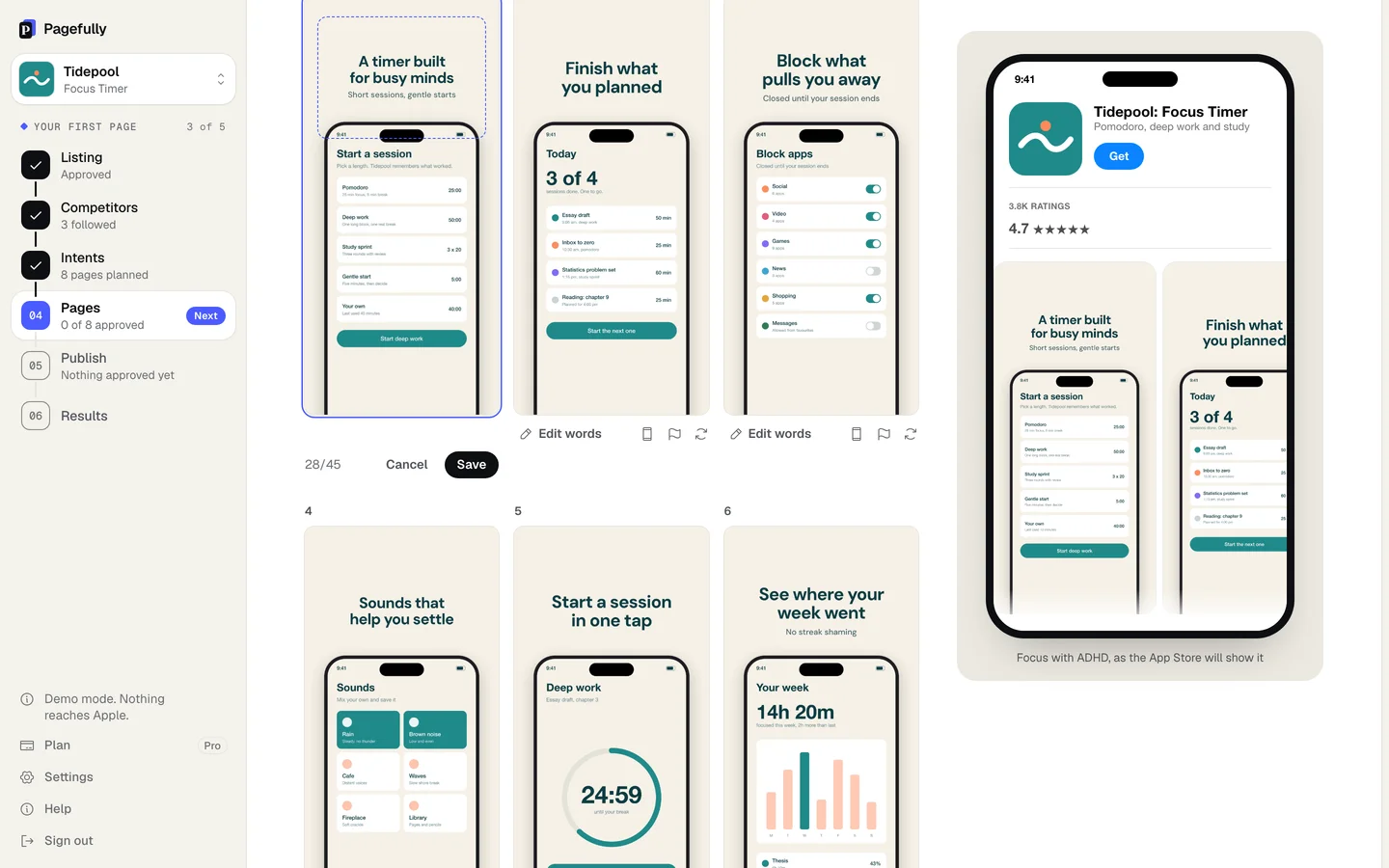
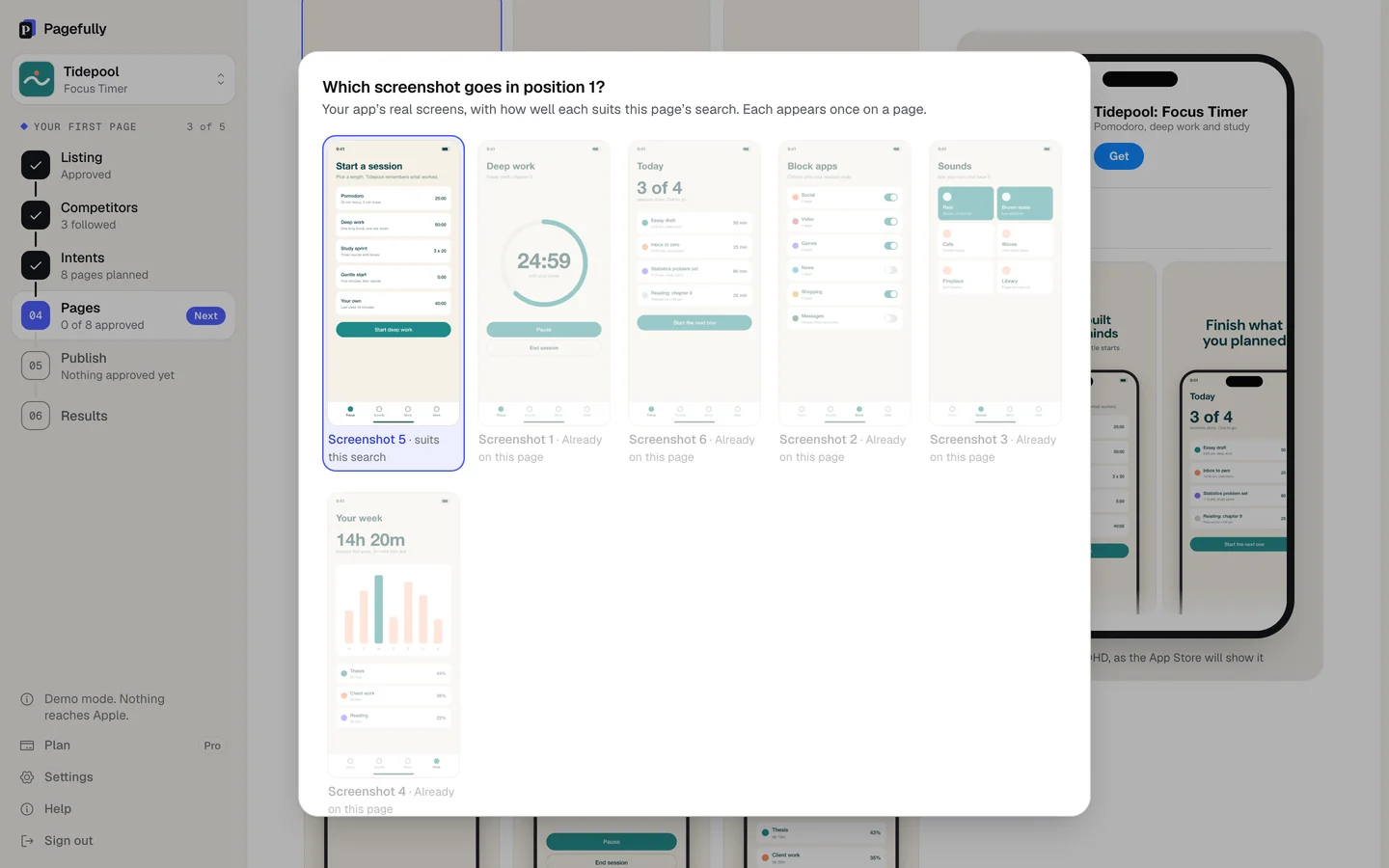
A rebuild from the menu counts against the month’s rebuilds; editing a headline yourself does not. Every edit withdraws the page’s approval, so approve it again when it looks right. The editor is described in full in Edit a page, and the sizes drawn in Screenshot sizes Pagefully draws.
Still not working?
Use Send it to us in the report window: it carries the screenshot and what you tried. Or write to hello@pagefully.com, or click Have feedback? Let us know, and include:
- the app’s name, the page’s name and the screenshot’s number
- the device tab it looks wrong on
- what is wrong, in a sentence, and what you tried