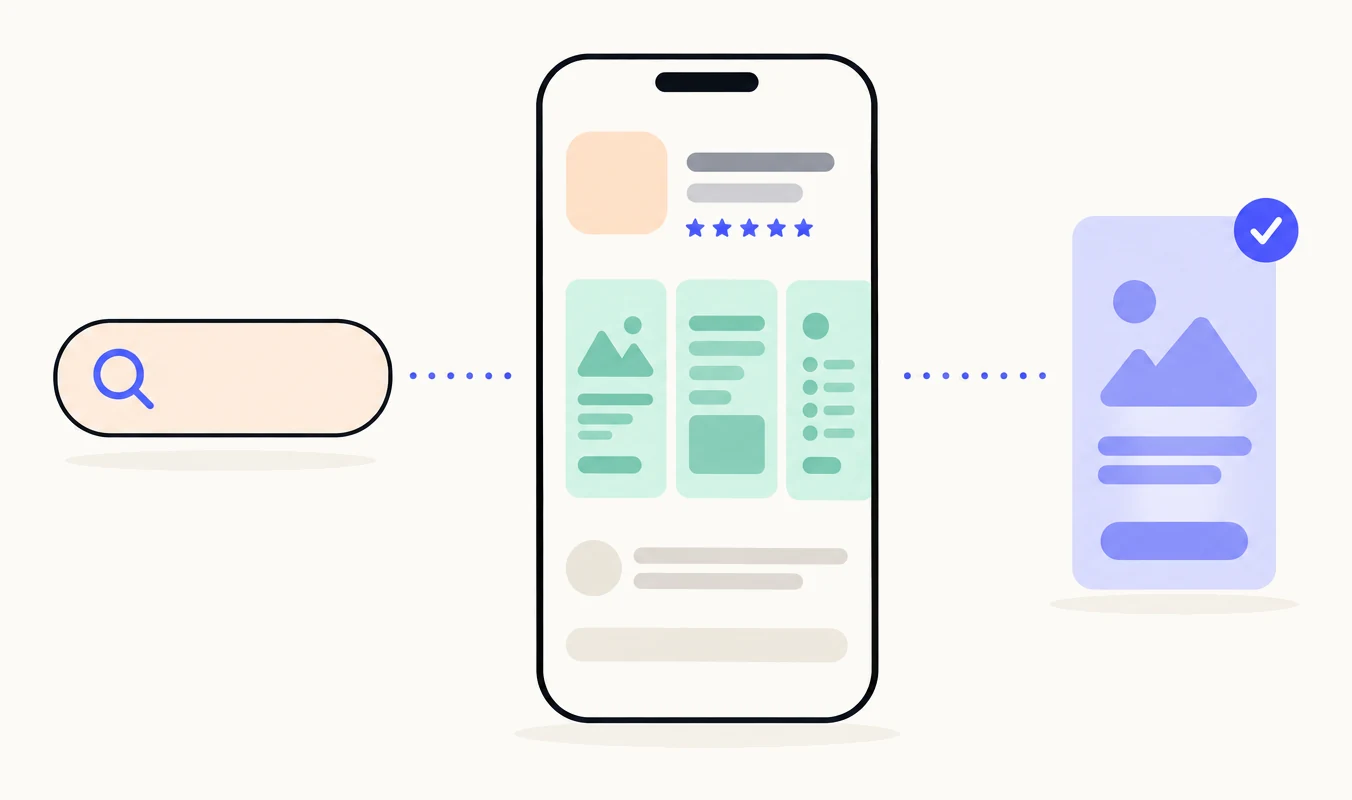
Pagefully reads your App Store listing, plans one page for each reason people search for your app, and designs each page’s screenshots from your app’s real screens. You approve each page and send it to App Store Connect, where you submit it for Apple’s review. On Pro, your listing is read again every week, your pages are redrawn when your screens change, and the competitors you follow are checked for you.
What Pagefully reads
With an App Store Connect key, Pagefully reads your listing in each language: name, subtitle, description, keyword field and screenshots. It reads the custom product pages the app already has, and your public App Store reviews. Nothing is changed at Apple by reading. Without a key, it reads your public App Store page, which has no keyword field, no subtitle or promotional text, no existing pages and no other languages; those arrive when you connect.
From all of this it writes what it understood: What it does, Who it is for, Top jobs, What your reviewers talk about, Tone and Brand. You read it on the Listing screen, change anything that is off, and approve it. Competitors you follow are read the same way, from their public listings and reviews, and what comes of them is offered as pages.
How pages are planned
One page for each reason someone comes to your app: a search, an ad, a link. On the Intents screen each page is a card in one of three columns: Problem (what the searcher wants fixed), Feature (what the app does) or Competitor (an app they already know). Each card has a name, a one-line message, and the keywords it shows for.
The keywords come from your listing’s keyword field, and each keyword leads to one page only. So your field decides how many pages can show in search; the rest are for Apple Ads and links, and need no keyword. A page with no keyword carries the pill Ads and links. Pages your reviews or your competitors argue for appear as Suggested, with Add page and Dismiss. The keyword advice on the Listing shows which keywords would let more pages show in search.
How screenshots are designed
Every screenshot on a page is one of your app’s real screens, taken from your listing. Pagefully never invents a screen. It matches the screens that suit the page’s search, writes a headline for that searcher on each one (45 characters at most, with an optional line under it), and draws the page in three sizes: iPhone 6.9", iPhone 6.5" and iPad 13". Apple fits the other sizes from these. It also writes the page’s promotional text.
Before you see a page, every line is read against App Review’s rules and shown under Checks: claims, other apps’ names, size and fit. In the page editor you can change a headline, swap a screen, redraw one screenshot or rebuild the page. Screenshot sizes lists what is drawn.
What you approve and what is sent
Nothing reaches Apple without a click. On Pages you look each page over and click Approve page; any later edit withdraws the approval. On Publish, Send to App Store Connect opens a sheet that lists exactly what will change, and the page goes only when you confirm. Sending creates the page in App Store Connect with its screenshots and promotional text, unsubmitted. Its status reads In App Store Connect.
Submitting is yours: you open the page in App Store Connect and submit it for review there. Keywords are assigned to the page there too. A page in App Store Connect that has not been submitted can be taken back with Take back, which deletes it from App Store Connect and keeps it approved in Pagefully. Your default product page is never touched. See Approve a page and send it, Submit a page for review and Take back a sent page.
What continues
On every plan, Refresh listing reads your listing and reviews again when you ask. On Pro, four things carry on by themselves:
- Your listing and reviews are read again every week. When you ship an update and your screens change, your pages are redrawn from the new screens. See Refresh your pages after an app update.
- The first five competitors you follow are checked every three days, and you get an email when one changes what its App Store page leads with.
- The weekly note: one email a week for each app, with how your pages did and the pages worth adding next. Each kind of email can be turned off in Settings; see Emails and notifications.
- Each page is written and drawn in every other language of your listing. A language goes to App Store Connect only after you confirm it on the page. See Pages in other languages.
Results from Apple are not read yet: the Results screen says so, and App Analytics in App Store Connect has each page’s numbers in the meantime.
What this means for you
- Your first fifteen minutes are reading and approving, not designing. The quick start walks the path once.
- The Listing screen is worth a careful read. Every page is planned from it.
- You decide what goes to Apple, page by page, and you submit it there yourself.
- A page shows in search only for the keywords assigned to it in App Store Connect, from your keyword field.
- On Free and the Pack, pages stay as they were made. On Pro they are kept current.