Whichever of these you do, pages already in App Store Connect stay exactly as they are: they are in your Apple account, and you manage them there.
Before you start
- You are signed in. The key and the apps are under Settings, at the foot of the sidebar.
- To disconnect an app on Pro, cancel Pro first under Manage billing on its Plan screen. See Cancel Pro.
Replace the key
Use this when a key was revoked, has the wrong role, or you want a fresh one. Everything made in Pagefully is kept.
- Open Settings and find App Store Connect key.The row shows Key {Key ID}, when it was added and last checked, and a pill.
- Click Replace.The connect form opens, titled Replace your key.
- Enter the new Issuer ID and Key ID, drop the new .p8 file, and click Connect.Creating the key at Apple is in Connect App Store Connect.
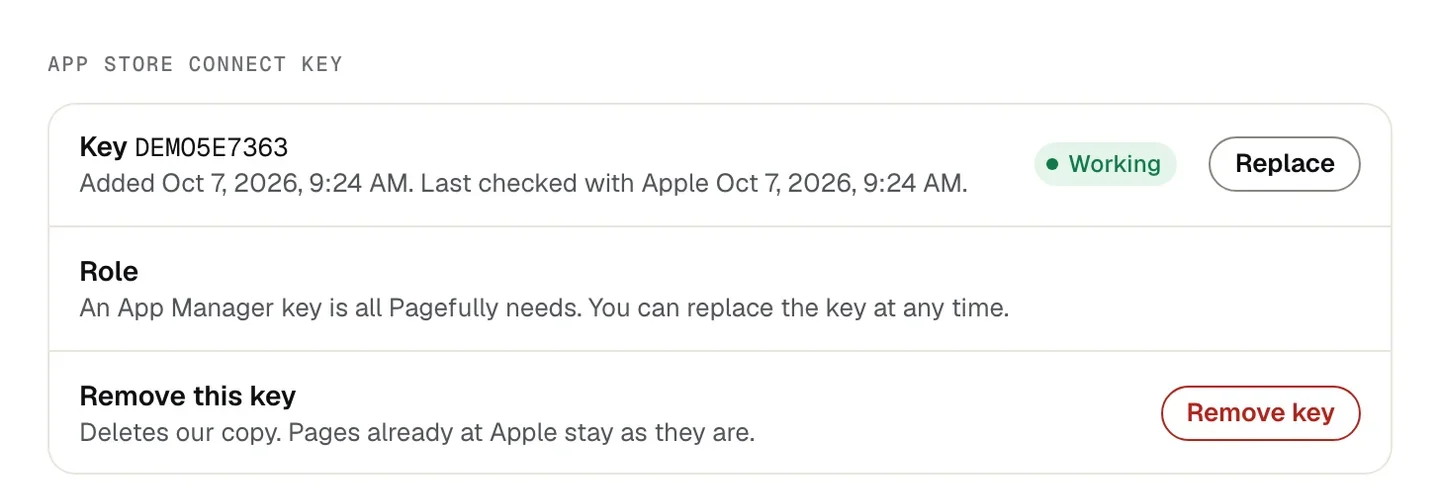
Pagefully checks the new key with Apple, and Settings shows its Key ID with the pill Working. The old key is forgotten here; revoke it at Apple as below if you no longer want it.
Remove the key
This deletes our copy. The row says so: “Deletes our copy. Pages already at Apple stay as they are.” Your apps, listings and pages in Pagefully are not deleted.
- Open Settings and find App Store Connect key.
- Click Remove key.It is on the row Remove this key.
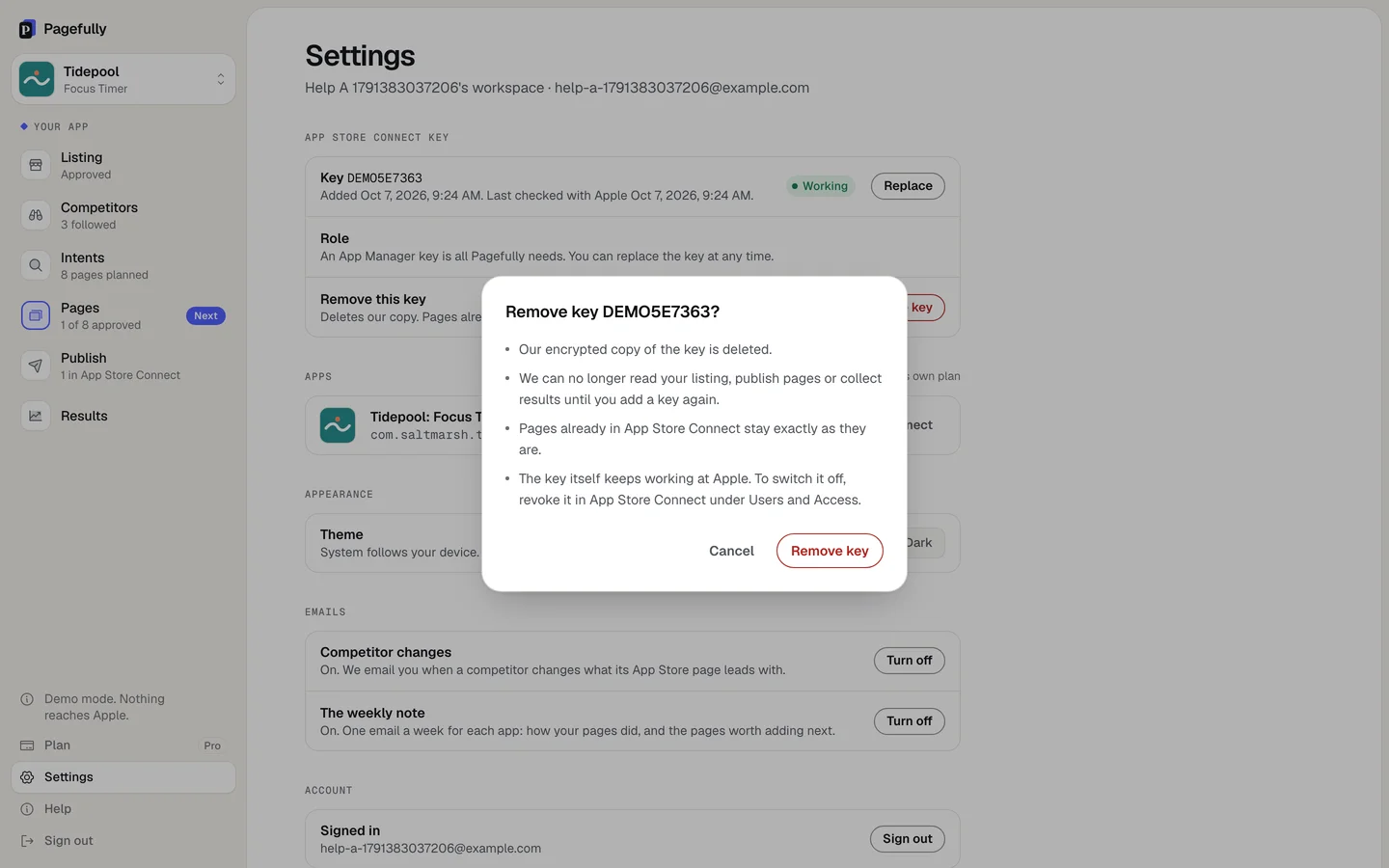
- Read the sheet, then click Remove key.The sheet is titled Remove key {Key ID}? and says: “Our encrypted copy of the key is deleted.” “We can no longer read your listing, publish pages or collect results until you add a key again.” “Pages already in App Store Connect stay exactly as they are.” “The key itself keeps working at Apple. To switch it off, revoke it in App Store Connect under Users and Access.”
The section reads No key on this workspace with the button Connect App Store Connect. Nothing else in Pagefully changes, and nothing changes at Apple.
Disconnect an app
This removes one app from Pagefully: our copy of its listing, screenshots, intents and pages. The key stays, and so do the other apps.
- Open Settings and find Apps.Each app is a row with its bundle id and its plan.
- In the app’s row, click Disconnect.
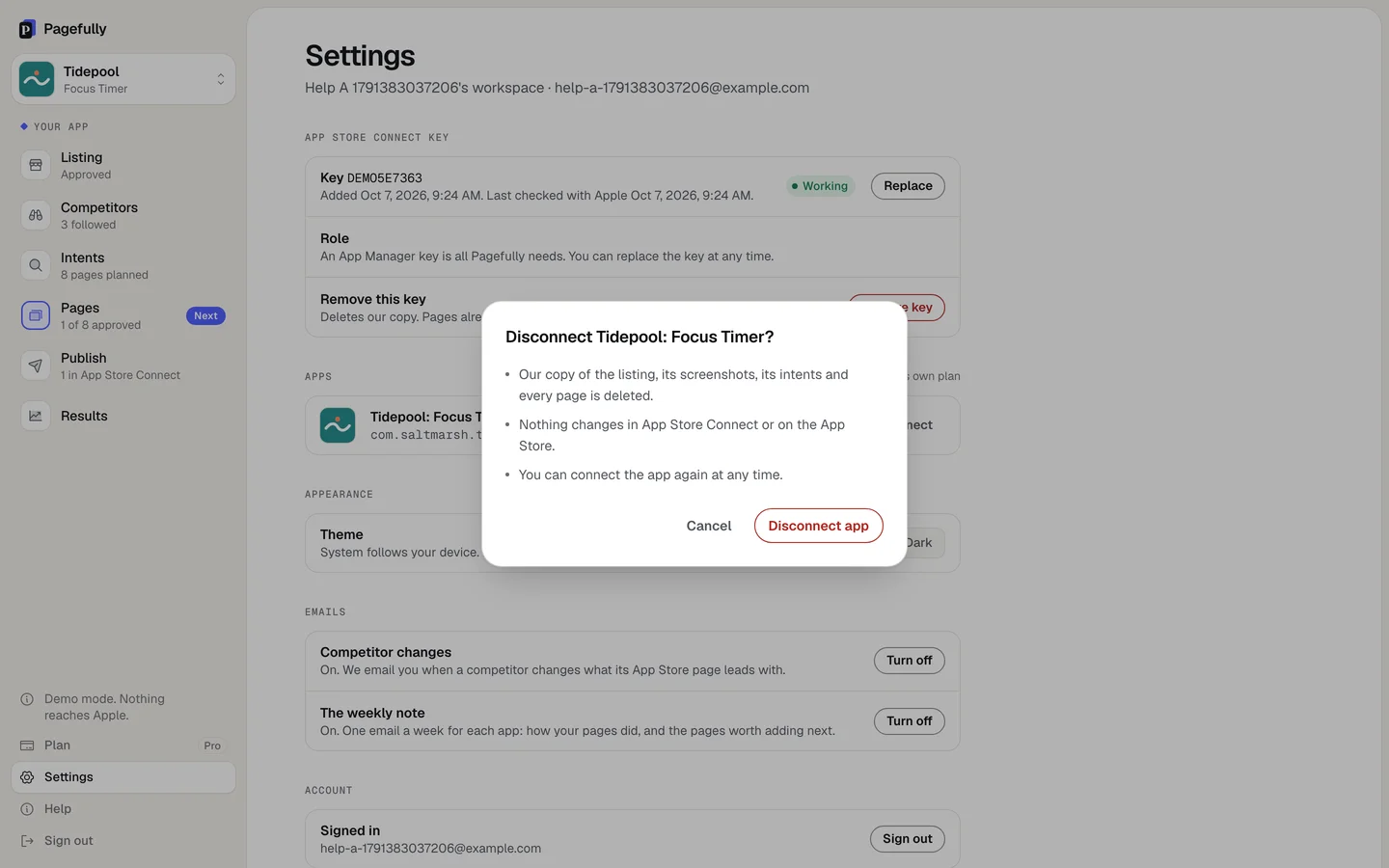
- Read the sheet, then click Disconnect app.The sheet is titled Disconnect {app}? and says: “Our copy of the listing, its screenshots, its intents and every page is deleted.” “Nothing changes in App Store Connect or on the App Store.” “You can connect the app again at any time.”
The app leaves the Apps list and the sidebar. Connecting it again starts from a fresh read of its listing. The free page is one per app across reconnects, so disconnecting and reconnecting does not earn another.
Revoke the key at Apple
Removing the key in Pagefully does not switch it off at Apple. To stop it working anywhere, revoke it in App Store Connect.
- In App Store Connect, open Users and Access, then Integrations.Click Team Keys if the list is not showing. The Account Holder or an Admin can do this.
- Find the key by its Key ID and revoke it.Apple cannot reinstate a revoked key. Pagefully stops the moment you do, and your published pages stay live.
Pagefully can no longer read your listing or send pages, and says so where it tries. Connect a new key with Replace when you want to continue. To delete your account as well, see Delete your account.
If something goes wrong
- “This app is on Pro. Cancel it under Manage billing on its Plan screen first, then disconnect it.” An app with a running subscription cannot be disconnected. Open its Plan screen, click Manage billing, cancel Pro, then disconnect it when the period ends.
- “This app has a Pack, and disconnecting would lose it. Write to hello@pagefully.com and we will remove the app for you.” The Pack is paid once and tied to the app. Write to hello@pagefully.com and say which app; we remove it and confirm by email.
- “We could not remove the key. Try again.” or “We could not disconnect that app. Try again.” Nothing was changed. Reload Settings and try once more. If it happens again, write to hello@pagefully.com.
- The pill says Rejected after you replaced the key. Apple refused the new key. Check its role is App Manager and it has not been revoked, then Replace it again. The fixes for each sentence are in Connect App Store Connect.