Apple’s reason is in App Store Connect, not in Pagefully: Pagefully does not read a page’s review status yet, and sends no rejection email. A rejected page is almost always about a screenshot, a headline or the promotional text. You take the page back, change that, send it again and submit it again. Your app is not affected.
What you’re seeing
- In App Store Connect, under your app, the submission that holds the page shows unresolved issues, with a message from App Review that names a guideline.
- In Pagefully, on Publish, the page still reads In App Store Connect. Nothing in Pagefully changes when Apple decides.
- No email from Pagefully. Apple’s own emails about the submission are the ones to read.
Why it happens
A custom product page is reviewed on its own, under Apple’s rules for screenshots, app previews and promotional text, because those are the only things a page can change. The usual reasons are a screenshot that does not show the app in use, another app’s name, a claim that cannot be checked, or a price in a headline. Why custom product pages get rejected lists each reason, the guideline and the fix.
How to fix it
- Read Apple’s message in App Store Connect.Open your app, follow the link about unresolved issues, and note which screenshot, headline or text was named.
- If the page is still in a submission there, remove it from the submission.A page can only be taken back from Pagefully once it is not submitted for review. App Store Connect lets you remove the page from the submission or withdraw it.
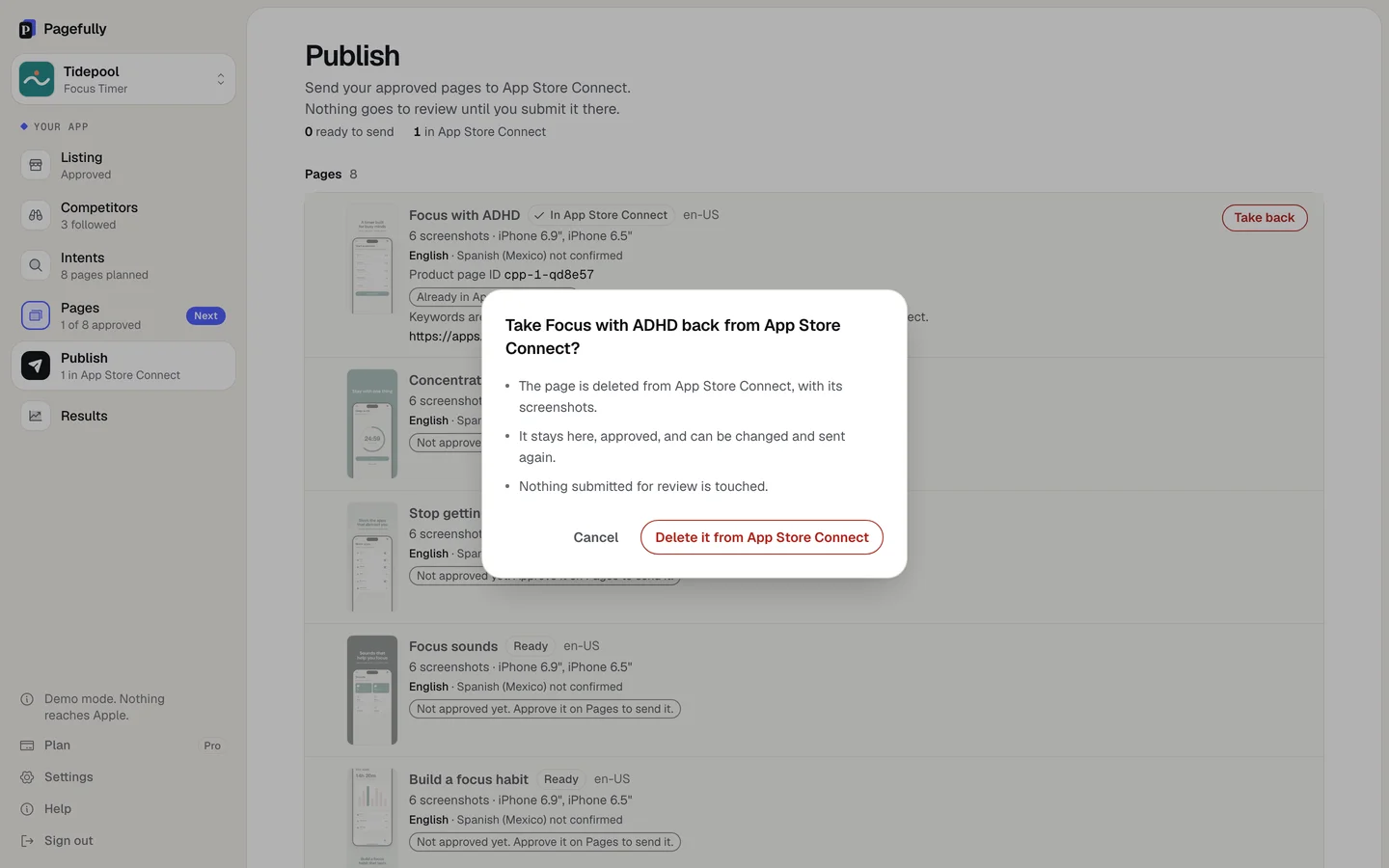
- On Publish, on the page’s row, click Take back.The sheet reads “Take {name} back from App Store Connect?”. Click Delete it from App Store Connect. The page and its languages are deleted there. It stays here, approved.
- On Pages, open the page and click Edit.Change what Apple named: click Edit words on a screenshot for its headline, use the phone icon to swap the screen for another of your screenshots, or change the Promotional text.
- Check Checks, then click Approve page.The checks read the page against the rules App Review applies most. Fix anything marked before approving.
- On Publish, choose the page and click Send to App Store Connect.Apple has held this page before, so this send is a revision. Free has 1 per page, the Pack 2, Pro as many as you like.
- In App Store Connect, submit the page for review again.Pagefully never submits. The steps are in Submit a page for review in App Store Connect.
How to edit is in Edit a page; the submission steps are in Submit a page for review in App Store Connect; what Apple looks at is in How Apple reviews a custom product page.
Still not working?
If you think Apple misread the page, reply to App Review in App Store Connect first: the guide’s section What if you disagree? says how. For help with the Pagefully side, write to hello@pagefully.com or click Have feedback? Let us know, and include:
- the app’s name and the page’s name
- Apple’s message, pasted whole, with the guideline number
- which screenshot or text was named, and what you changed