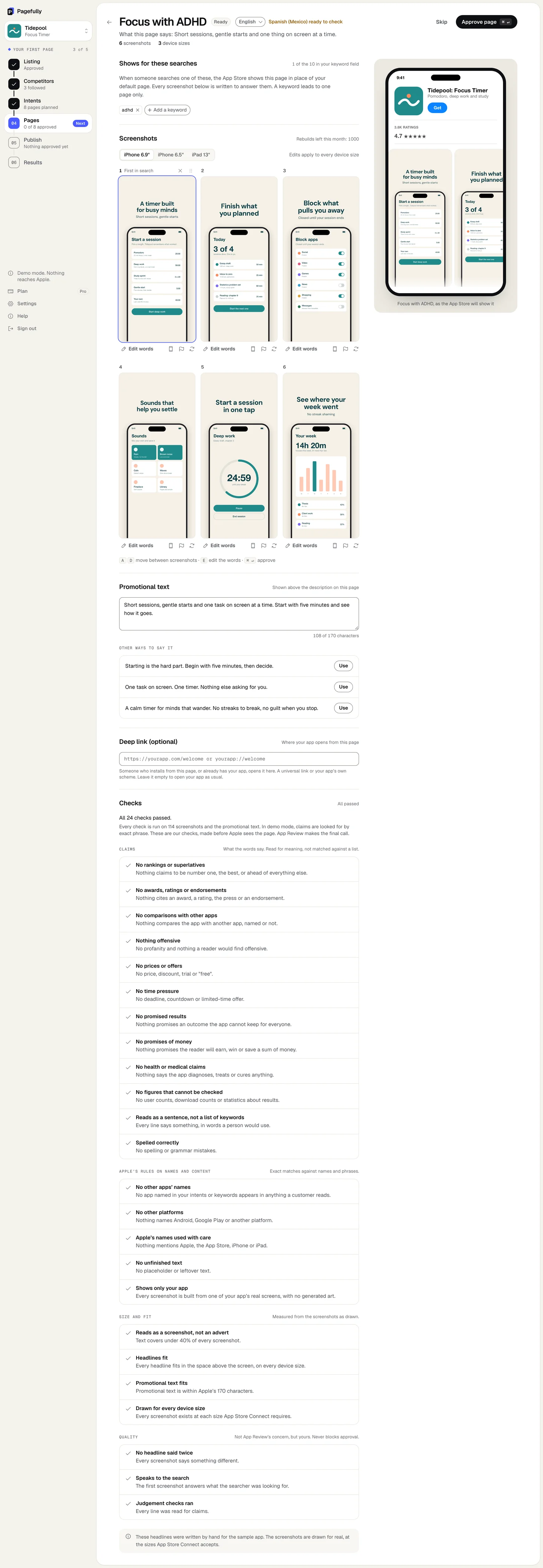
Everything about a page is on one screen: the searches it shows for, its screenshots, its promotional text, its deep link and its checks.
Before you start
- The page is built. Its card on Pages says Ready, not Building. See Build and review pages.
- The page is not in App Store Connect. A page that is there, in review or live is locked until you take it back.
What is on the screen
| The header | The page’s name, its status, Skip (to the next unapproved page) and Approve page. On Pro, an app with more than one language has a language menu here too. Under it, What this page says is the one message the page makes. |
|---|---|
| Shows for these searches | The keywords this page shows for. Add a keyword lists the keywords on no page and the keywords on another page; adding one of those moves it here. A keyword leads to one page only. A page with no keyword says Seen from ads and links instead. |
| Screenshots | The device tabs iPhone 6.9", iPhone 6.5" and iPad 13" show the same page in each size. Edits apply to every device size, so you change a screenshot once. Rebuilds left this month counts the rebuilds your plan gives you. The last card, Add a screenshot, adds one of your screens the page does not use yet. |
| Each screenshot’s tools | Edit words (or press E) changes the headline on the picture. The phone icon, Use another of your screenshots, puts a different screen in this position. The flag, Something looks wrong, reports a fault and offers a fix. The rebuild menu, New words, or drawn again, offers New headline, Different screenshot and All. Each of those three counts as one rebuild. |
| The words on the picture | While you edit: the headline, Add a line under it, a handle to Drag to move where the words go and to resize their area, Colour of the words, and Reset. A headline holds 45 characters, the line under it 70. |
| The phone on the right | The page as the App Store will show it. It changes as you do. |
Steps
Change a headline
- On Pages, click the page to open it.
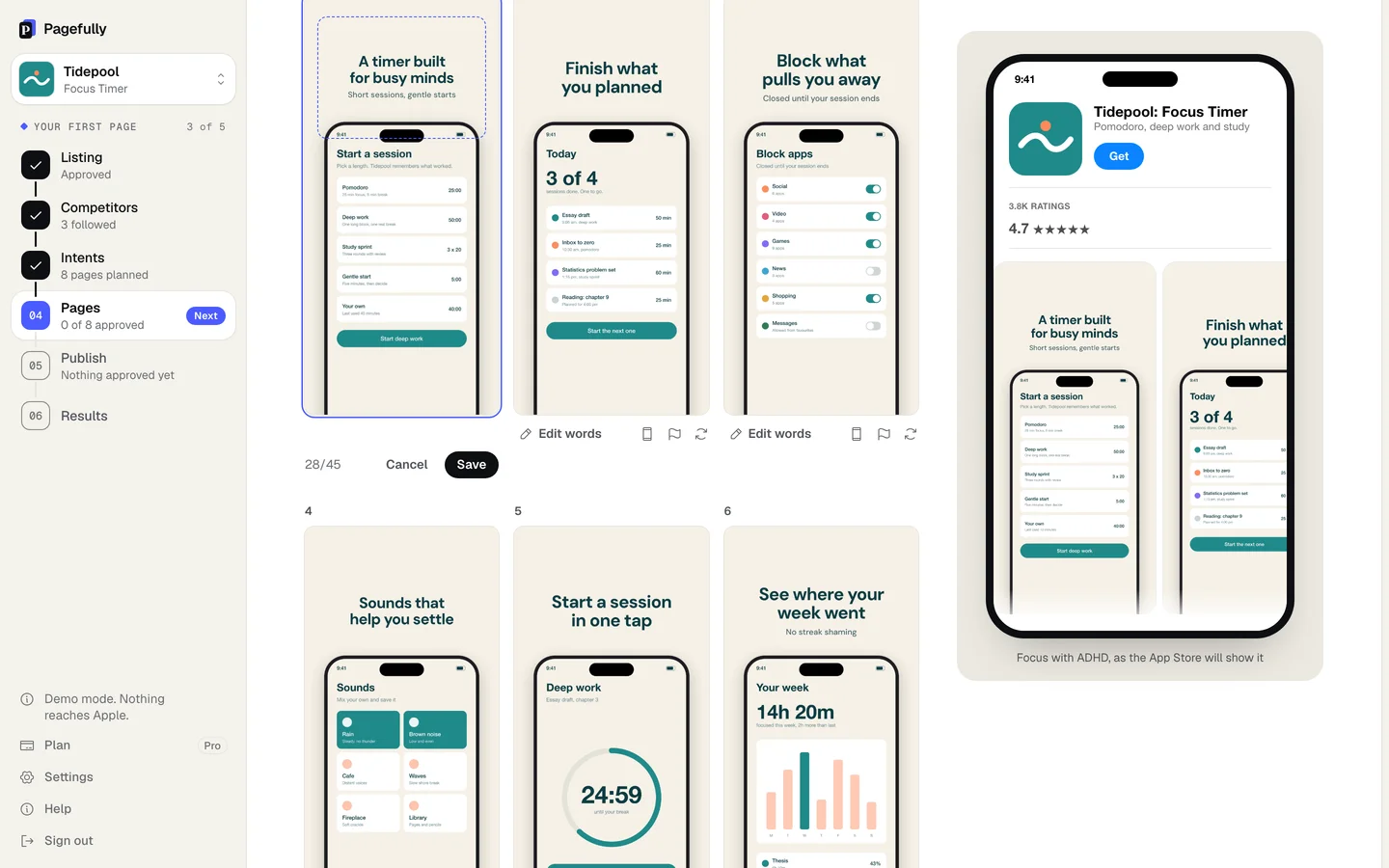
- Under Screenshots, on the screenshot, click Edit words.Or press E. The headline becomes a box you can type in, on the picture itself.
- Type the new headline on the picture.The counter shows how many of 45 characters you have used. Add a line under it adds a second line of up to 70. Drag the words to move them, or change Colour of the words.
- Click Save.The card shows Drawing… while the screenshot is drawn again, in every device size.
Swap a screen
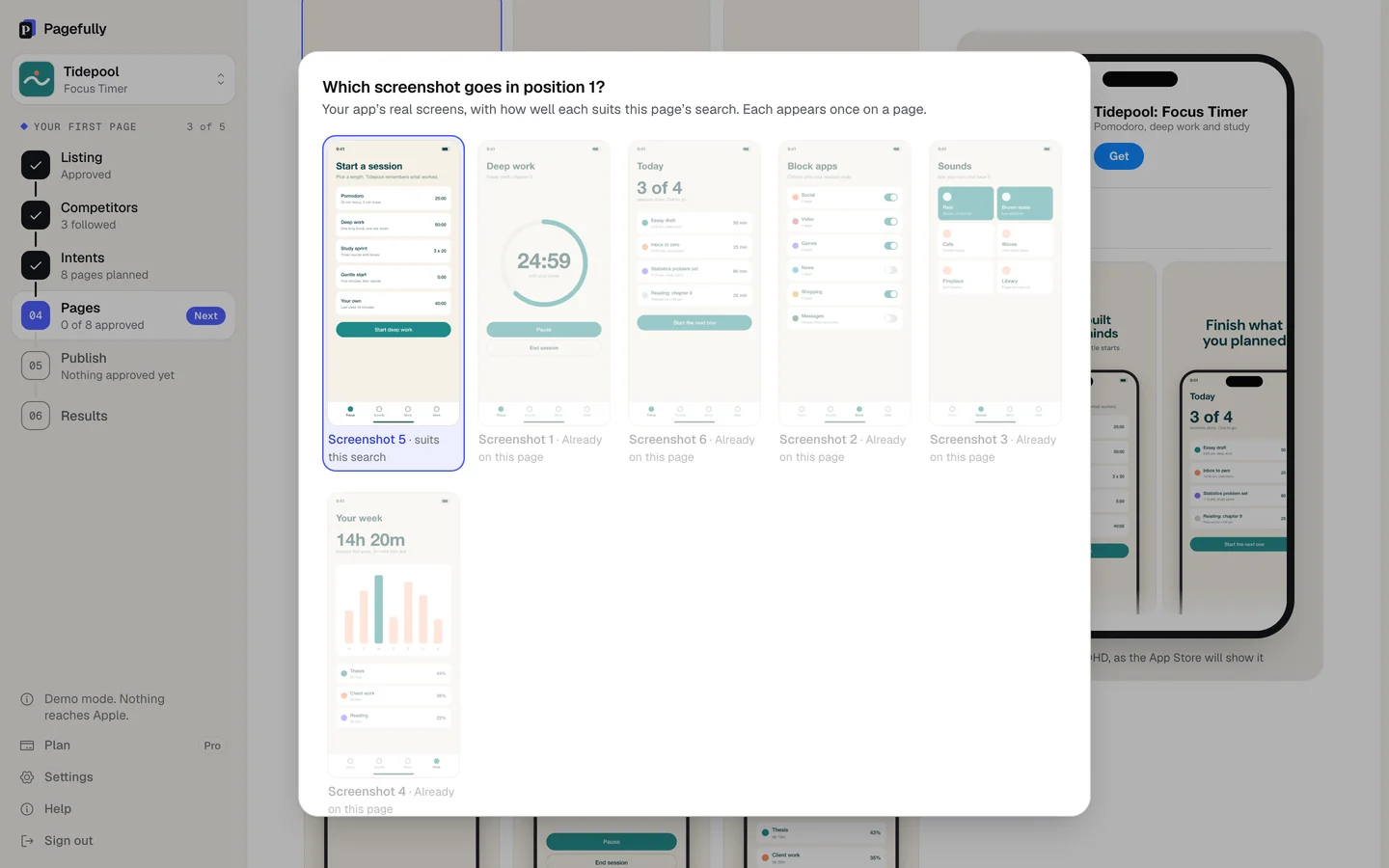
- On the screenshot, click the phone icon, Use another of your screenshots.
- In the picker, click the screen you want.The picker asks Which screenshot goes in position 1? (the number is the screenshot’s). It shows your app’s real screens, each with how well it suits this page’s search. A screen the page already uses is marked Already on this page; each appears once.
Redraw one screenshot
- On the screenshot, click the flag, Something looks wrong.
- Choose what is wrong and click Next.The choices run from The words are in the wrong place or the wrong size to Something else. A note is optional.
- Under Try this first, beside Redraw it, click Do this.The screenshot is drawn again from the start, told what you said was wrong. The fixes offered depend on the fault: Move or resize the words, Add your font, Use our design for this screenshot and Remove it from this page are the others.
- Answer Is it right now?Click Yes, it is right or No, try something else. If nothing fixes it, Send it to us sends the screenshot and what you tried, and we reply by email.
Check every device size
- Above the screenshots, click iPhone 6.5" or iPad 13".Every edit is already applied there. A tab is greyed out when your listing has no screenshots for that device. Screenshot sizes lists what is drawn.
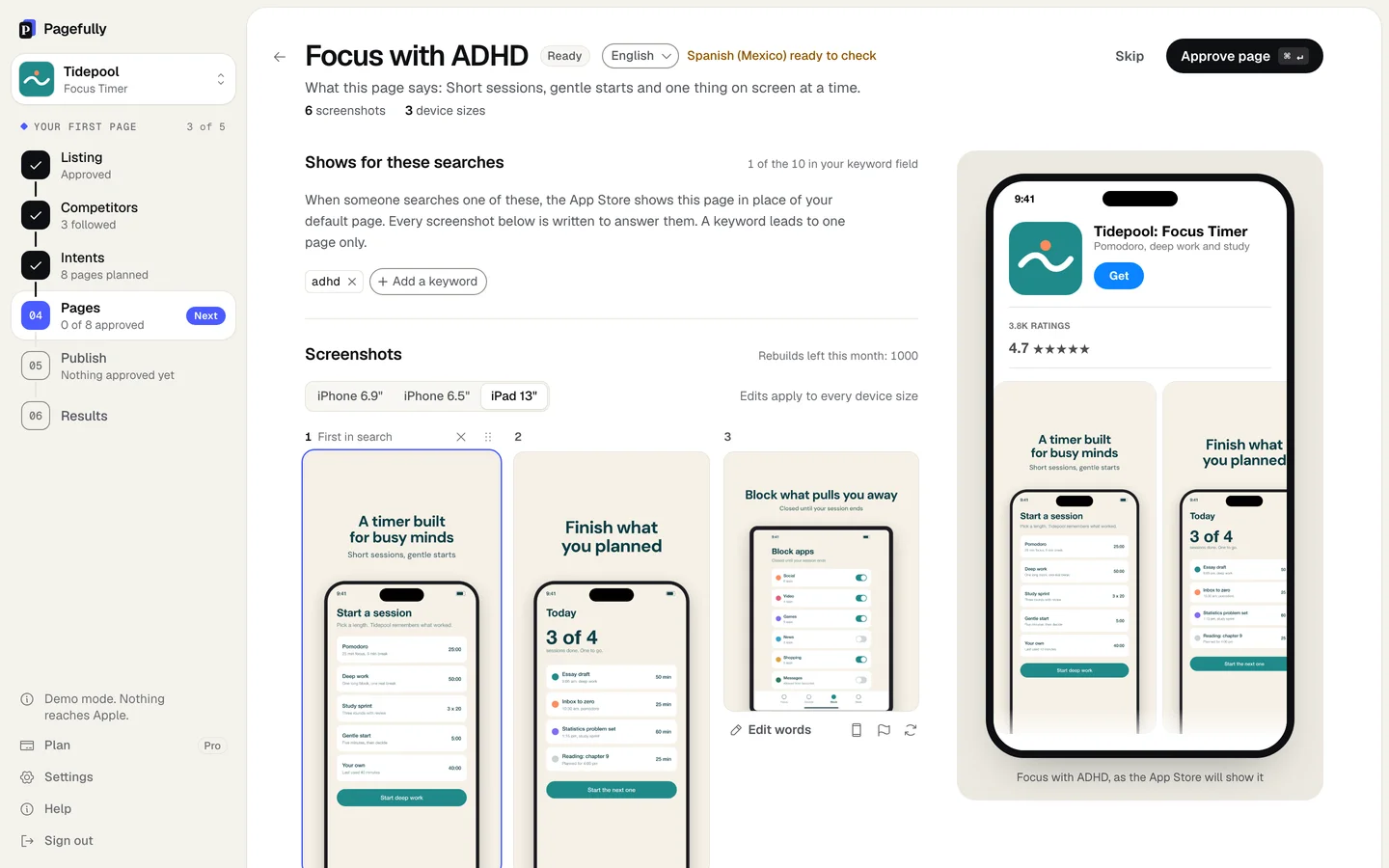
The page shows your change in every device size, and the phone on the right shows it as the App Store will. If the page was approved, it is approved no longer: click Approve page again when you are done.
If something goes wrong
- The redraw came back in a frame, with your screen smaller and the words above it. That is our design, used when your own layout could not be read. Open the flag again and choose Go back to your design, or see A screenshot looks wrong.
- “You have used this month’s rebuilds. You can still edit any headline yourself, or change plan for more.” New headline, Different screenshot, All and Write a better headline count against the month; Edit words does not. Plan limits has the numbers.
- The page was approved, and now it says Ready. Any edit withdraws approval. Click Approve page again. Nothing is sent until you send it from Publish; see Approve a page and send it.
- “This page is with Apple and cannot be changed until it comes back from review.” The page is in App Store Connect. Take it back on Publish, then edit it and send it again.