Most sends fail because the key no longer works, a screenshot is missing from the page, or Apple did not answer. Your page is saved either way, and a send is safe to try again.
What you’re seeing
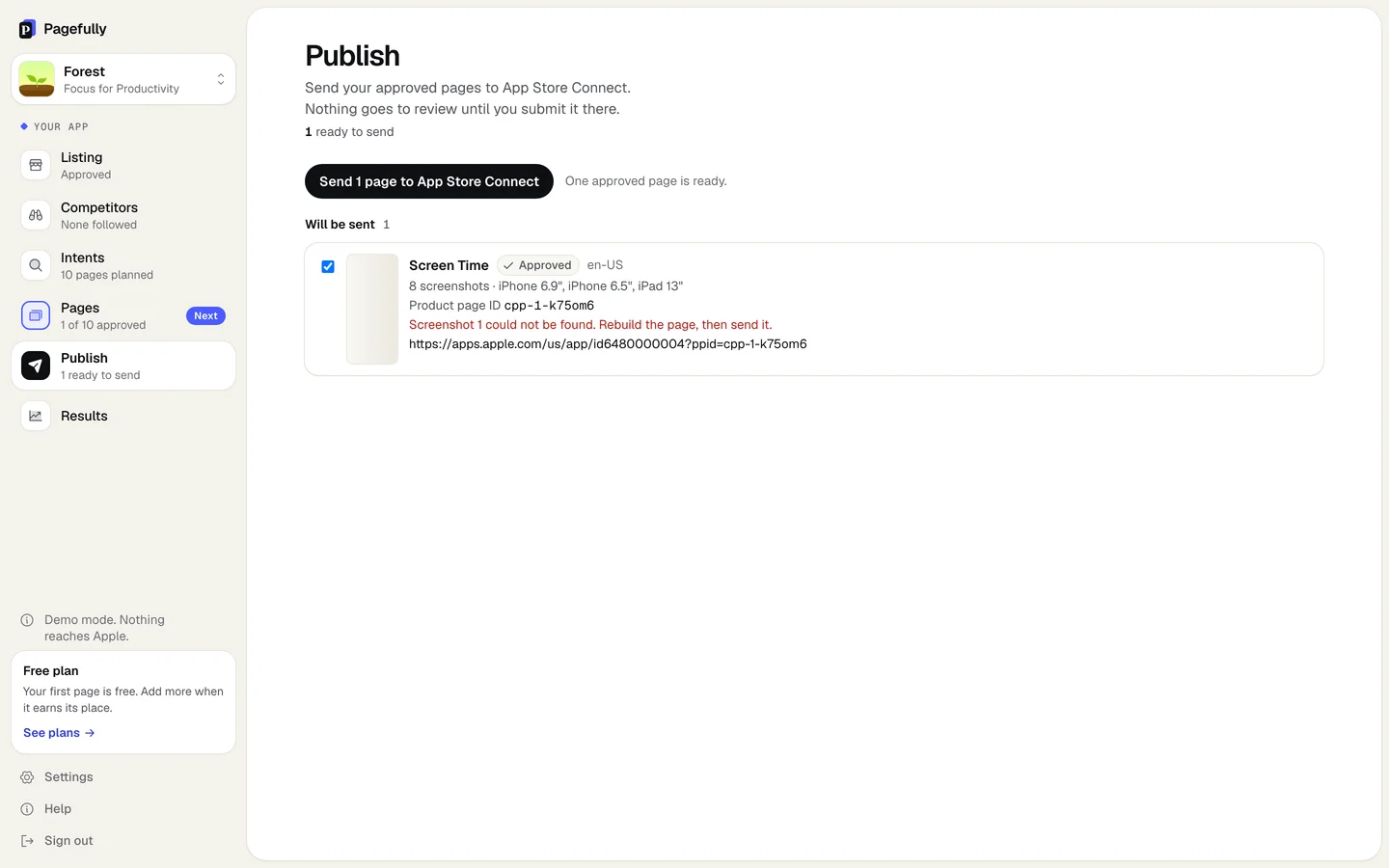
On Publish, the page’s row keeps its pill, Approved or In App Store Connect, and shows the reason in red under its name. It is one of these:
- “It could not be sent to App Store Connect. Apple said: …” followed by Apple’s own words.
- “Screenshot 1 could not be found. Rebuild the page, then send it.” (the number varies)
- “This page has no complete set of iPhone screenshots to send. Rebuild it, then send it.”
- “Spanish (Mexico) has no complete set of iPhone screenshots to send. Write it again on the page, then send it.” (the language varies)
- “Apple could not take one of the screenshots. What was sent is kept. Try again, and the rest is sent.”
- “Apple is taking longer than usual to process the screenshots. What was sent is kept. Try again in a few minutes.”
- “Apple refused the change. Nothing was altered.”
- “Approve the page before sending it to App Store Connect.”
- “We could not reach App Store Connect. Check Apple’s system status and try again.”, “App Store Connect is not responding. Nothing was changed. Try again in a few minutes.” or “Apple is limiting requests for this key right now. We will try again shortly.”
- “Your stored key could not be opened. Add it again in Settings.”
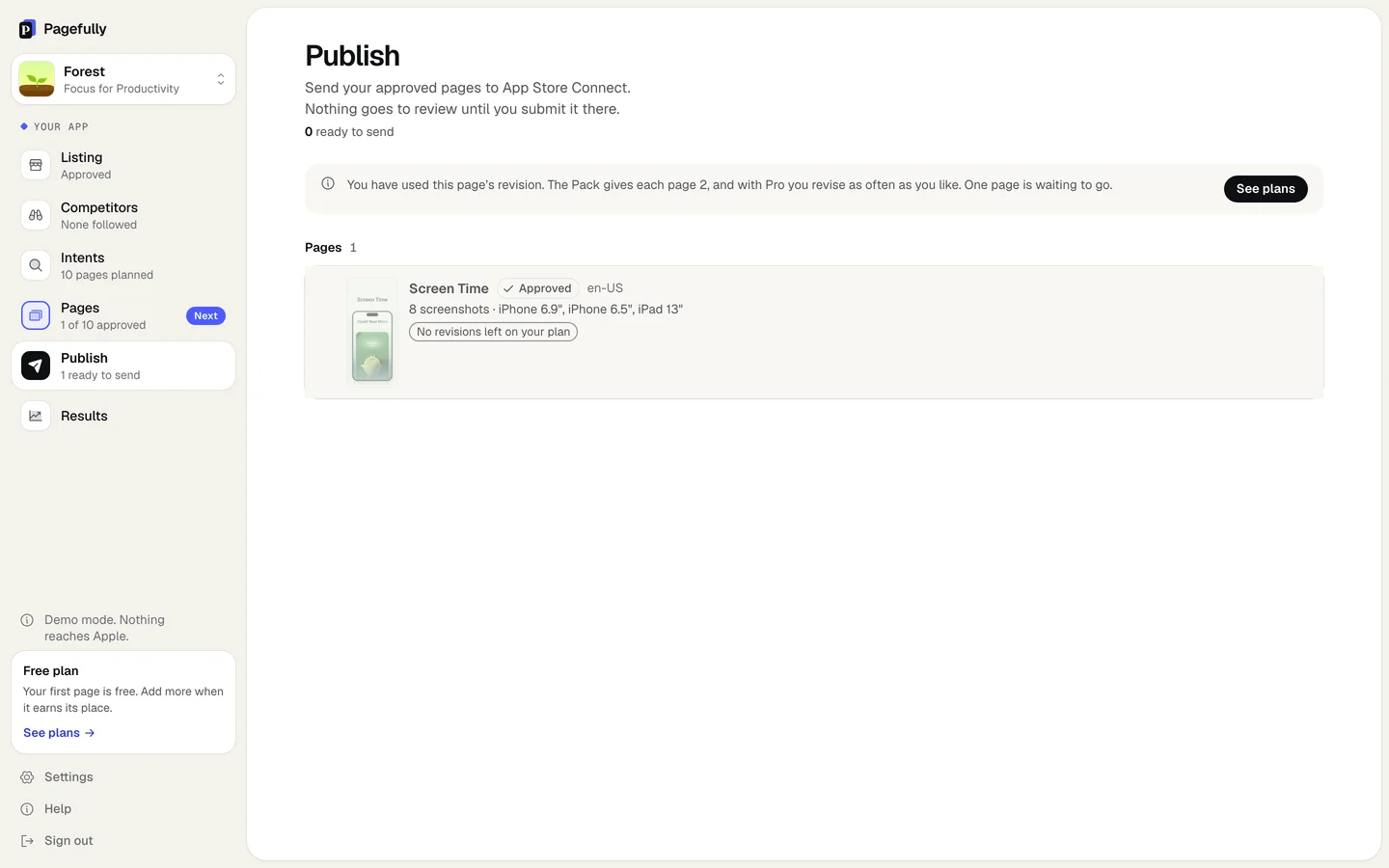
A page that is not offered for sending is a different case. Its row says why: “Not approved yet. Approve it on Pages to send it.”, “No revisions left on your plan”, “Already in App Store Connect” or “Not ready to send”.
Why it happens
A send runs in four steps: making the page in App Store Connect, uploading its screenshots, sending its other languages, and assigning keywords. It stops at the step that fails and says why. Every id Apple returns is kept before the next step, so trying again carries on where it stopped: a page already made is found again, and a screenshot already processed is not sent twice. A send tried again after a failure is counted once.
How to fix it
- Read the sentence on the page’s row on Publish.The table below says what each one means. Where it says “Nothing was changed” or “What was sent is kept”, nothing is half-done at Apple.
- If Apple did not answer, wait a few minutes and send again.On Publish, choose the page and click Send 1 page to App Store Connect. Apple’s system status page says when App Store Connect is down.
- If a screenshot or a set is named, rebuild the page.On Pages, open the page. A screenshot that reads “This one could not be drawn” has Try again. Otherwise open the rebuild menu on a screenshot and choose All, then Write it again. Approve the page again, then send it.
- If a language is named, write it again.Open the page in that language, click Write it again, check it, and click Approve. Then send the page again.
- If the key is named, replace it.Open Settings. If the key’s pill reads Rejected, or the sentence says the stored key could not be opened, click Replace and add a key with the App Manager role. Then send again.
- If Apple’s own words name a size or a screenshot, rebuild the page and send again.If they name the page’s state, look at the page in App Store Connect. A page in a submission there cannot be changed from here until the submission is withdrawn.
- If a limit is named, make room or change plan.“Apple allows 70 custom product pages for an app, and yours are all in use. Delete a page to make another.” is Apple’s limit, and no plan lifts it. “That is your free page” and the revision sentences are your plan’s: click See plans.
| “Apple said: …” | Apple refused the request and these are its words, shown as they came. A size or a screenshot named: rebuild the page. The page or its state named: look at it in App Store Connect. |
|---|---|
| “Screenshot 1 could not be found…” | A drawn file is missing from the page. Rebuild the page, approve it again, send it. |
| “…no complete set of iPhone screenshots to send” | A device size has not been drawn in full. The Checks group Size and fit says which. Rebuild the page, or write the named language again. |
| “Apple could not take one of the screenshots…” | One upload failed at Apple. The rest are kept. Send again and only what is missing is sent. |
| “Apple is taking longer than usual to process the screenshots…” | Apple is still processing what was uploaded. Wait a few minutes and send again. |
| “Apple refused the change. Nothing was altered.” | App Store Connect would not accept the change to the page as it stands there. Look at the page in App Store Connect; if it is in a submission, withdraw that first. |
| “Approve the page before sending…” | The page lost its approval, usually because something on it was edited. On Pages, open it and click Approve page. |
| “We could not reach App Store Connect…” and the other Apple-not-answering sentences | Apple was unreachable, slow, or limiting requests for this key. Nothing was changed. Wait and try again. |
| “Your stored key could not be opened…” | Our copy of your key can no longer be used. In Settings, click Replace and add the key again. |
| “No revisions left on your plan” | A send of a page Apple has held before is a revision. Free has 1 per page, the Pack 2, Pro as many as you like. The page is not offered until you change plan. |
Rebuilding a page is covered in Edit a page, sending in Approve a page and send it, the limits in Plan limits, and the key in Connect App Store Connect.
Still not working?
Write to hello@pagefully.com, or click Have feedback? Let us know in the app, and include:
- the page’s name and the app’s name
- the time you pressed Send to App Store Connect
- the sentence on the row, word for word, including anything after “Apple said:”
- the Product page ID if the row shows one