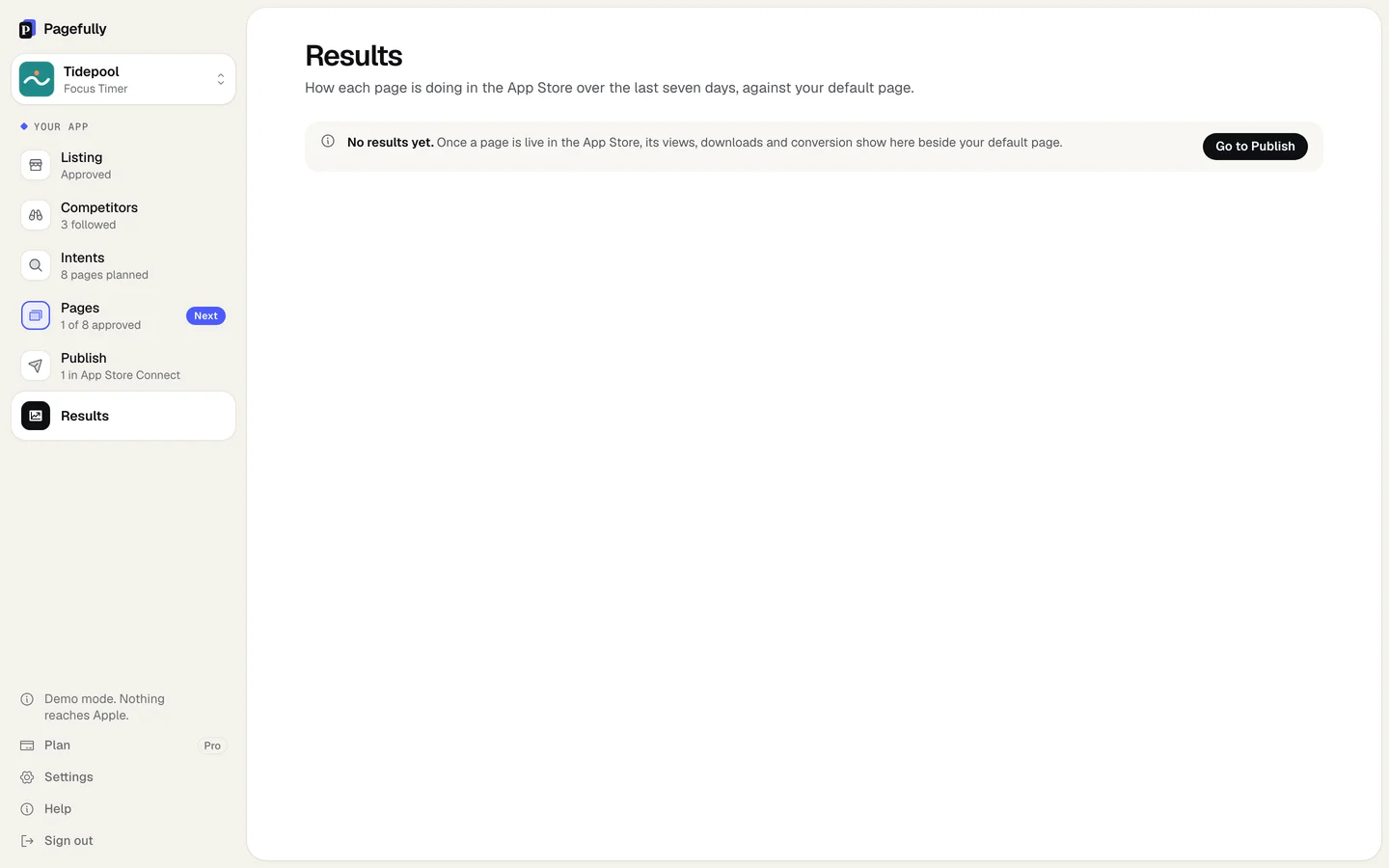
Results is where each page’s views, downloads and conversion sit beside your default page. Today every number on it reads No results yet: Pagefully does not read Apple’s numbers yet, and the screen does not promise when it will. Until it does, each page’s numbers are in App Store Connect, under App Analytics.
What the screen shows
The header reads How each page is doing in the App Store over the last seven days, against your default page. With nothing sent, the screen says:
| Nothing in App Store Connect | No results yet. Once a page is live in the App Store, its views, downloads and conversion show here beside your default page. with the button Go to Publish. |
|---|---|
| Pages in App Store Connect | No results yet. Apple shows a page’s numbers after its first downloads, so a new page stays quiet for a while. and a table Your pages. |
The table has five columns: Page, Page views, Downloads, Conversion and Against your default. Every number reads No results yet. A page in review carries an In review pill and reads Not live yet. Nothing is ever made up to fill a cell.
Where to read the numbers now
App Store Connect reports each custom product page on its own, in App Analytics. Apple shows a page’s data once it has five first-time downloads, so a new page stays empty for a while even there.
In App Store Connect, open your app, click Analytics, and under Acquisition click Product Pages. Each custom product page is listed by its reference name, which is the page’s name in Pagefully. Click one to read its page views, downloads and conversion rate, and compare it with your default page over the same days.
How to measure custom product pages walks through the dashboard, Apple’s definitions, and how to compare a page with your default page.
The weekly note
On Pro, the Monday email This week for {app} lists each page under Your pages, last 7 days. Today each line reads No results yet, or In review with Apple for a page in review, and the email says Apple shows a page’s numbers after its first downloads. Its See your results button opens this screen. Emails and notifications says how to stop it.
What this means for you
- Give each page a name that says who it is for. That name is how you find it in App Analytics.
- Make sure people can reach a page: keywords assigned to it in App Store Connect, an Apple Ads ad group that uses it, or a link you share. A page nobody reaches never gets five downloads.
- Judge a page against your default page over the same days, not against another page.
- Nothing you set up now is lost. Your pages, their names and their keywords stay as they are, whatever Results shows later.