Switching changes every screen in the sidebar, Listing to Results, to the app you choose; your key and your sign-in are shared.
Steps
- At the top of the sidebar, click the current app.It is the card under the Pagefully mark, with the app’s icon, name and what it is. On a phone, the sidebar is the bar across the top.
- Under Your apps, click the app you want.The menu lists every app in your workspace. The one you are in is marked.
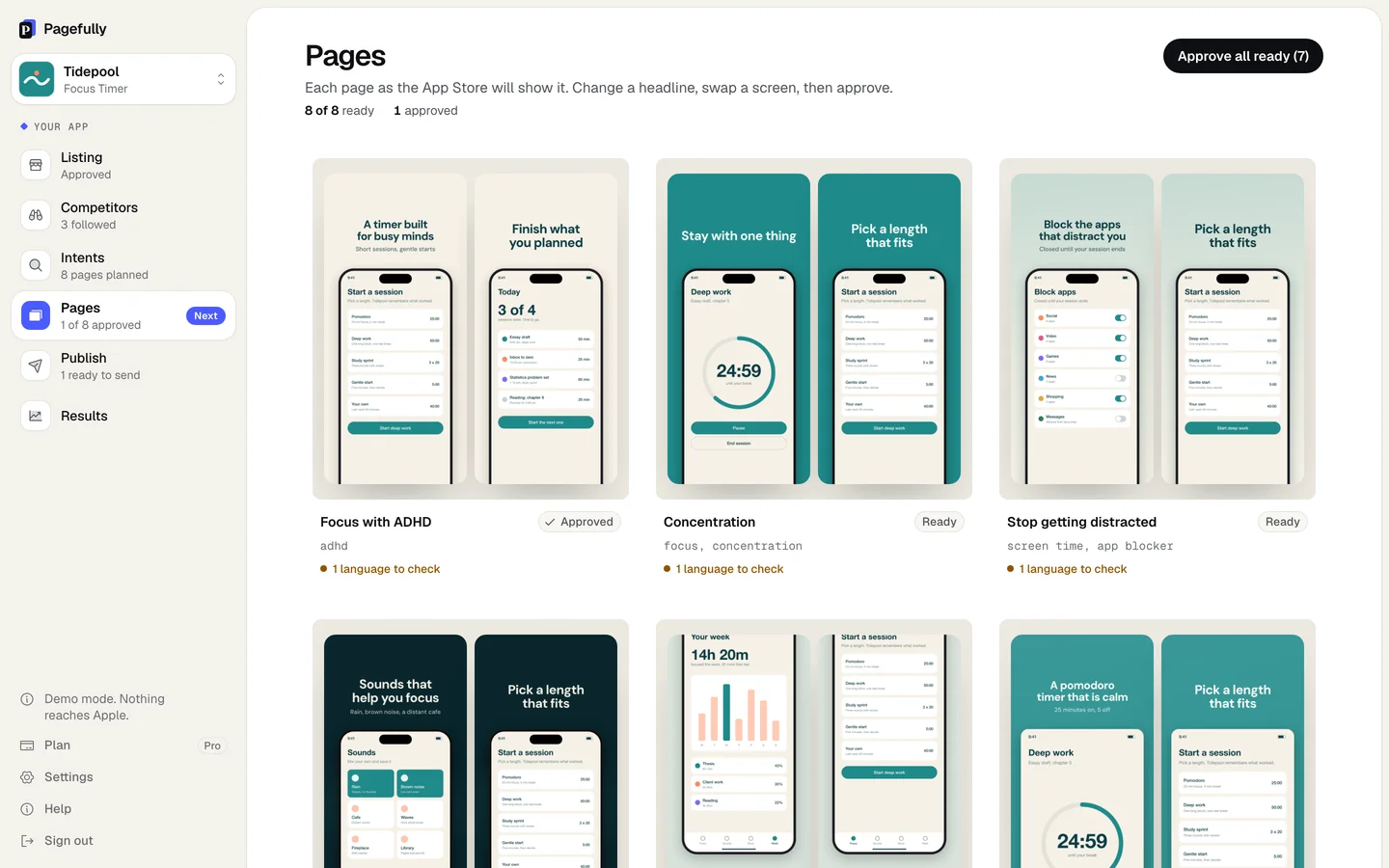
The card at the top shows the app you chose, and the sidebar’s steps and Plan now belong to it.
Plans are per app. One app can be on Free while another is on Pro. Settings, under Apps, lists every app with its bundle id and plan, with See plans, Move to Pro or Plan beside it, plus Refresh listing and Disconnect. Plans explained has what each plan includes.

To add another app, choose Add an app at the foot of the Your apps menu. One app can be added by name without a key; a second app needs an App Store Connect key, which then shows every app on that Apple account. Add an app has the steps.
If something goes wrong
- The menu shows only one app. Choose Add an app. Without a key you can add one app by name, so the next one asks you to Connect App Store Connect. See Add an app.
- An app is missing from Your apps. It was disconnected, or it is on another Apple developer account. Add it again from Add an app. One key covers one account; for a second account, write to hello@pagefully.com.
- The plan is not the one you paid for. Check which app you are in: each app has its own plan. In the sidebar, click Plan to see this app’s plan, and compare it with Settings, under Apps.