Your pages are drawn from the screenshots on your App Store listing, so once a new version carries new screenshots, read the listing again and rebuild the pages that use them.
Before you start
- The new screenshots are on your listing in App Store Connect. The read copies what is there; it cannot see screens you have not uploaded.
- A page already in App Store Connect is locked until you take it back. Take back a sent page first; it stays approved in Pagefully.
- Rebuilds are counted by the month: 50 on Free, 200 on the Pack, 1,000 on Pro. Plan limits has the table.
Steps
- In Settings, under Apps, click Refresh listing next to your app.The same button is on Listing, in the panel Your App Store listing. Nothing is changed at Apple.
- Open Listing and wait for the read to finish.The panel says Reading {app} again and Usually under a minute, with its steps: Reading your listing, Copying your screenshots, Checking for existing custom product pages, Saving what we found, Collecting your public reviews. Your reviews are counted again. What Pagefully understood of your app is kept, with any edits you made; Rewrite replaces it only when you ask.
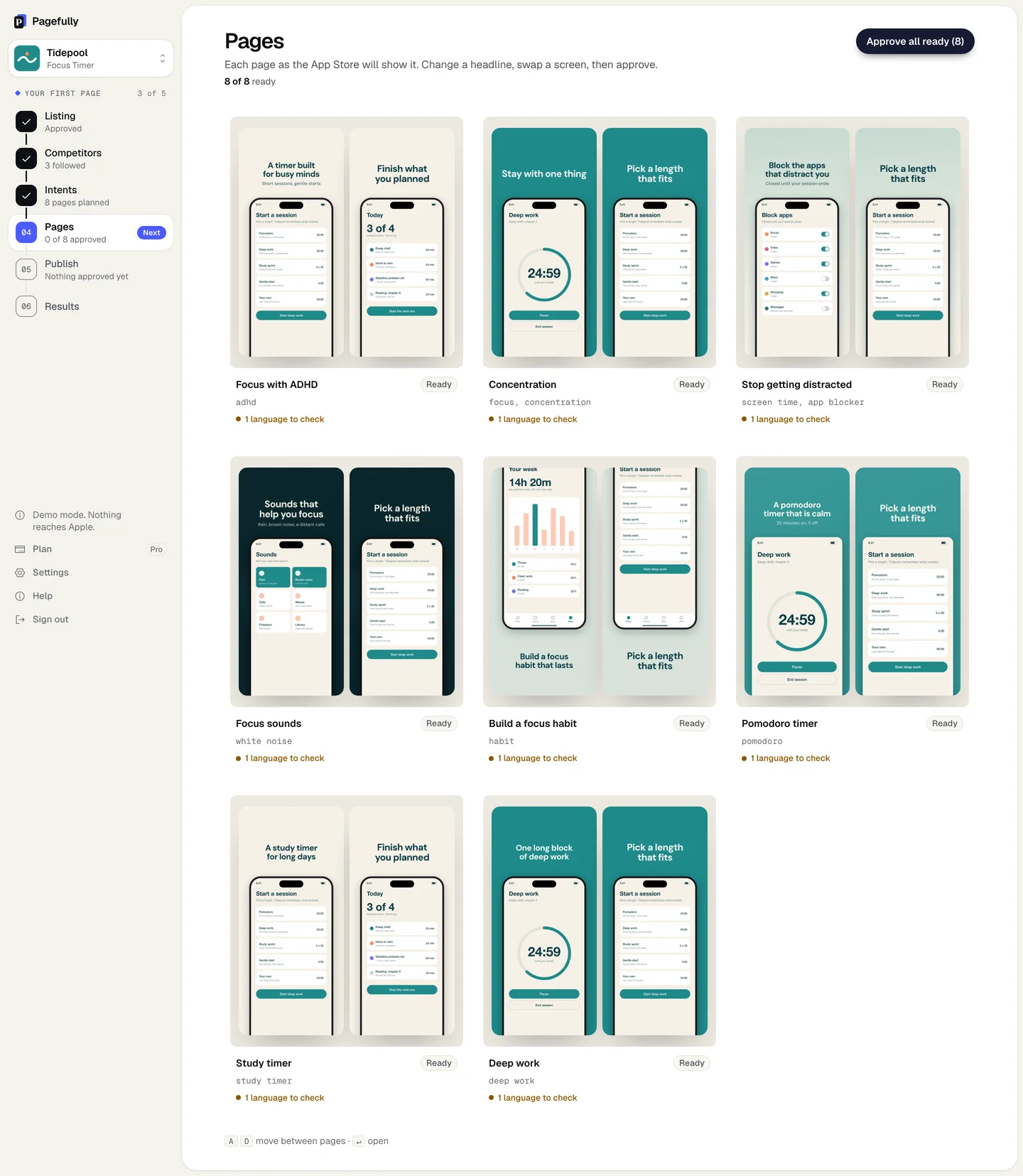
- On Pages, open a page whose screens changed.A page keeps the pictures it was drawn with until you rebuild it. Its screenshots are matched by position, so screenshot 3 on the page is drawn from screenshot 3 of your listing.
- On any screenshot, open Rebuild, choose All, and click Write it again.The sheet Write the whole page again? says what happens: every headline is written again and every screenshot is drawn again from your current screens; headlines you wrote yourself are replaced; it counts as one rebuild. To redraw one screenshot only, choose New headline or Different screenshot on that card instead. Building takes about a minute.
- Look the page over, then click Approve page.Check each device tab and the Checks section. Any edit withdraws approval, so approve after your last change. Edit a page has the tools.
- On Publish, choose the page and click Send to App Store Connect.The sheet says Apple has had this page before, so this is a revision, with how many revisions the page has left. Then submit it for review in App Store Connect, as you did the first time.
The page shows In App Store Connect on Publish, drawn from your new screens. Nothing is submitted for review until you submit it in App Store Connect.

If something goes wrong
- Nothing changed after the refresh. The listing in App Store Connect still carries the old screenshots, or the page has not been rebuilt yet. Check the version in App Store Connect, refresh again, then rebuild the page with All.
- The page cannot be edited. The editor says This page is with Apple and cannot be changed until it comes back from review. On Publish, click Take back. Only a page that has not been submitted for review can be taken back; one in review waits for Apple.
- The page is not offered on Publish. Its row says No revisions left on your plan, and the notice reads You have used this page’s revision. The Pack gives each page 2, and with Pro you revise as often as you like. (on the Pack, You have used this page’s 2 revisions. With Pro you revise as often as you like.). Change your plan, or leave the page as it is at Apple.
- Rebuild is refused. The message is You have used this month’s rebuilds. You can still edit any headline yourself, or change plan for more. Edit words on a screenshot still works and redraws that one picture.