The key is how Pagefully reads your full listing and sends the pages you approve; what it can and cannot do is in What the key can and cannot do.
Before you start
- You are the Account Holder or an Admin in App Store Connect. Apple lets only those roles create keys.
- Your app is in App Store Connect. A key sees only the apps of its team.
- A Pagefully account. Create one if you have not.
Steps
- In App Store Connect, open Users and Access, then click Integrations.The page opens with the App Store Connect API selected.
- Click Team Keys, then Generate API Key.If your team already has a key, click the add button (+) instead.
- Name the key, choose App Manager under Access, and click Generate.The name is for you. App Manager is all Pagefully needs; the role cannot be changed later, only revoked.
- Copy the Issuer ID and the Key ID.The Issuer ID is above the list of keys and is the same for every key of the team. The Key ID is in the new key’s row.
- Click Download API Key and keep the file.Apple lets you download it once. The file is named AuthKey_ followed by the Key ID, ending in .p8.
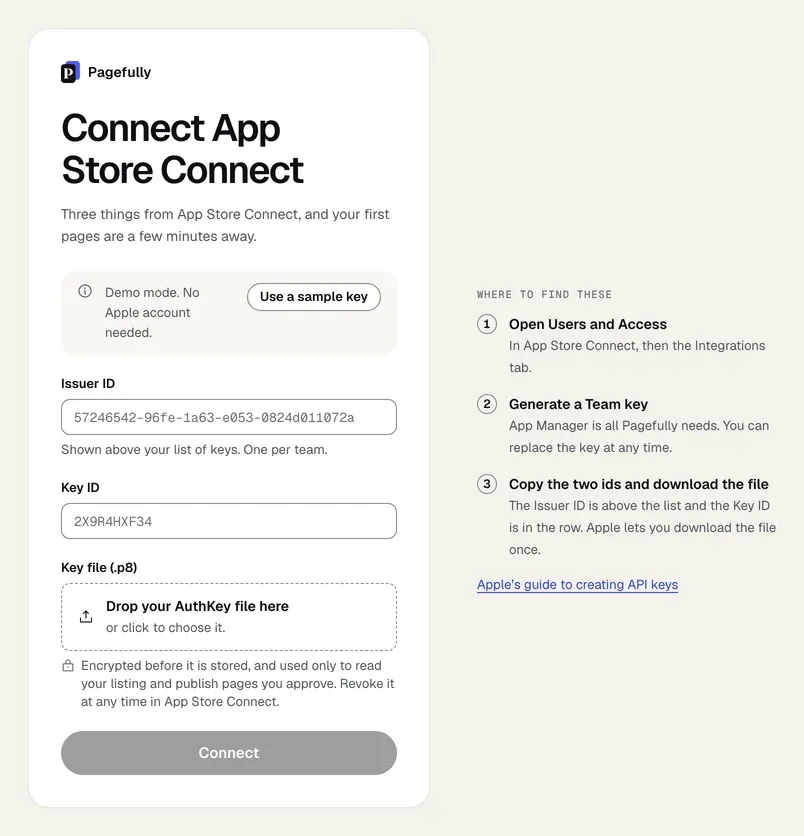
- In Pagefully, click Connect App Store Connect.It is the link under the search on Add your app when you start, and the button under App Store Connect key in Settings later.
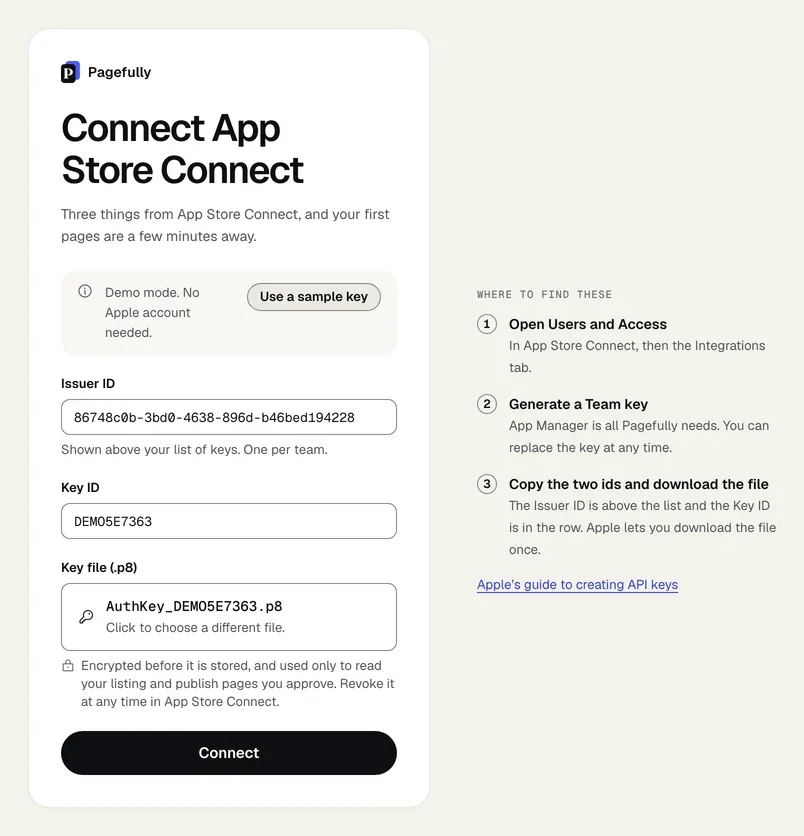
- Paste the Issuer ID and the Key ID.The Key ID is typed in capitals for you.
- Drop the .p8 file on Drop your AuthKey file here.Or click the box to choose it. The file name fills in the Key ID if you left it empty.
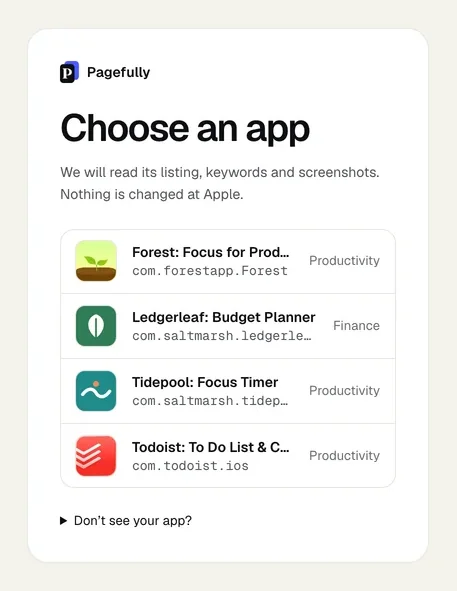
- Click Connect.The button turns on once all three fields pass. A screen called Connecting checks the key with Apple and lists your apps.
- On Choose an app, click your app.A team with one app skips this screen. Pagefully starts reading its listing, keywords and screenshots. Nothing is changed at Apple.
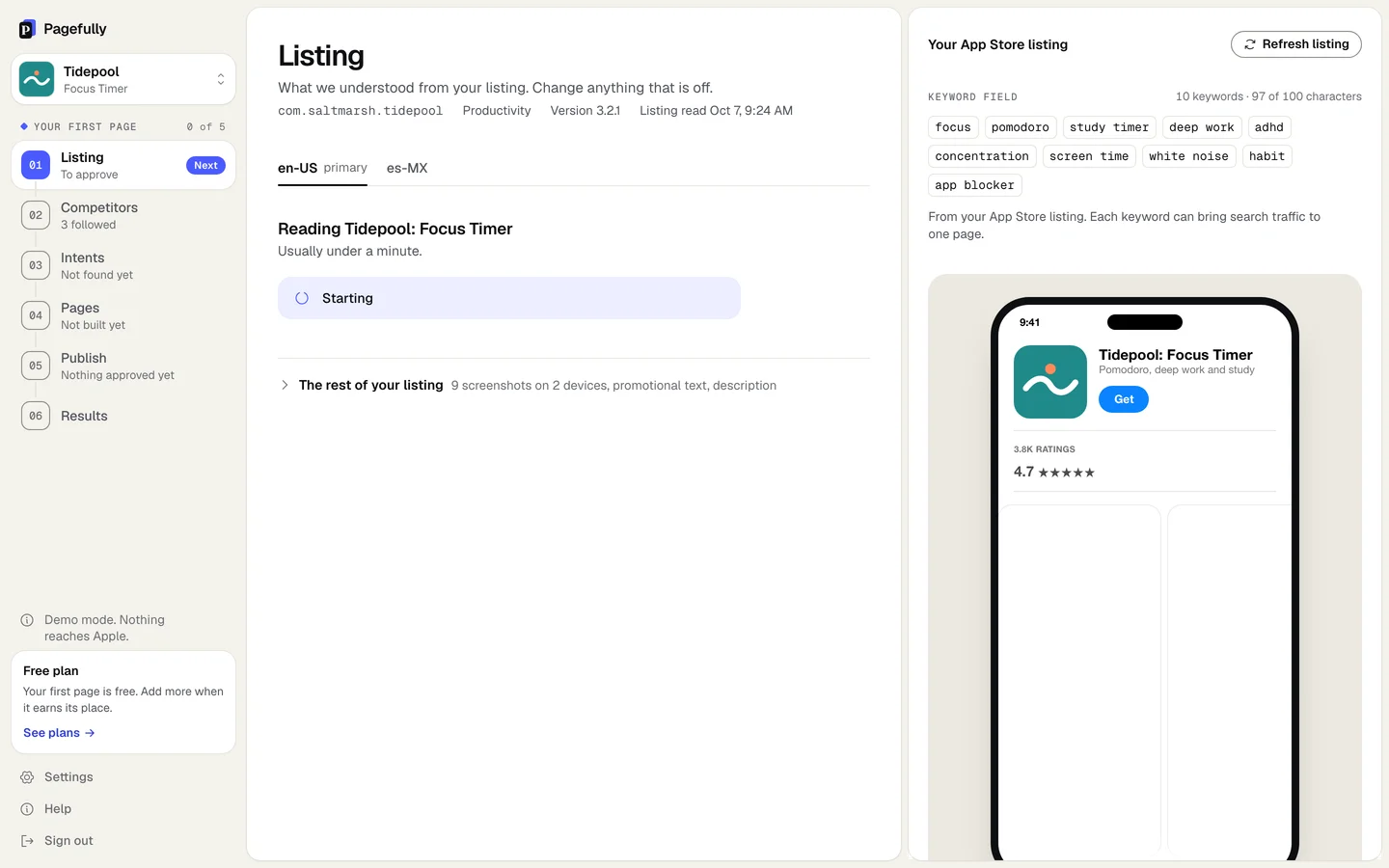
Pagefully opens Listing and shows Reading {your app}. It usually takes under a minute, and the listing appears for you to check and approve. From here, follow the quick start.
If something goes wrong
- “Apple rejected this key. Check it has the App Manager or Admin role and has not been revoked.” Apple would not accept the key. In App Store Connect, under Users and Access, Integrations, check the key is still active and its role. A key cannot be edited; if the role is wrong, generate a new key and connect that one.
- “Apple accepted this key but will not let it read your apps. Check it has the App Manager or Admin role.” The key is real but its role is too small. Generate a new key with App Manager and connect it with Replace in Settings.
- “This key sees no apps. Keys are per team. Is this the right team?” The key belongs to a team with no apps, or to the wrong team. Switch teams in App Store Connect and generate the key there. If your apps are on more than one Apple developer account, write to hello@pagefully.com and we add the second account for you.
- “That file could not be read as an App Store Connect key. Download a new key from App Store Connect and try again.” The file is not a whole .p8 key. Generate a new key, download it, and drop that file. The file starts with
-----BEGIN PRIVATE KEY-----and is a few hundred bytes.