App Store screenshot design by category: colour, phones and backgrounds
Most top apps’ screenshots look alike whatever the category: more often light than dark, with a whole phone, on a gradient or a flat colour. Blue and black, white or grey are the main colour of 55% of all screenshots. A few categories break from that, and the breaks are where a set can stand out in search.
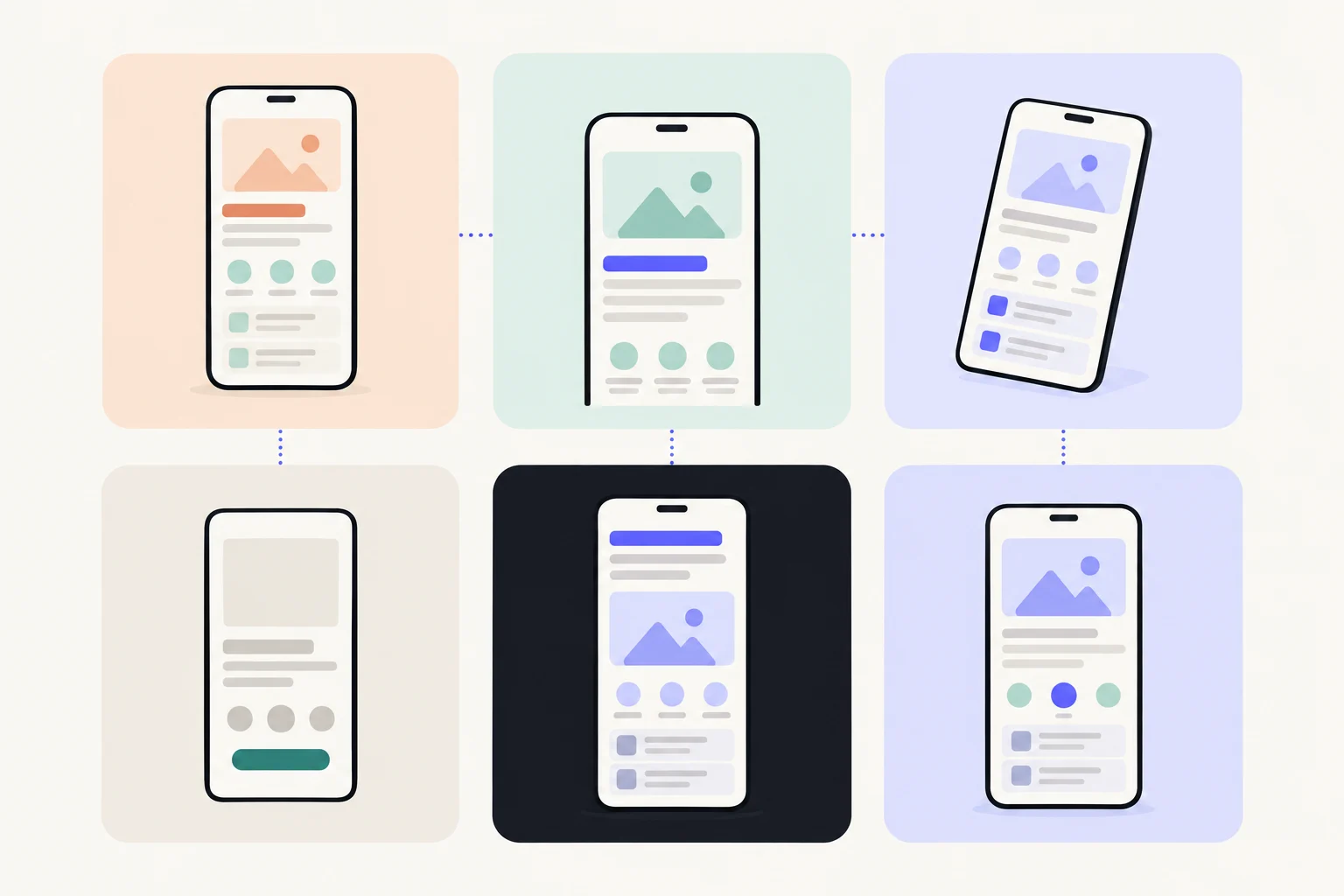
The App Screenshot Index reads every screenshot of the top 100 free apps in 23 US App Store categories, 12,745 screenshots in all, and tags how each one looks. Every share on this page is a share of screenshots, counted the way the Index’s compare page counts them, and every number in a table opens the screenshots behind it. These numbers describe what top-ranked apps do, not what causes installs.
| Screenshots read | 12,745 |
|---|---|
| Mainly blue | 28% |
| Mainly black, white or grey | 27% |
| Light overall / dark overall | 49% / 28% |
| Gradient / solid background | 45% / 32% |
| Whole phone shown | 55% |
| A word in a different colour | 23% |
What colours does each category use?
Blue leads in 11 of 23 categories, black, white or grey in 9, and orange in 3. A screenshot’s main colour is the one colour family the Index reads as dominant in the picture, and black, white or grey counts as a family of its own. Dark and light are a picture’s overall brightness; the rest are in between. The third column is how often the picture’s main colour is the app icon’s own.
Brightness splits the categories more than any one colour does: dark ranges 63 points between categories, and no colour family more than 46. Entertainment is the darkest, 69% of its screenshots dark, against 6% in Food & Drink. Matching the icon is common everywhere, from 22% of screenshots in Photo & Video to 51% in Education: a set in the icon’s colour is a common way to look like yourself.
What sits behind the screen?
A gradient, more often than not, or one flat colour. Across every category 45% of screenshots sit on a gradient and 32% on a solid colour. Photographs are behind 11% and patterns 7%, and in 5% there is no background because the app’s screen fills the picture.
The highest photo background is Weather, at 30%; the highest solid is Food & Drink, at 48%; the highest gradient is Entertainment, at 65%. The app itself as the background is 5% overall and highest in Games (29%).
How is the phone shown?
Whole, in 55% of screenshots. A phone cut off at the foot, the screen running off the bottom edge, is next at 17%. The bare screen with no phone round it is 15%, an angled phone 4%, and a picture with no app screen at all 4%.
| Category | Whole phone | Cut off at foot | Angled | Bare screen | No screen |
|---|---|---|---|---|---|
| Business | 51% | 21% | 5% | 12% | 4% |
| Developer Tools | 68% | 10% | 2% | 14% | 1% |
| Education | 52% | 15% | 4% | 18% | 7% |
| Entertainment | 62% | 12% | 6% | 12% | 3% |
| Finance | 42% | 33% | 5% | 7% | 6% |
| Food & Drink | 47% | 23% | 10% | 8% | 5% |
| Games | 15% | 2% | 1% | 76% | 4% |
| Graphics & Design | 62% | 14% | 4% | 13% | 4% |
| Health & Fitness | 53% | 25% | 3% | 10% | 4% |
| Lifestyle | 58% | 18% | 4% | 10% | 5% |
| Medical | 58% | 16% | 6% | 12% | 5% |
| Music | 59% | 17% | 6% | 9% | 3% |
| Navigation | 64% | 17% | 5% | 6% | 2% |
| News | 59% | 15% | 3% | 16% | 2% |
| Photo & Video | 60% | 10% | 1% | 23% | 2% |
| Productivity | 59% | 22% | 3% | 7% | 5% |
| Reference | 57% | 21% | 3% | 9% | 4% |
| Shopping | 59% | 18% | 5% | 11% | 5% |
| Social Networking | 61% | 17% | 7% | 7% | 3% |
| Sports | 59% | 15% | 5% | 11% | 5% |
| Travel | 57% | 16% | 5% | 12% | 3% |
| Utilities | 59% | 18% | 5% | 8% | 4% |
| Weather | 56% | 11% | 4% | 25% | 1% |
| All categories | 55% | 17% | 4% | 15% | 4% |
Games breaks from every other category here: 76% of its screenshots are a bare screen, and 15% show the whole phone. No other category goes past 25% bare screens. If you leave the screen out of a picture, keep the app in the rest of the set: Apple asks that screenshots show the app in use, not merely title art, a login page or a splash screen.2
Illustration, photograph or person, and what type?
Photographs appear in 48% of screenshots, illustration in 36% and a person in 26%; these overlap, since a photograph of a person counts as both. Type is plainer: a sans serif headline is the rule, with serif in 7%, rounded type in 9% and condensed display type in 2%. The one type habit that is common is a word picked out in a different colour, in 23%.
| Category | Illustration | Photograph | A person | Serif | Rounded | Condensed | Highlight word |
|---|---|---|---|---|---|---|---|
| Business | 29% | 39% | 26% | 4% | 2% | 2% | 20% |
| Developer Tools | 22% | 24% | 5% | 1% | 7% | 2% | 17% |
| Education | 56% | 31% | 28% | 7% | 17% | 0% | 29% |
| Entertainment | 36% | 62% | 49% | 4% | 4% | 2% | 29% |
| Finance | 39% | 23% | 10% | 9% | 5% | 1% | 27% |
| Food & Drink | 31% | 74% | 10% | 12% | 14% | 6% | 28% |
| Games | 88% | 9% | 27% | 2% | 41% | 5% | 24% |
| Graphics & Design | 50% | 62% | 34% | 7% | 18% | 4% | 27% |
| Health & Fitness | 39% | 40% | 26% | 8% | 7% | 2% | 21% |
| Lifestyle | 29% | 59% | 36% | 9% | 8% | 1% | 19% |
| Medical | 39% | 31% | 22% | 11% | 5% | 1% | 17% |
| Music | 34% | 49% | 27% | 5% | 9% | 3% | 23% |
| Navigation | 39% | 32% | 8% | 0% | 8% | 3% | 23% |
| News | 25% | 60% | 30% | 15% | 3% | 0% | 19% |
| Photo & Video | 17% | 86% | 72% | 6% | 8% | 0% | 21% |
| Productivity | 32% | 38% | 22% | 8% | 4% | 0% | 26% |
| Reference | 33% | 48% | 18% | 15% | 5% | 1% | 30% |
| Shopping | 21% | 71% | 31% | 12% | 6% | 2% | 24% |
| Social Networking | 34% | 64% | 54% | 4% | 13% | 1% | 21% |
| Sports | 27% | 51% | 27% | 3% | 3% | 11% | 28% |
| Travel | 31% | 60% | 22% | 10% | 8% | 2% | 12% |
| Utilities | 43% | 35% | 16% | 4% | 5% | 1% | 27% |
| Weather | 21% | 50% | 6% | 2% | 6% | 0% | 14% |
| All categories | 36% | 48% | 26% | 7% | 9% | 2% | 23% |
People are most common in Photo & Video (72%) and rarest in Developer Tools (5%). Illustration peaks in Games (88%), and serif type in News (15%).
Where do categories agree, and where does one break away?
We call it a break when one category sits 20 points or more from the share across all categories, and at least 1.5 times as far as the next furthest; and agreement when every category is within 15 points of every other. 6 tactics break that way:
| Tactic | All categories | The category | Its share | Points from the pool | Next furthest, points |
|---|---|---|---|---|---|
| No phone, bare screen | 15% | Games | 76% | 61 | 10 |
| Illustration or mascot | 36% | Games | 88% | 52 | 20 |
| A person in the picture | 26% | Photo & Video | 72% | 46 | 28 |
| Whole phone shown | 55% | Games | 15% | 40 | 13 |
| Rounded headline type | 9% | Games | 41% | 32 | 9 |
| The app itself is the background | 5% | Games | 29% | 24 | 13 |
Where they agree is just as telling: no app screen at all (1% to 7%), phone at an angle (1% to 10%), pattern or texture (3% to 14%), condensed or display type (0% to 11%) and serif headline (0% to 15%) hardly change from one category to the next. Each is rare in every category, so none of them is any category’s habit, and each would look unusual wherever you used it.
How do you stand out in your category’s search results?
By breaking the convention your neighbours share, on purpose, in one way. In search, your screenshots sit beside the other apps that rank for the same words. If most of them are light with a whole phone, a dark set or a bare screen is the one that looks different. A few rules keep that useful:
- Find your category’s default.Read its row in the tables above, or open its page in the Index and look at the wall. Its main colour, its brightness and its phone are what a searcher has already seen.
- Change one thing, the one that shows at thumbnail size.Brightness and colour can be seen at search-result size before a word is read. A serif or rounded headline is far harder to spot that small.
- Keep the headline readable.Standing out is no use if the words cannot be read. Keep strong contrast between the words and the background, whatever colour you pick.
- Check the search you care about, not the chart.The apps beside you in one search are not always your category’s top 100. Search your own keywords on a phone and look at what comes up.
- Test the change.A product page optimization test tells you whether standing out helped, which the Index cannot.
How do you keep a custom product page in your own design?
Change the content, keep the look. A custom product page can have its own screenshots, app previews and promotional text, while your app’s name, icon and subtitle stay the same.3 A visitor who arrives from an ad or a search should see a page made for them that is still plainly your app: the same colours, the same type and the same phone framing as your main page, with different screens and words. Apple also asks that screenshots accurately reflect the app’s core experience,1 so the screens on a page for one audience should still be your real app.
In practice, keep your background style and colour family from page to page, change the first screenshot’s screen and headline for the visitor, and leave the category’s conventions where they are on your main page if they already work for you. For which pages to make, see the complete guide to custom product pages, and for what goes in the first screenshot, what the top apps put in their first screenshot. The Index’s data page has every tactic across every category.
Sources
Questions people ask
What colour are most App Store screenshots?
Should App Store screenshots be dark or light?
Do top apps show the whole phone in their screenshots?
Should a custom product page look different from my main page?
See your first page.
Look up your app. In about a minute you see three pages planned for it and one designed on your own screenshots, before you sign up.